Category:Scraping BasicsView as Markdown
What Is a HAR File? How to Create One and Find a Site's Hidden API

Software Engineer


A HAR file (HTTP Archive) is a JSON file that logs every request a browser made while it was recording: each URL, method, header, cookie and timing, and usually the response body too. You get one by exporting it from the Network panel in DevTools, or by recording it from a script with Playwright.
Support teams ask for HAR files because a HAR shows exactly what your browser sent and got back. Scrapers want them for a different reason. The HAR shows the API calls a page makes in the background, and those calls often return the data you came for as clean JSON.
This guide records a real HAR from Steam's store search with Playwright, reads it in Python, finds the JSON endpoint behind the infinite scroll, and replays it with requests and through Scrape.do. Every script ran against the live site, and the outputs below are copied from those runs.
What Is a HAR File?
HAR stands for HTTP Archive. The whole file is one JSON object with log at the top, and log.entries holds one object per request, in the order the browser sent them.
The format version is 1.2. Chrome, Edge, Firefox and Safari all export it, and so does Playwright: in the file it wrote for this guide, log.version is "1.2" and log.creator.name is "Playwright".
People open HAR files for three jobs:
- Support tickets. "Send us a HAR file" is the standard ask when a web app misbehaves. Many of Google's top results for "har file" are help-center pages explaining that request.
- Performance work. Each entry has timings (DNS, connect, TLS, waiting, download), so you can see which requests held the page up.
- Scraping. The HAR lists the JSON calls behind the page. Call the same endpoint yourself and you skip the HTML entirely.
Here is one real entry from the Steam recording, trimmed to the parts that matter. Cookie values are replaced with [REDACTED], and the browser version with ...:
{
  "request": {
    "method": "GET",
    "url": "https://store.steampowered.com/search/results/?query&start=50&count=50&dynamic_data=&sort_by=_ASC&term=strategy&hwtype=0&supportedlang=english&snr=1_7_7_151_7&infinite=1",
    "headers": [
      { "name": "Cookie", "value": "[REDACTED]" },
      { "name": "Referer", "value": "https://store.steampowered.com/search/?term=strategy" },
      { "name": "User-Agent", "value": "Mozilla/5.0 (Windows NT 10.0; Win64; x64) AppleWebKit/537.36 (KHTML, like Gecko) HeadlessChrome/... Safari/537.36" },
      { "name": "X-Requested-With", "value": "XMLHttpRequest" }
    ],
    "cookies": [
      { "name": "steamCountry", "value": "[REDACTED]" },
      { "name": "sessionid", "value": "[REDACTED]" }
    ]
  },
  "response": {
    "status": 200,
    "content": { "mimeType": "application/json; charset=utf-8", "text": "{\"success\":1,\"results_html\":\"...\"}" }
  }
}
Two details in that entry matter later. The User-Agent says HeadlessChrome, so a HAR recorded by a headless browser tells the site exactly that. And the sessionid cookie is in the file in plain text. A HAR you record with a script is not sanitized.
For a field-by-field tour of request, response, timings and pageref, open the file in our free HAR analyzer. It runs in your browser and lays out every part of each entry.
How Do I Create a HAR File?
There are two ways to get one: export it by hand from DevTools, or record it from a script. The first is what support teams ask for. The second is what you want when you need the same recording again tomorrow, or a hundred of them.
How Do I Create a HAR File in Chrome?
- Open the page, then open DevTools with F12 or Ctrl+Shift+I (Cmd+Option+I on a Mac).
- Go to the Network panel. Tick Preserve log so redirects and reloads don't wipe the list, and tick Disable cache so the page fetches everything fresh while DevTools is open.
- Reload the page, then do the thing you want to capture: search, scroll, open page 2.
- Click the Fetch/XHR filter to check that the calls you care about showed up, then switch back to All.
- Click Export HAR (sanitized), the download arrow in the Network panel's action bar.
The sanitized export leaves out Cookie, Set-Cookie and Authorization. That's the right file for a support ticket. If you need those headers to replay a logged-in call, Chrome has a setting for a full export, and the HAR analyzer page lists it along with the steps for Edge, Firefox and Safari.
How Do I Create a HAR File With Playwright?
Playwright records a HAR for every page in a browser context when you pass record_har_path. This script opens Steam's search for "strategy", scrolls twice so the infinite scroll loads more results, and saves everything to steam.har:
from playwright.sync_api import sync_playwright

with sync_playwright() as p:
    browser = p.chromium.launch(channel="chrome", headless=True)
    context = browser.new_context(record_har_path="steam.har")
    page = context.new_page()
    page.goto("https://store.steampowered.com/search/?term=strategy", wait_until="networkidle")
    for _ in range(2):  # scroll twice so the infinite scroll fires its API calls
        page.mouse.wheel(0, 20000)
        page.wait_for_timeout(1500)
    context.close()  # the HAR file is written when the context closes
    browser.close()
In headless mode, the two scrolls produced a file of several megabytes holding a couple of hundred requests. channel="chrome" uses the Chrome installed on your machine; run playwright install chrome if you don't have it.
The context.close() line matters. Playwright writes the HAR when the context closes, so close the context yourself, before the browser.
Most of that weight is images. If you already know which calls you want, record only those:
context = browser.new_context(
    record_har_path="steam-api.har",
    record_har_url_filter="**/search/results/**",  # a glob or a regex
    record_har_content="embed",  # "omit" drops the bodies, "attach" saves them as separate files
)
Same page, same two scrolls: the file holds only the search calls and is a small fraction of the full recording's size. Playwright also has a record_har_mode="minimal" option. According to its docs, it records only what replaying from the HAR needs and leaves out sizes, timings, pages, cookies and security details. It's meant for tests that replay the file with route_from_har.
In Node.js the option is recordHar, and it writes the same filtered file:
const context = await browser.newContext({
  recordHar: { path: 'steam-api.har', urlFilter: '**/search/results/**' },
});
For more on driving the browser itself (waits, clicks, scrolling), see our Playwright web scraping guide.
How Do I Open and Read a HAR File?
A HAR is plain JSON, so any text editor opens it. For a file that size, a viewer is easier: the HAR analyzer gives you a sortable request table with filters, or you can import the file back into the Network panel of any browser.
To search a HAR from code, you need nothing beyond Python's standard library. This script counts the requests by type, then lists the JSON responses, biggest first:
import json
from collections import Counter
from urllib.parse import urlsplit

with open("steam.har", encoding="utf-8") as f:
    har = json.load(f)

entries = har["log"]["entries"]
print(len(entries), "requests")
print(Counter(e["response"]["content"].get("mimeType", "").split(";")[0] for e in entries).most_common())

api = [e for e in entries if "json" in e["response"]["content"].get("mimeType", "")]
api.sort(key=lambda e: e["response"]["content"].get("size", 0), reverse=True)
for e in api:
    url = urlsplit(e["request"]["url"])
    size = e["response"]["content"].get("size", 0)
    print(e["request"]["method"], e["response"]["status"], f"{size:,}", url.netloc + url.path)
On the Steam recording, images and scripts made up most of the list. Only a handful of responses were JSON, and the largest of them were calls to store.steampowered.com/search/results/.
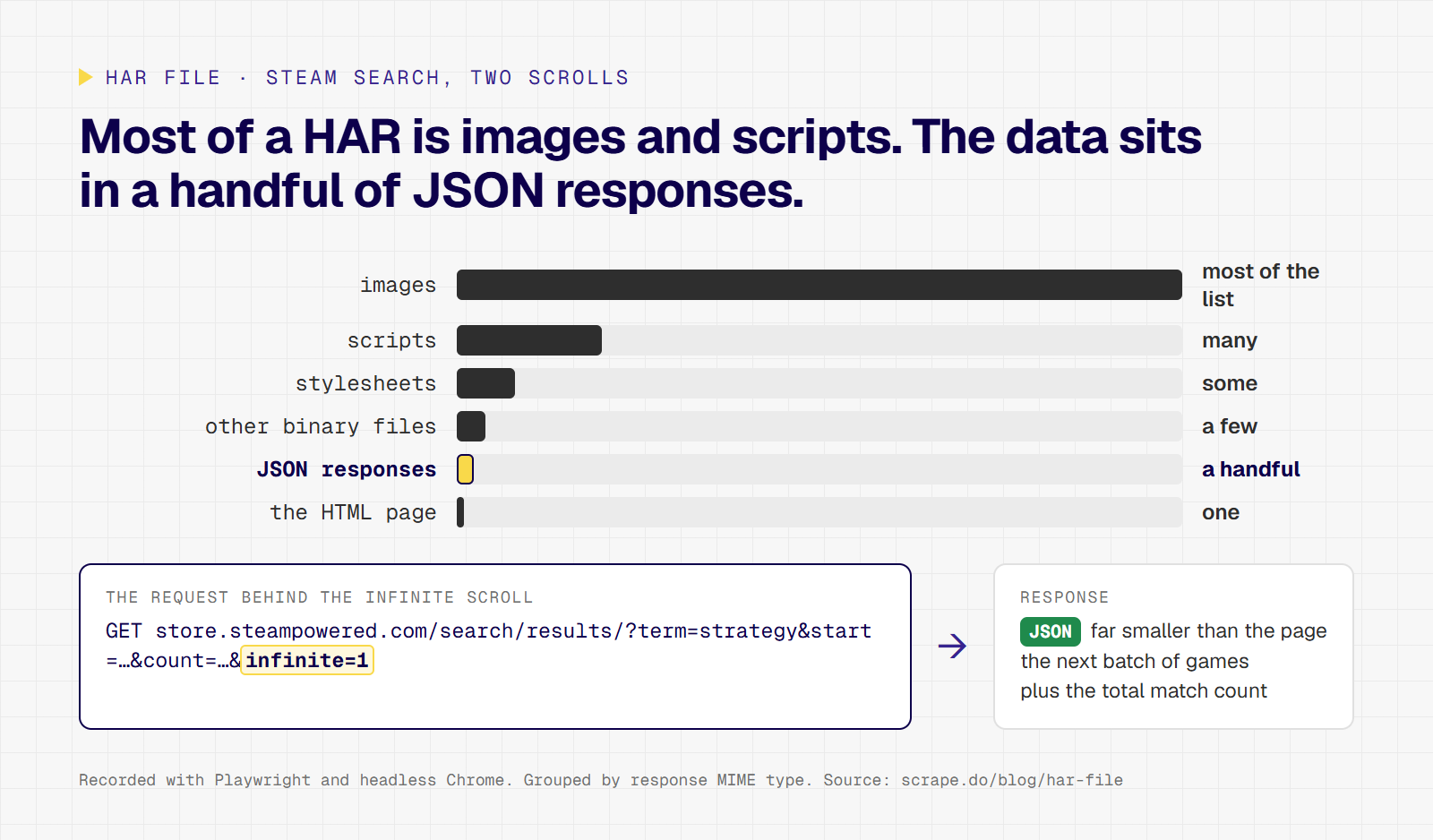
Filtering by MIME type is the fastest first cut. Chrome's own exports also carry a _resourceType field (fetch, xhr, script) that you can filter on, but Playwright's HAR doesn't, and the MIME type works for both.
How Do I Find a Hidden API in a HAR File?
Only a handful of the requests returned JSON, and the large ones are the same endpoint with a different start. That's the infinite scroll: every time you reach the bottom of the list, the page asks /search/results/ for the next 50 games.
To confirm you found the data and not a tracking call, open the response and look for something you saw on the page. Then read the query string, because that's where the controls are:
import json

with open("steam.har", encoding="utf-8") as f:
    entries = json.load(f)["log"]["entries"]

call = next(e for e in entries if "/search/results/" in e["request"]["url"])
print({q["name"]: q["value"] for q in call["request"]["queryString"]})
body = json.loads(call["response"]["content"]["text"])
print({k: (v if not isinstance(v, str) else f"{len(v):,} chars") for k, v in body.items()}){'query': '', 'start': '50', 'count': '50', 'dynamic_data': '', 'sort_by': '_ASC', 'term': 'strategy', 'hwtype': '0', 'supportedlang': 'english', 'snr': '1_7_7_151_7', 'infinite': '1'}
{'success': 1, 'results_html': '... chars', 'total_count': ..., 'start': 50}So the endpoint takes a search term, an offset and a page size, and answers with the total number of matches plus the next batch of results. The results come as an HTML fragment inside the JSON (results_html), which is common for older sites. It still beats the full page: for the same 50 games, the JSON response is far smaller than the HTML page.
Before writing the scraper, test which parameters actually matter. Start from a bare URL with only the ones you understand, then add or change one at a time and compare the results:
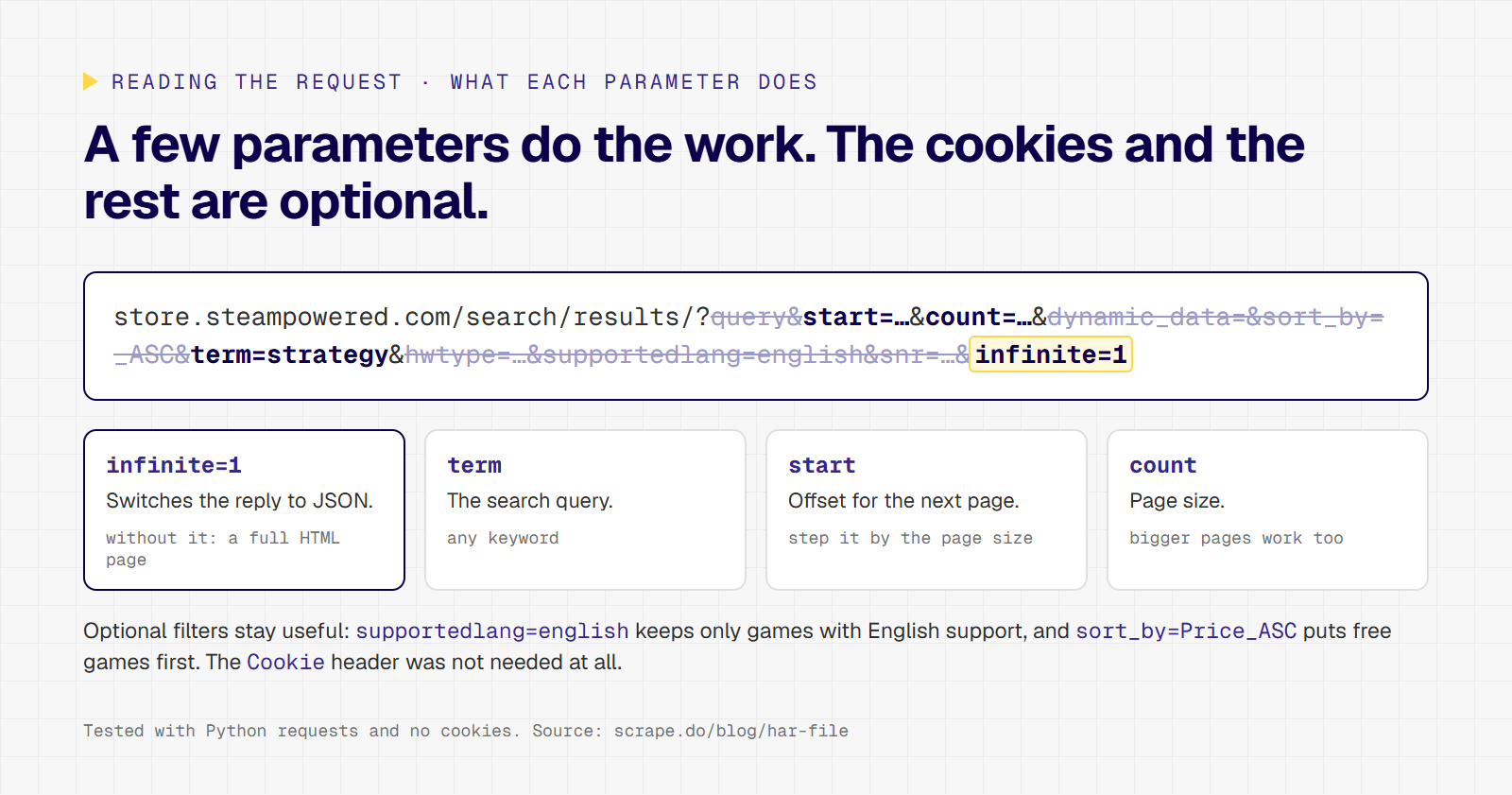
| Change | Result |
|---|---|
Only term, start, count and infinite, no cookies |
JSON with 50 games and the total match count |
Add supportedlang=english |
A smaller total, the same one the browser showed |
Remove infinite=1 |
An HTML page instead of JSON |
count=100 |
100 games in one response |
sort_by=Price_ASC |
Free games first |
How Do I Replay a HAR Request in Python?
Start with the bare URL: no cookies, no copied headers, the default requests User-Agent. Add things back only if the bare call fails. Here, it didn't:
import requests
from bs4 import BeautifulSoup

API = "https://store.steampowered.com/search/results/"

def parse(data):
    soup = BeautifulSoup(data["results_html"], "html.parser")
    games = []
    for row in soup.select("a.search_result_row"):
        price = row.select_one(".discount_final_price")
        games.append({
            "appid": row["data-ds-appid"],
            "title": row.select_one(".title").get_text(strip=True),
            "price": price.get_text(strip=True) if price else None,
        })
    return games

params = {"term": "strategy", "start": 0, "count": 50, "infinite": 1}
r = requests.get(API, params=params, timeout=30)
data = r.json()
games = parse(data)
print(r.status_code, data["total_count"], len(games))
print(games[:3])
It prints the status code, the total match count and the number of parsed games, then the first three games, each with its app ID, title and price.
Paging is now a number. Step start by 50 and keep one second between calls:
import time

all_games = []
for start in (0, 50, 100):
    params = {"term": "strategy", "start": start, "count": 50, "infinite": 1}
    all_games += parse(requests.get(API, params=params, timeout=30).json())
    time.sleep(1)  # one request a second

print(len(all_games), "games,", len({g["appid"] for g in all_games}), "unique")150 games, 150 uniqueThe store search endpoint is public: every call above ran with no login and no cookies.
Notice the currency. Steam picks the store currency from where the request comes from, so the same call returns pounds from a UK IP and dollars from a US one. That matters as soon as you need prices for a specific market.
How Do I Send the Same Request Through Scrape.do?
Two things change when this becomes a real job. You want prices for a chosen country, not wherever your server happens to sit. And one IP polling the same endpoint on a schedule is the traffic pattern that gets rate limited.
The Scrape.do API takes the same target URL, sends it through rotating proxies, and lets you pick the country with geoCode. The parse() function from above stays the same:
from urllib.parse import urlencode

target = API + "?" + urlencode({"term": "strategy", "start": 0, "count": 50, "infinite": 1})

for geo in ("us", "de"):
    r = requests.get(
        "https://api.scrape.do/",
        params={"token": "<your_token>", "url": target, "geoCode": geo},
        timeout=90,
    )
    games = parse(r.json())
    print(geo, r.status_code, r.headers.get("Scrape.do-Request-Cost"), games[0]["title"], games[0]["price"])
The first game comes back priced in US dollars for geoCode=us and in euros for geoCode=de. The Scrape.do-Request-Cost response header shows what each call cost. The endpoint returns JSON already, so the call needs no render=true and no browser. To run it yourself, create a free Scrape.do account; your token is on the dashboard.
For another full build on the same idea, our IKEA scraping guide collects search results, whole categories and stock status from IKEA's internal JSON endpoints.
Why Does My Replayed Request Fail?
Steam's search endpoint answered a bare requests call. Plenty of endpoints won't. If your replay gets a 403, a challenge page or empty JSON, check these in order:
- The session. Some endpoints only answer with the cookies from the page visit, and those expire. See how cookie handling works in scraping.
- A token in the request. Look for
x-headers, aBearertoken or a signed query parameter in the HAR entry. Copy it, and expect it to expire. - The request body. GraphQL and many search APIs use POST, and the JSON body (
postDatain the HAR) has to match. Our DoorDash guide replays a GraphQL query copied from DevTools. - Who's asking. The IP's reputation and the client's TLS fingerprint both count, and a Python client can't present a browser's fingerprint on its own. Our guide to 403 errors in Python requests walks through each fix.
The HAR analyzer copies any request from a HAR as cURL, Python or a ready-made Scrape.do call, so you can test all of these without retyping headers.
Is It Safe to Share a HAR File?
A HAR holds whatever your browser sent: session cookies, Authorization headers, API keys in URLs, and every response body, including pages with your account details. Treat it like a logged-in browser.
- Chrome's default Export HAR (sanitized) leaves out cookies and auth headers. Use it for support tickets.
- A HAR recorded with Playwright is not sanitized. The Steam recording above held the
sessionidcookie in plain text. - To clean a file you already have, open it in the HAR analyzer and use Sanitize and download. It redacts cookies, tokens and secret-looking fields, and never uploads the file.
HAR File FAQ
What Can You Open a HAR File In?
Any text editor opens it, since it's JSON. For a readable request table, import it into your browser's DevTools Network panel or drop it on a HAR viewer.
Can I Create a HAR File Without DevTools?
Yes. Playwright writes one from a script with record_har_path in Python or recordHar in Node.js, as shown above. That's the way to go when you need the same capture on a schedule.
Why Is My HAR File So Big?
It stores the response bodies, images included. Two scrolls of Steam's search results already made a file of several megabytes. Record with a URL filter, or with record_har_content="omit", when you only need the request list.
Is a HAR File the Same as a Hidden API?
No. The HAR is the recording; the hidden API is one of the requests inside it. The HAR is how you find the endpoint, its parameters and the headers it needs, and after that your scraper calls the endpoint directly.
Software Engineer