Category:Scraping Use CasesView as Markdown
Complete X/Twitter Scraping Guide for 2026: Tweets, Profile Info, Trending Topics

Web Scraping Expert


Is the X API too expensive, or are you concerned they may become even more costly in the future or restrict access to essential data fields? Scraping Twitter is the practical alternative! Still, you may have already tried and been blocked by X’s anti-scraping measures…
In this detailed tutorial, you will learn everything you need to build an effective, scalable, production-ready Twitter scraper. This will be able to automatically retrieve Tweets, X profile information, and trending topics.
Follow the instructions below and become a Twitter scraping champion!
Why Scrape Twitter When There Is an Official API?
X comes with official APIs to access posts, users, Spaces, lists, trends, and media. However, usage is constrained by rate limits. Also, pricing follows a pay-per-use structure, with a lack of flat-rate subscription options. That can make large-scale Twitter data collection quite expensive…
In addition, API access is not fully stable or future-proof. X can modify response structures or remove specific data fields without notice. More importantly, it may also place relevant data behind paywalls, further limiting what can be accessed.
Compared to the X API, Twitter scraping offers greater flexibility and scalability. It enables access to all publicly visible data at a lower cost and without strict rate limits.
Compared to the official APIs, web scraping provides more control over what is collected and how it is structured. That makes it a more adaptable alternative in several real-world use cases.
Data You Can Retrieve Via Twitter Scraping
The main data that you can retrieve from Twitter via web scraping is:
- Tweets: Post text, publication timestamp, engagement metrics (likes, replies, reposts, etc.), media, embedded links, author metadata, and more.
- Profile information: Name, handle, bio, location, profile and header images, verification status, follower/following counts, join date, etc.
- Trending topics: Current trending hashtags and topics, along with contextual labels like region or category.
Main Challenges of Scraping X/Twitter
To keep web scraping legal and ethical, you should only target publicly available information. As a rule of thumb, avoid accessing any data behind a login wall.
Now, one of the first challenges in Twitter scraping is its notoriously aggressive login wall practices. If you visit X in a browser while not logged in and try to interact with page elements, most actions will trigger a login modal:
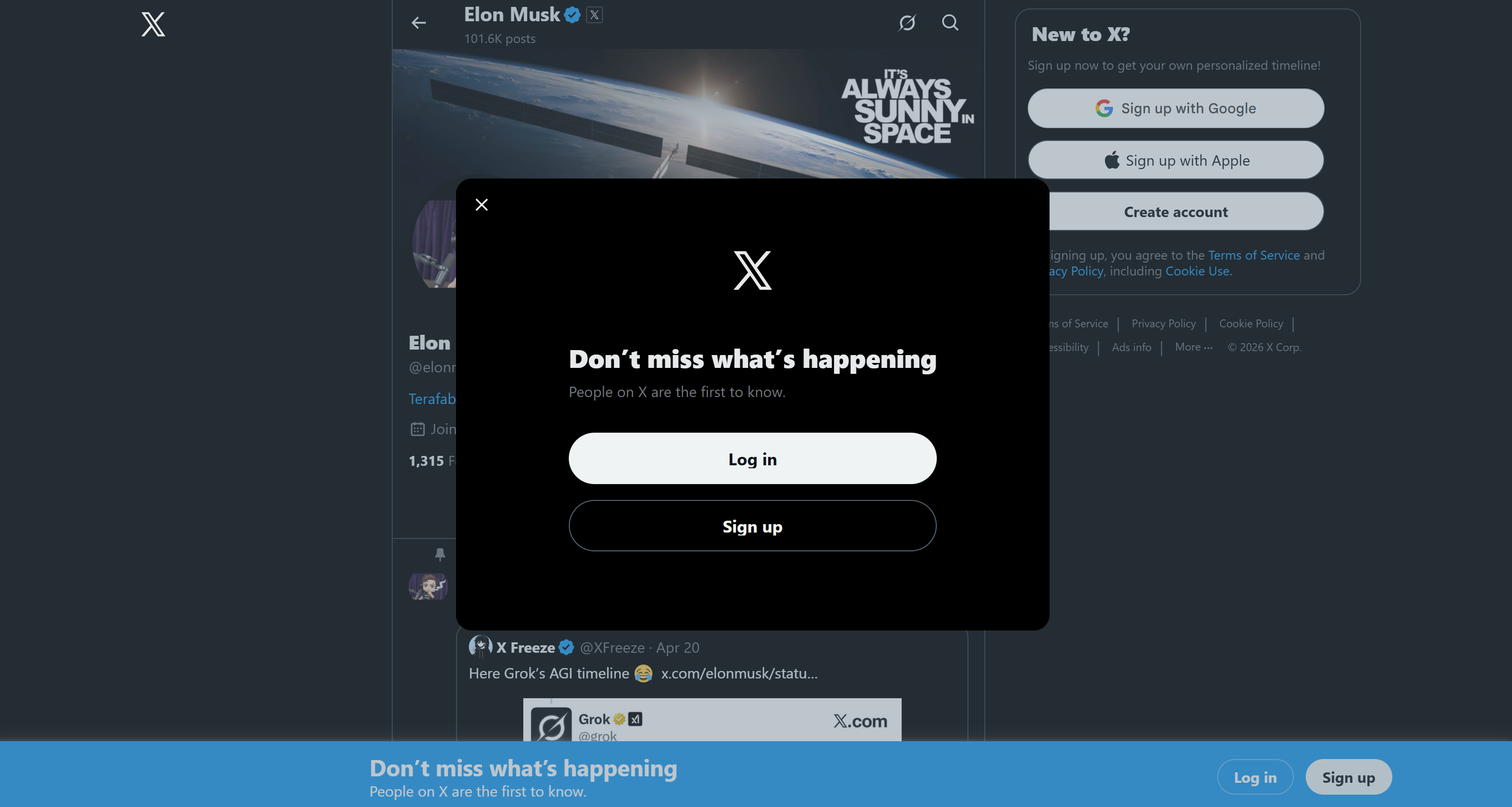 This significantly limits the amount of publicly accessible Twitter information and, consequently, what can be scraped directly from the site.
However, the main challenge is actually X’s anti-scraping mechanisms. These include IP blocks for excessive requests, as well as heavy reliance on JavaScript rendering. Try accessing Twitter/X through a simple HTTP client, and you will encounter an error page like this:
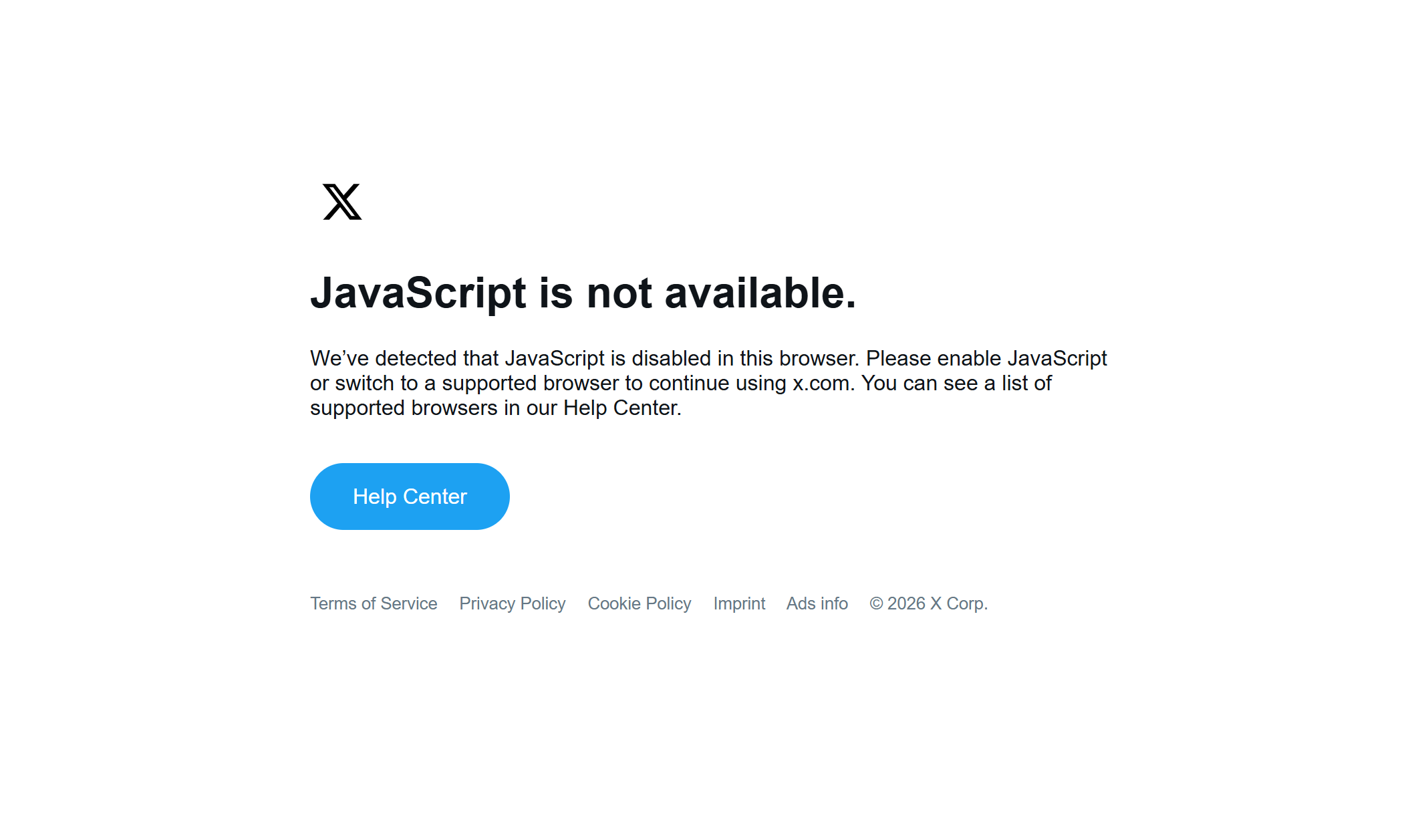 These protections are designed to block automated bots and scraping scripts. Still, there is a solution!
How to Build an Effective Twitter Scraper in Python
To build a working Twitter scraper, you need a way to handle X’s anti-scraping protections. This is where a solution like the Scrape.do Web Scraping API comes in!
Scrape.do acts as a cloud-based scraping layer that handles proxies, CAPTCHA solving, TLS fingerprinting, and headless browser execution. It allows you to reliably retrieve the fully rendered HTML of a Twitter/X page without having to manage scraping infrastructure yourself. Learn more in the docs.
Scrape.do’s Web Scraping API gives you access to that scraping infrastructure through a single endpoint. You can start for free with 1,000 monthly credits.
At a high level, the architecture for a Python scraping script targeting Twitter is straightforward:
- You use Python’s
requestslibrary to call the Scrape.do API endpoint and retrieve the unlocked X page content. - You parse the returned HTML using a lightweight HTML parser such as
beautifulsoup.
This approach is way simpler and more resource-efficient than running a full headless browser operation (e.g., via Playwright or Selenium). It combines the speed of static HTTP clients with the ability to access JavaScript-rendered content, making it well-suited for scalable Twitter scraping.
Now, go through the common required steps to build such a Twitter scraper!
Prerequisites
To follow along with this tutorial, make sure you have:
- A Scrape.do account.
- Python installed locally, with a project set up and a virtual environment configured.
- Requests and Beautiful Soup installed in your venv: pip install requests beautifulsoup4
Get Started with Scrape.do Web Scraping API
Log in to your Scrape.do account, or create a new one if you have not before. You will be redirected to the Playground section of your account.
Here, you can get familiar with Scrape.do’s Web Scraping API by experimenting with the available arguments in an interactive web app. You can also get runnable snippets in multiple programming languages.
Continue by copying your Scrape.do API token by clicking the “Copy to clipboard” button in the “Your API Token” section:
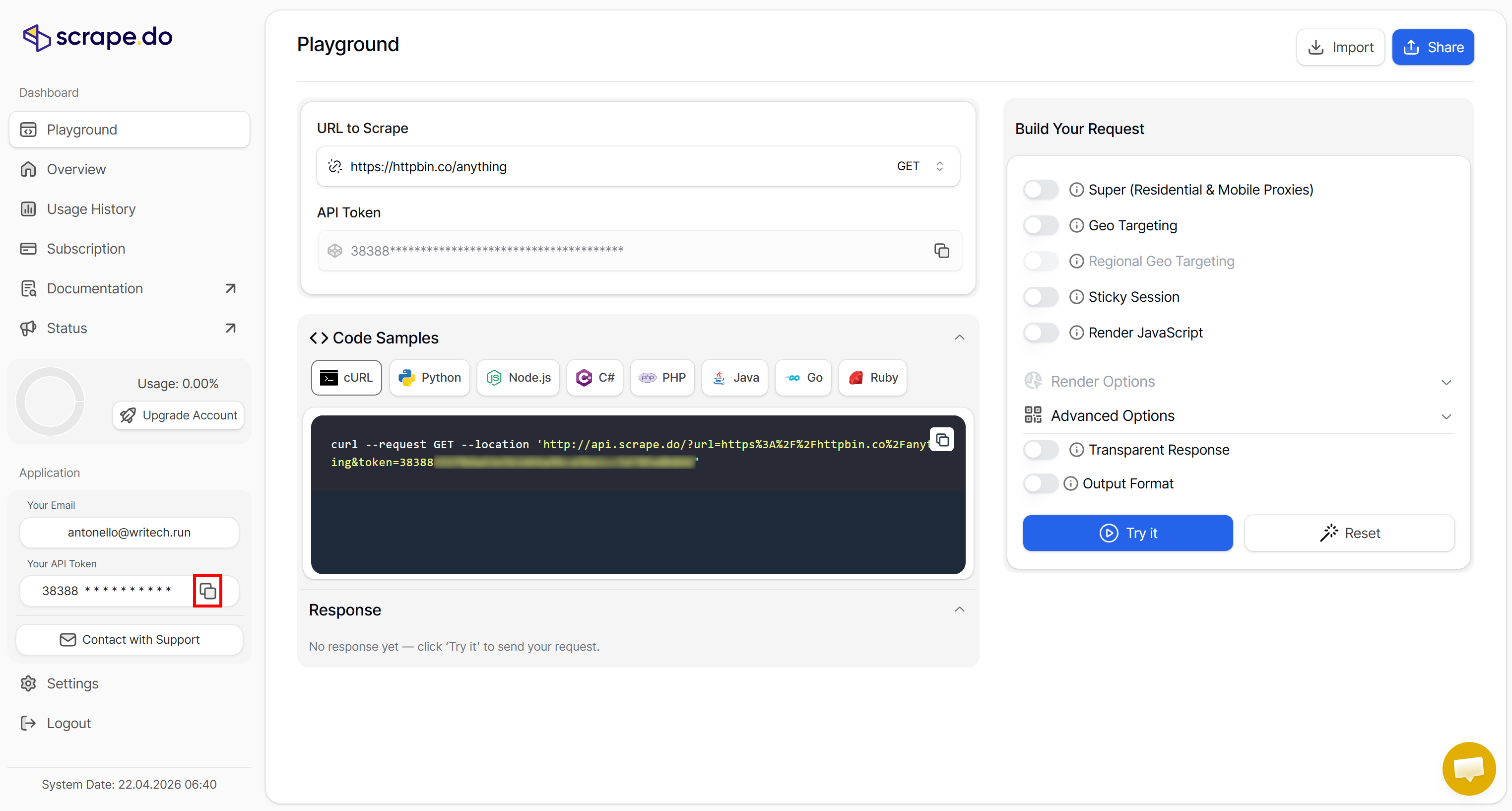 The Scrape.do API token is required to authenticate requests to the Web Scraping API. Store it in a safe place, as you will need it soon in your Python Twitter scraping script.
Note: The API token is automatically generated for you when you subscribe. If you want to manage your API tokens or create a new one, go to the “API Token” section in the “Settings” page:
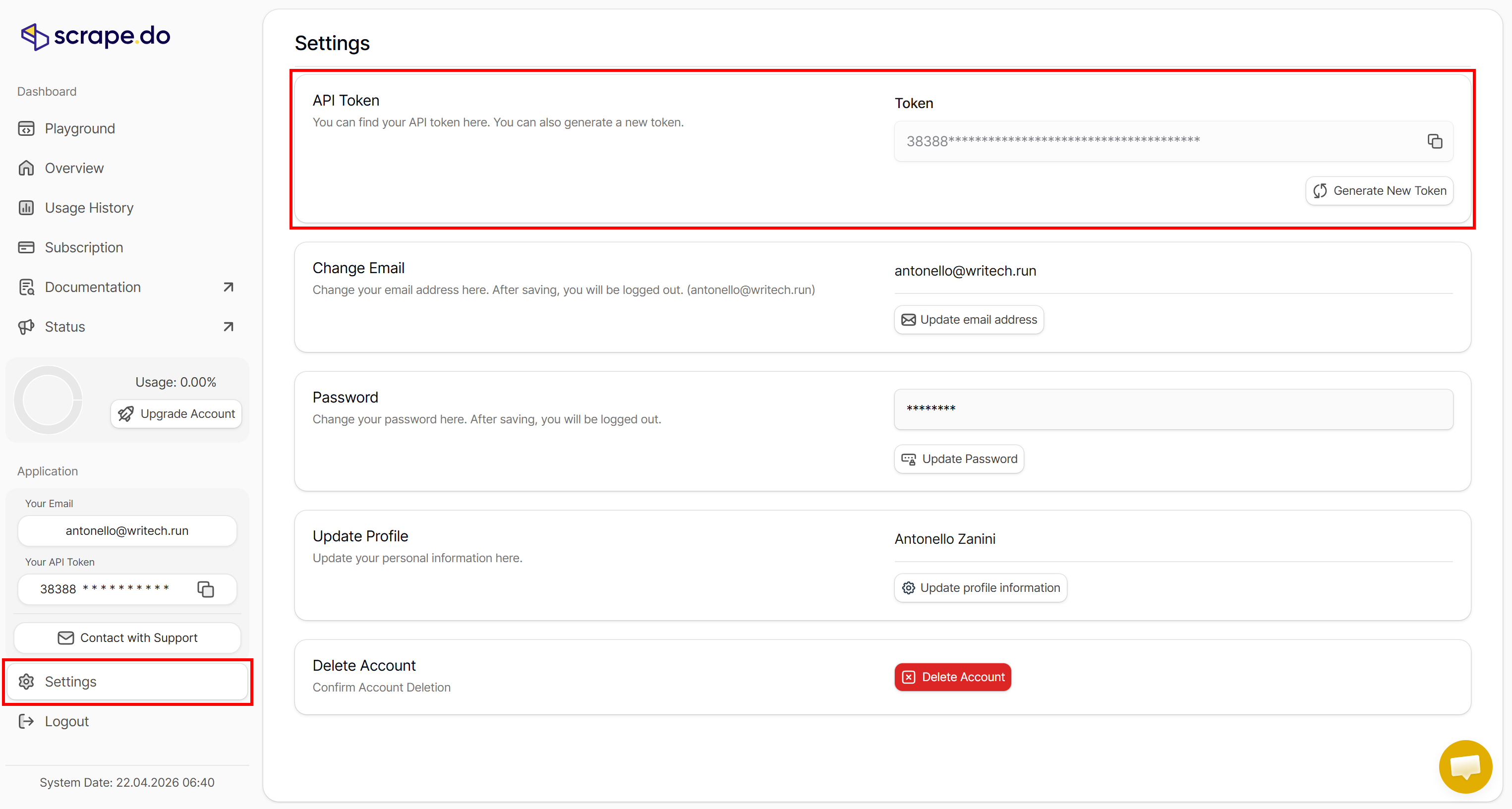 Explore the documentation to learn how to connect to the Web Scraping API, including supported parameters, available options, and usage examples.
Configuring Scrape.do Web Scraping API for Twitter Scraping
The Scrape.do Web Scraping API supports several arguments and must be configured correctly to retrieve the unlocked HTML of the target page. To configure it properly, you first need to understand how the target website works.
Visit an X profile (e.g., the National Geographic X profile) in incognito mode (to ensure a fresh session) and observe how the page renders:
 You will notice that the page dynamically loads its data. First, it retrieves and renders the layout, and then it loads the Tweets. So, as expected, the target website is dynamic and requires JavaScript execution.
Scrape.do's Web Scraping API supports JavaScript rendering, so that is not a problem. Now, your goal is to scrape Tweets (as well as other data). Thus, you must ensure that Tweet HTML elements are present on the page before applying the parsing logic.
Instead of waiting a fixed amount of time for the page to load (which is an option supported by the Web Scraping API), waiting for a selector is more robust. This option allows you to instruct the cloud browser used by Scrape.do to wait for a specific element to be on the page before returning the HTML.
In other words, it ensures you receive a fully populated Twitter page with Tweets loaded. To identify the correct selector, start by inspecting a Tweet element in your browser:
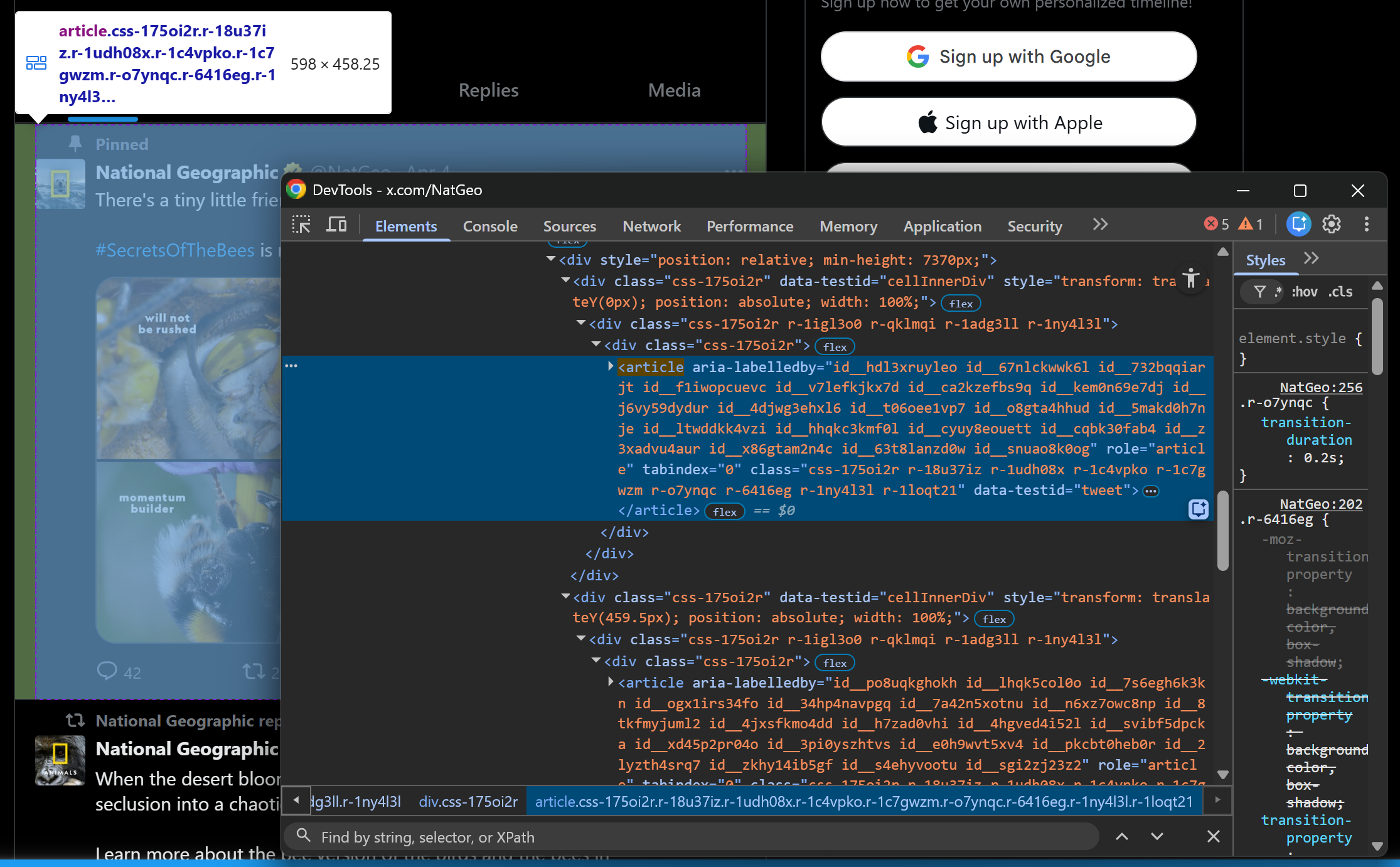
Note that Tweet nodes can be selected with:
article[data-testid="tweet"]Pro tip: When writing a selector for web scraping, referencing an HTML attribute like data-testid is ideal. That is because data-* are custom HTML attributes that are often used in E2E tests. That mean they tend to remain stable over time across releases.
So, configure the Web Scraping API in the playground as follows:
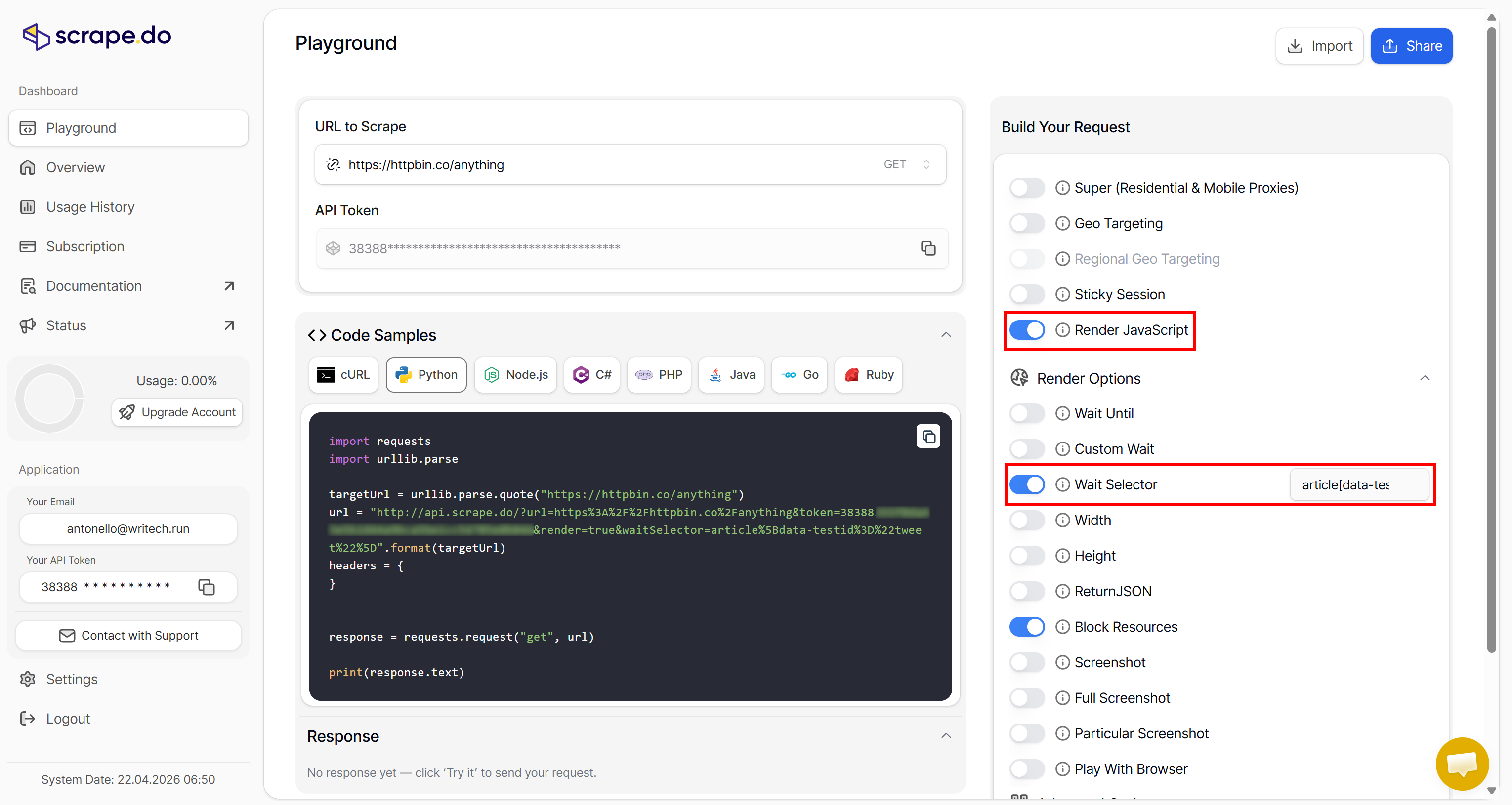
Enable the “Render JavaScript” option and set article[data-testid="tweet"] in the “Wait Selector” field (Note: “Block resources” is enabled by default to save resources). These are the required settings for Twitter scraping.
Copy the Python snippet provided in the playground to test the setup. Alternatively, run the equivalent, more readable version below:
import requests
from bs4 import BeautifulSoup
import csv

# The target Twitter URL to scrape
target_url = "https://x.com/NatGeo"

# Replace with your actual Scrape.do API token
SCRAPE_DO_API_TOKEN = "<YOUR_SCRAPE_DO_API_TOKEN>"

# The required parameters to scrape Twitter
params = {
    "url": target_url,
    "token": SCRAPE_DO_API_TOKEN,
    "render": "true",
    "waitSelector": 'article[data-testid="tweet"]'
}

# Perform a request to the Scrape.do Web Scraping API
response = requests.get(
  "http://api.scrape.do/",
  params=params
)

# Raise an exception if the request was unsuccessful
response.raise_for_status()

print(f"Status code:\n{response.status_code}\n")
print(f"HTML:\n {response.text}")
Pro tip: In a production-ready script, avoid embedding the Scrape.do API token directly in the code. Instead, load it from an environment variable or a .env file.
Execute it, and you will get:

Note the 200 response code, which indicates the page was scraped successfully. The response body from the Web Scraping API contains the fully rendered Twitter HTML page, including loaded Tweets. That means Scrape.do was able to bypass all Twitter anti-scraping mechanisms. Great!
What to Expect Next
In the following chapters, you will see how to build Twitter scrapers to fetch:
- Tweets
- X profile information
- X trending topics
In each case, you will be guided through all the necessary steps. Let’s get started!
Scraping Tweets
In this step-by-step section, you will see how to build a Python script for scraping Tweets. The target profile will be National Geographic, but any other X profile will work just as well.
Step #1: Retrieve and Parse the Target Page
To access the X profile page with Tweets fully loaded, use the Scrape.do Web Scraping API as explained earlier. Then, pass the unlocked HTML to BeautifulSoup for parsing:
from bs4 import BeautifulSoup

# Retrieve the X profile page via Scrape.do Web Scraping API...

html = response.text
soup = BeautifulSoup(html, "html.parser")
Through the soup object, you now have access to the BeautifulSoup API for node selection and data parsing. Well done!
Step #2: Prepare to Scrape All Tweets
Since the target page contains multiple Tweets, start by defining a data structure where to store the scraped data. A list will work perfectly:
tweets = []Use Beautiful Soup’ select() method to select all Tweet HTML nodes. Then, iterate over them and prepare to extract data from each one:
# Select all tweet elements
tweet_elements = soup.select('article[data-testid="tweet"]')

for tweet_element in tweet_elements:
    # Scrape data from each tweet...
Amazing! Time to understand which data fields you can extract from a single Tweet node.
Step #3: Define the Tweet Data Scraping Strategy
Before jumping straight into scraping data from X, you need a strategy. Take a look at a Tweet card:
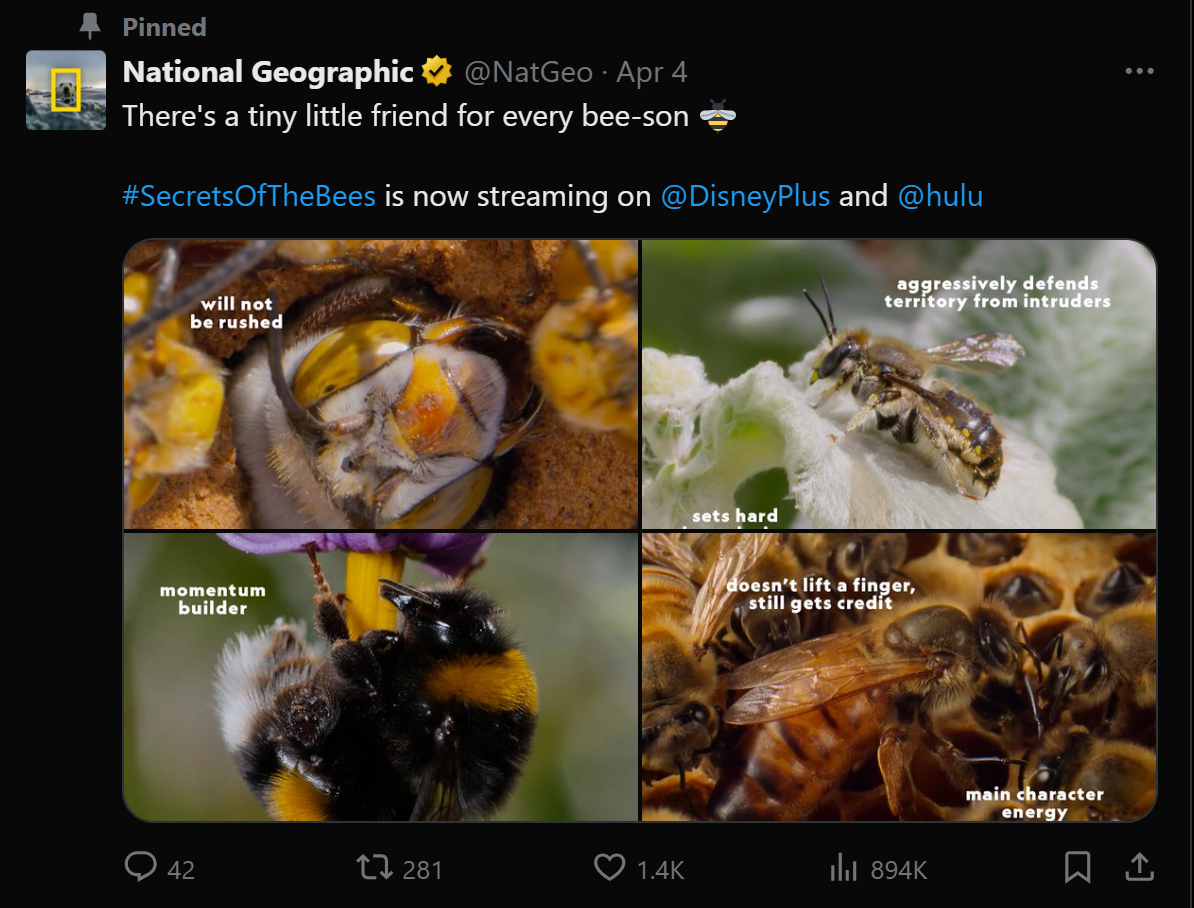 Inspect it in your browser using DevTools and get familiar with its HTML structure. In particular, you will notice that you can retrieve:
- The X account profile name and the author's handle.
- The Tweet URL, text, and publication time.
- Any images, embedded links, or media.
- Tweet metrics such as replies, likes, and more.
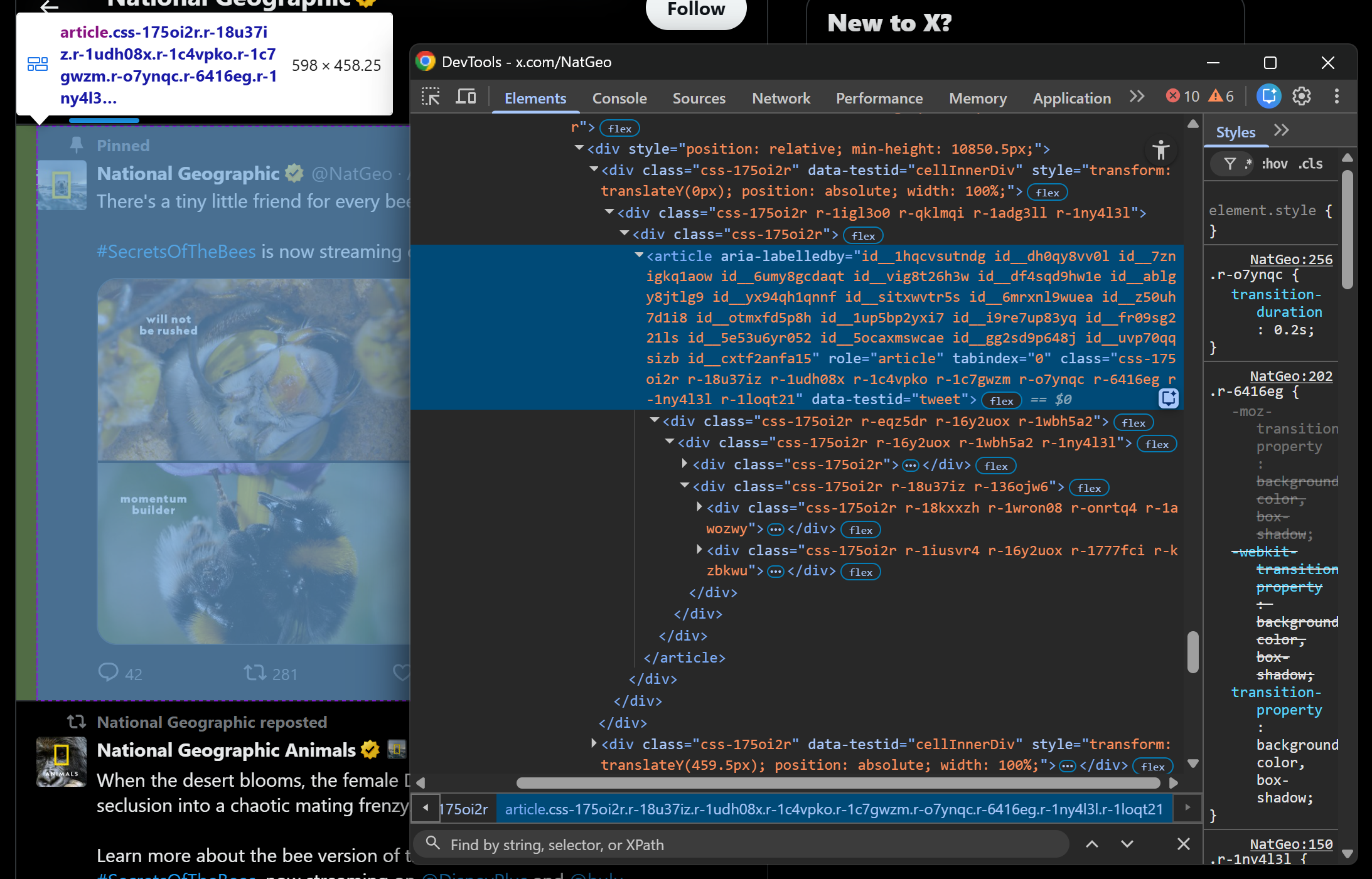 You will also notice that most HTML classes appear to be random and generated at build time. This means you cannot rely on them for node selection. Instead, it is better to focus on
 data-* attributes, as mentioned earlier.
Great! Below, you will see how to scrape each of these data fields, populating the data parsing logic in the loop accordingly.
Step #4: Scrape the Tweet Profile Info and URL
Start by inspecting the upper section of a Tweet, which includes the author’s information:
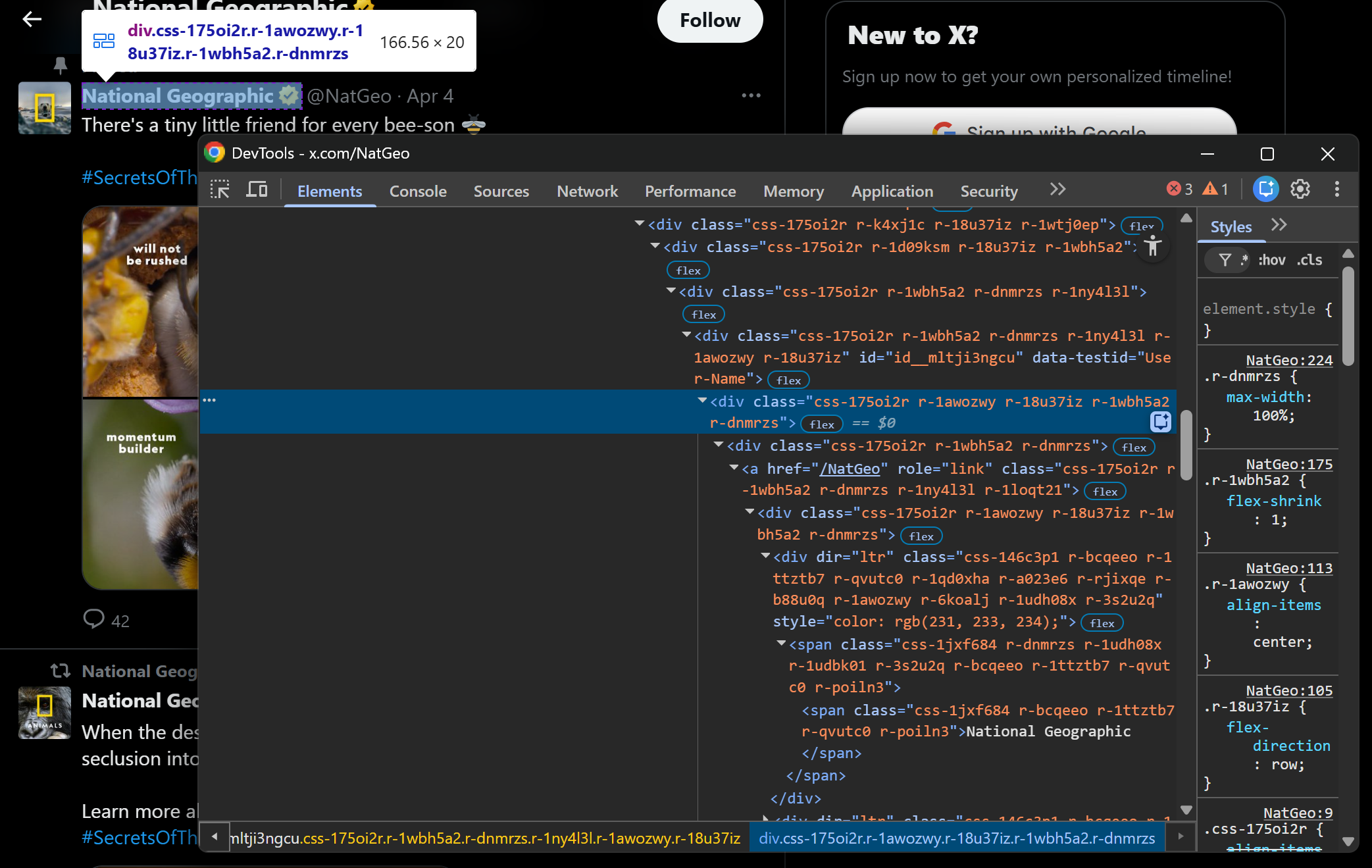
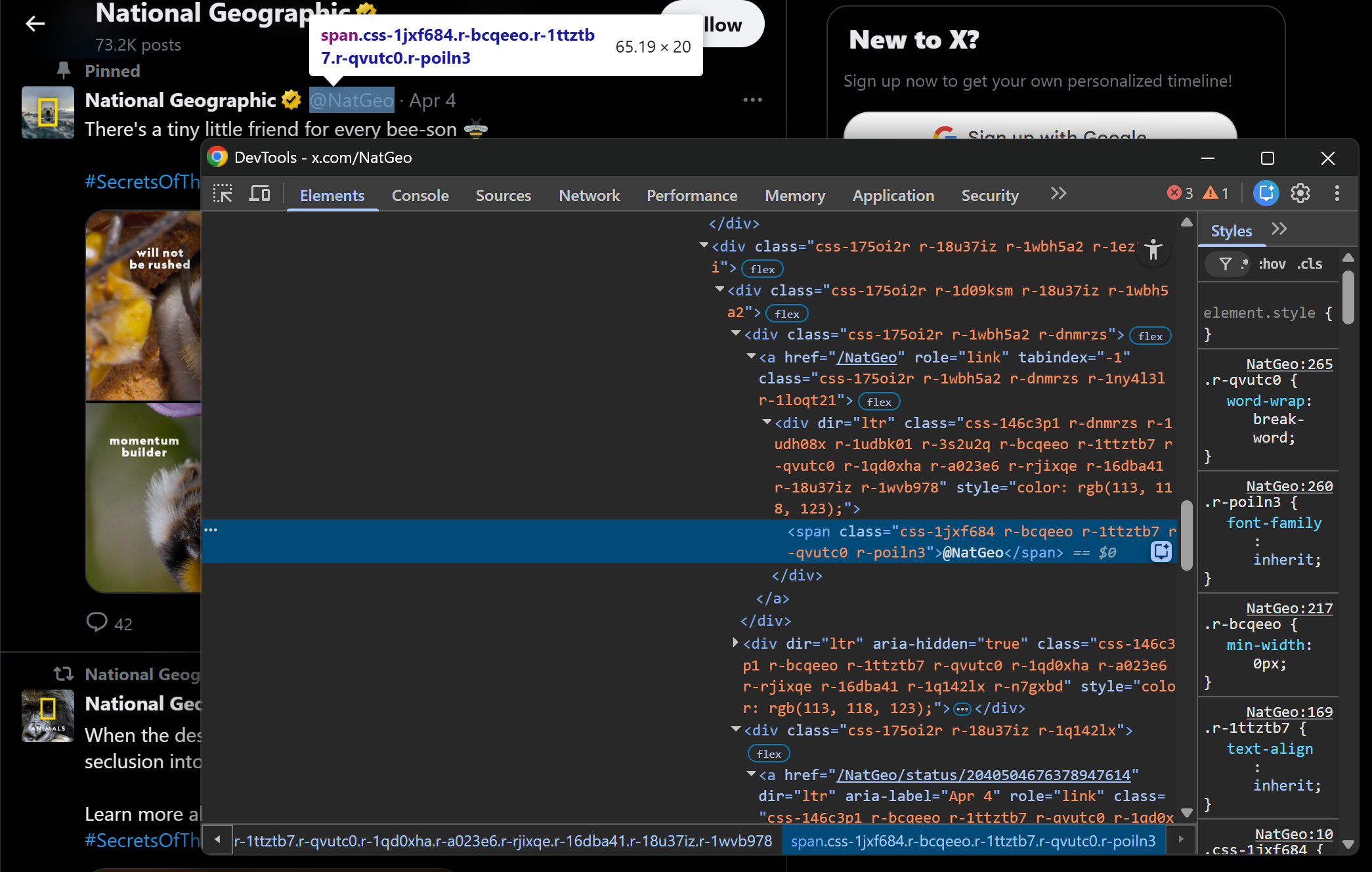
The author’s profile name and handle are contained in a div[data-testid="User-Name"] HTML element. Scrape both as follows:
profile_name_element = tweet_element.select_one('div[data-testid="User-Name"] div span')
profile_name = profile_name_element.get_text(strip=True) if profile_name_element else None

handle_element = tweet_element.select_one('div[data-testid="User-Name"] div:nth-child(2) a span')
handle = handle_element.get_text(strip=True) if handle_element else None
In the snippet above, the select_one() method returns the HTML element matching the specified CSS selector (or None if it is not present). Then, you can extract its content using the get_text() method.
Now, focus on the Tweet publication date:
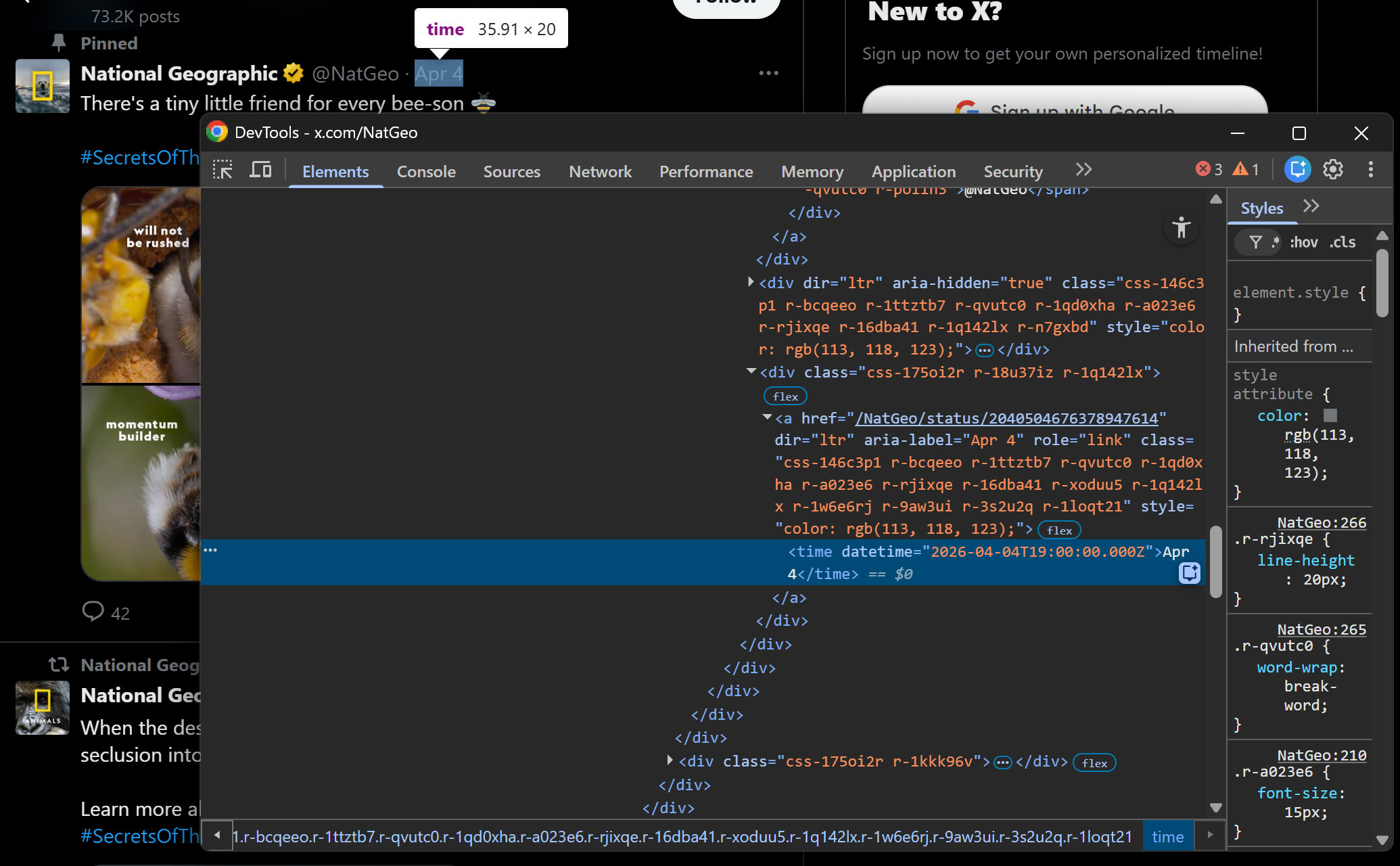
Notice how the complete timestamp is specified in the datetime attribute of the <time> HTML element. Extract it with:
time_element = tweet_element.select_one("time")
timestamp = time_element["datetime"] if time_element and time_element.has_attr("datetime") else None
Take a look at the parent <a> element of this node, and you will see that it contains the partial Tweet URL. Access the parent element and reconstruct the absolute Tweet URL with:
if time_element and time_element.parent.has_attr("href"):
    url = "https://x.com/" + time_element.parent["href"]
else:
    url = None
Step #5: Scrape the Tweet Content
Inspect the Tweet content element:
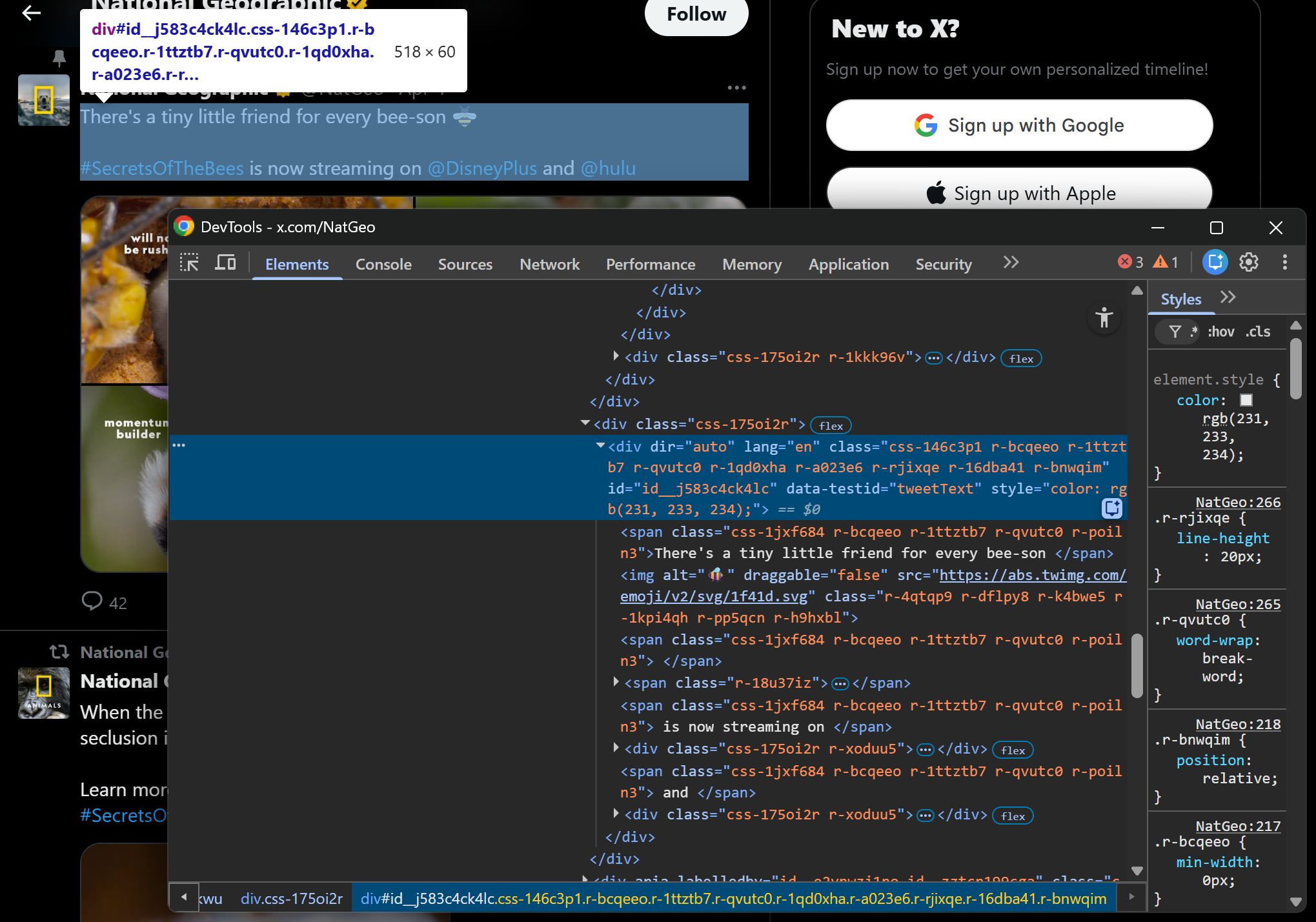
This corresponds to a div[data-testid="tweetText"] node, which contains multiple <span> elements. Retrieve the Tweet text with:
text_element = tweet_element.select_one('div[data-testid="tweetText"]')
text = text_element.get_text(separator=" ", strip=True) if text_element else None
Note the use of the separator=" " option on get_text(). This ensures that text from the nested <span> elements is properly joined with spaces, producing a clean and readable Tweet string.
Pro tip: To preserve Tweet hashtags and tagged links, consider passing the Tweet HTML content through an HTML-to-Markdown conversion step. This produces a Markdown version of the Tweet content that contains the original links.
Step #6: Scrape Tweet Images and Embeds
Tweets can include one or more images, one video, an embedded link card, and other elements. Here, we will focus on scraping Tweet images and embedded links, which are the two most common cases. With a similar approach, you can handle other scenarios as well.
Begin by inspecting a Tweet with one or more images:
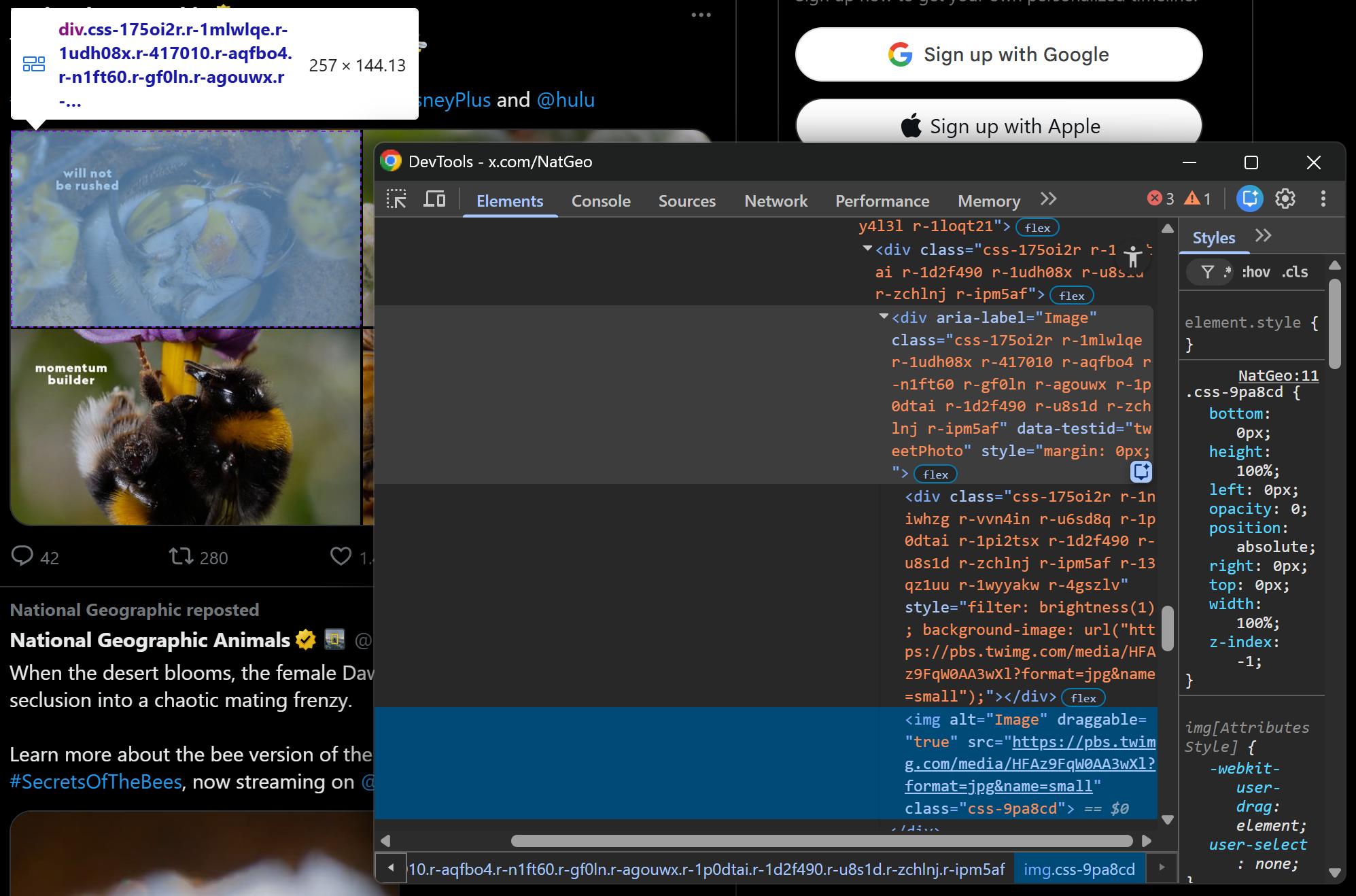
You will see that all images are <img> nodes inside the div[data-testid="tweetPhoto"] element. Collect their URLs with:
image_elements = tweet_element.select('div[data-testid="tweetPhoto"] img')
images = [img["src"] for img in image_elements if img.has_attr("src")]
For embedded links, the structure is slightly different:
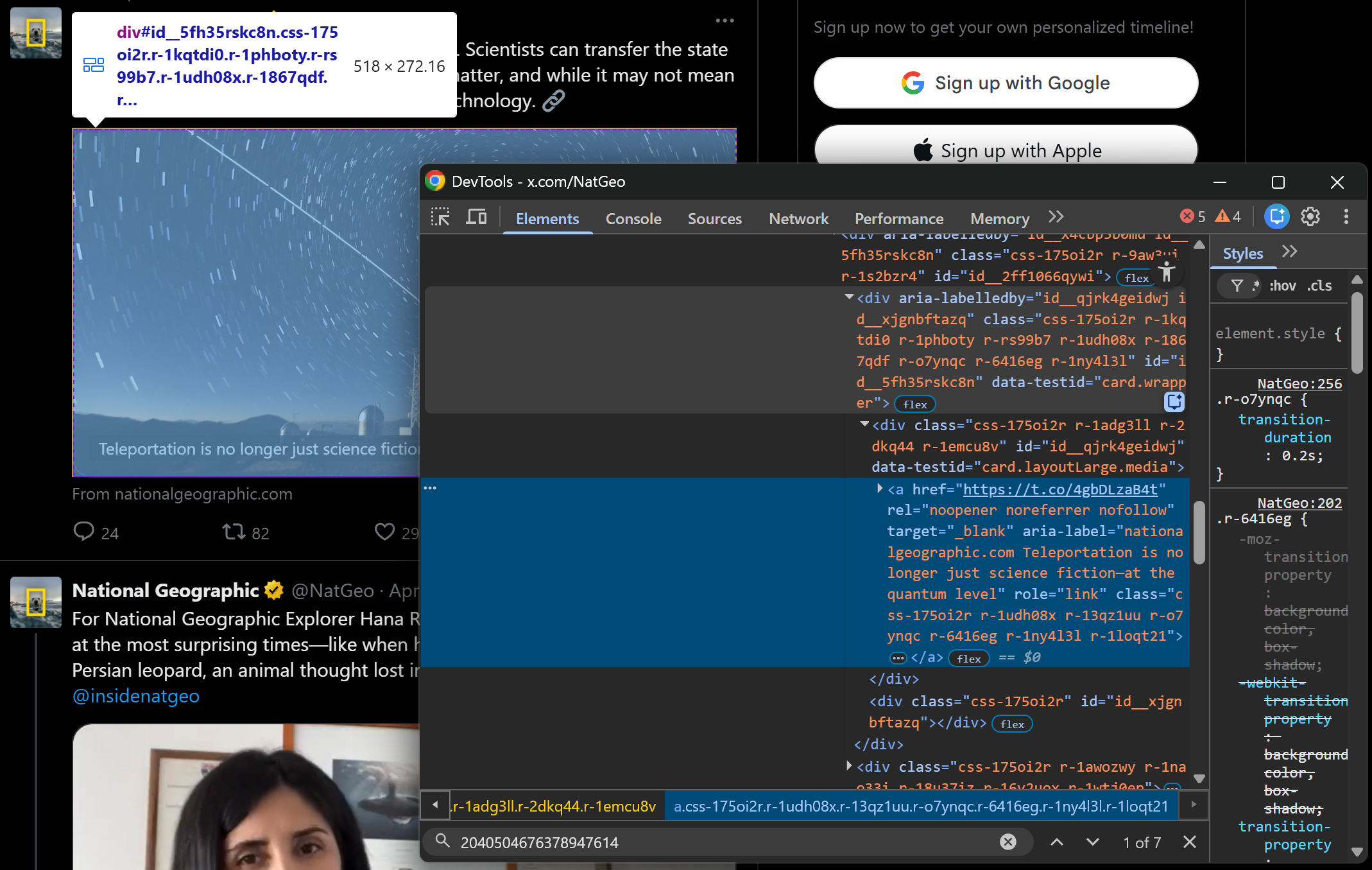
As you can tell, embedded links are contained in an <a> element inside a div[data-testid="card.wrapper"] container. Since not all Tweets include an embedded link, you must check whether the element exists before extracting data. Otherwise, your parsing logic will not be robust.
That being said, implement the scraping logic for embeds with:
embed_card_link_element = tweet_element.select_one('div[data-testid="card.wrapper"] a')
if embed_card_link_element and embed_card_link_element.has_attr("href"):
    embedded_link = embed_card_link_element["href"]
else:
    embedded_link = None
Step #7: Scrape the Tweet Metrics
Inspect the Tweet metrics row element:
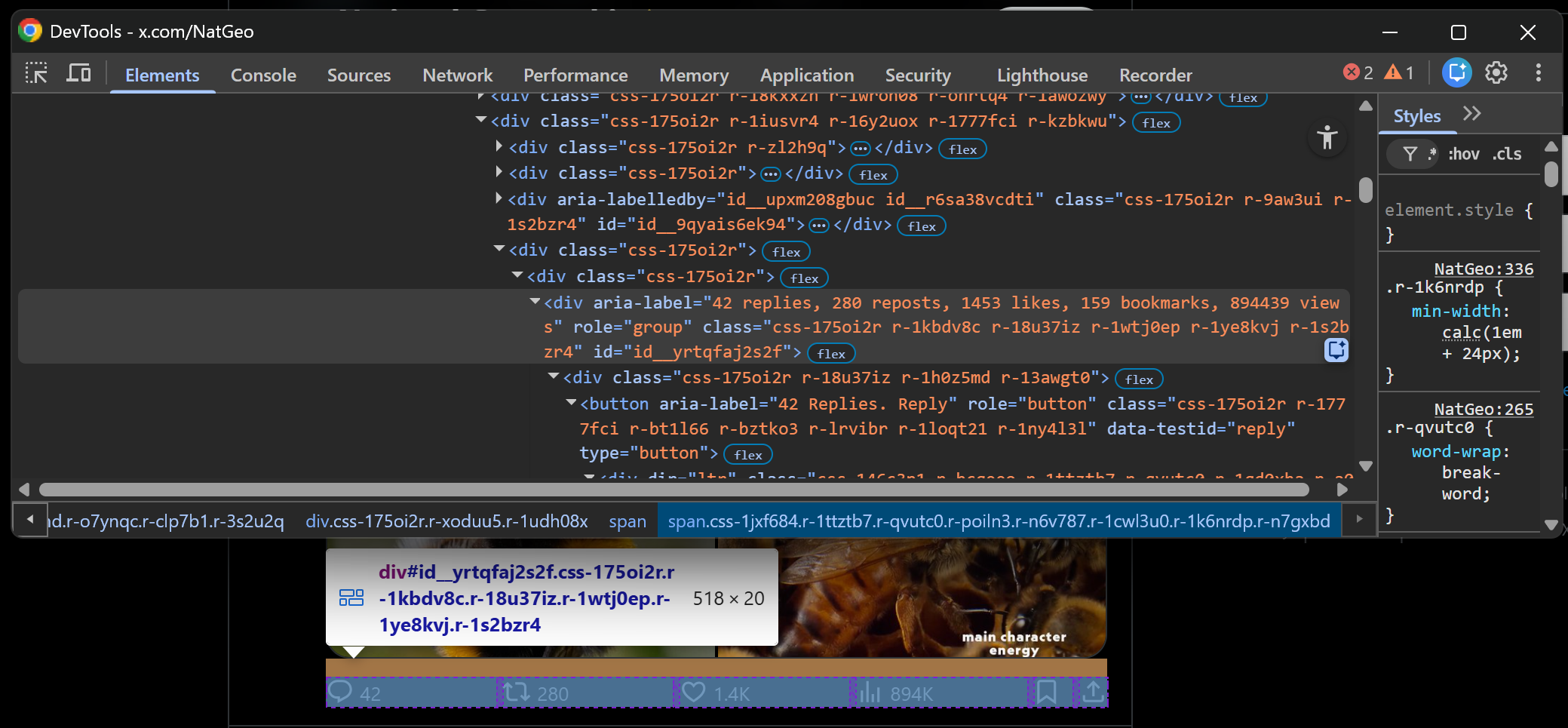
You will see that the aria-label attribute contains all the Tweet metrics of interest (e.g., replies, reposts, likes, bookmarks, views). You can select it with the following CSS selector:
div[aria-label~="replies,"]The ~= operator matches elements whose attribute value is a whitespace-separated list of words, where one of the words matches the specified value (in this case, replies,). So, it is perfect for this scenario.
Employ it like this:
metrics_elements = tweet_element.select_one('div[aria-label~="replies,"]')
metrics_text = metrics_elements["aria-label"] if metrics_elements else None
Then, apply the logic below to parse the string and populate an object with the scraped metrics:
metrics_keys = ["replies", "reposts", "likes", "bookmarks", "views"]
metrics = dict.fromkeys(metrics_keys, None)
if metrics_text:
    parts = metrics_text.split(",")

    for i, part in enumerate(parts):
        value = int(part.strip().split(" ", 1)[0])
        key = metrics_keys[i]
        metrics[key] = value
This defines a metrics object whose specified fields are initially set to None. Next, it splits the metrics string and assigns each numeric value to the corresponding key based on its position.
Excellent! The Tweet scraping logic is complete.
Step #8: Collect the Scraped Data
At the end of the for loop, create a new object containing the extracted data and append it to the tweets list:
tweet = {
    "url": url,
    "profile_name": profile_name,
    "handle": handle,
    "timestamp": timestamp,
    "text": text,
    "images": images,
    "embedded_link": embedded_link,
    **metrics
}
tweets.append(tweet)
Note the use of the ** operator to unpack the metrics dictionary directly into the tweet object.
Mission complete! It only remains to export the scraped data.
Step #9: Export the Scraped Tweets
Export the scraped Tweets to a CSV file using Python’s built-in csv module:
import csv

if len(tweets) > 0:
    fieldnames = list(tweets[0].keys())

    with open("tweets.csv", "w", newline="", encoding="utf-8") as f:
        writer = csv.DictWriter(f, fieldnames=fieldnames)
        writer.writeheader()
        writer.writerows(tweets)
This checks whether at least one Tweet has been scraped. If so, it exports all Tweets to a tweets.csv file.
Step #10: Put It All Together
Your final script for scraping Tweets contains the following:
# pip install requests beautifulsoup4

import requests
from bs4 import BeautifulSoup
import csv

# The target Twitter URL to scrape
target_url = "https://x.com/NatGeo"

# Replace with your actual Scrape.do API token
SCRAPE_DO_API_TOKEN = "<YOUR_SCRAPE_DO_API_TOKEN>"

# The required parameters to scrape Twitter
params = {
    "url": target_url,
    "token": SCRAPE_DO_API_TOKEN,
    "render": "true",
    "waitSelector": 'article[data-testid="tweet"]'
}

# Perform a request to the Scrape.do Web Scraping API
response = requests.get(
  "http://api.scrape.do/",
  params=params
)

# Raise an exception if the request was unsuccessful
response.raise_for_status()

# Access the HTML from the response
html = response.text

# Parse with BeautifulSoup
soup = BeautifulSoup(html, "html.parser")

# Where to store the scraped Tweets
tweets = []

# Select all tweet elements
tweet_elements = soup.select('article[data-testid="tweet"]')

# Scrape data from each tweet
for tweet_element in tweet_elements:
    profile_name_element = tweet_element.select_one('div[data-testid="User-Name"] div span')
    profile_name = profile_name_element.get_text(strip=True) if profile_name_element else None

    handle_element = tweet_element.select_one('div[data-testid="User-Name"] div:nth-child(2) a span')
    handle = handle_element.get_text(strip=True) if handle_element else None

    time_element = tweet_element.select_one("time")
    timestamp = time_element["datetime"] if time_element and time_element.has_attr("datetime") else None

    text_element = tweet_element.select_one('div[data-testid="tweetText"]')
    text = text_element.get_text(separator=" ", strip=True) if text_element else None

    if time_element and time_element.parent.has_attr("href"):
        url = "https://x.com/" + time_element.parent["href"]
    else:
        url = None

    image_elements = tweet_element.select('div[data-testid="tweetPhoto"] img')
    images = [img["src"] for img in image_elements if img.has_attr("src")]

    embed_card_link_element = tweet_element.select_one('div[data-testid="card.wrapper"] a')
    if embed_card_link_element and embed_card_link_element.has_attr("href"):
        embedded_link = embed_card_link_element["href"]
    else:
        embedded_link = None

    metrics_elements = tweet_element.select_one('div[aria-label~="replies,"]')
    metrics_text = metrics_elements["aria-label"] if metrics_elements else None

    metrics_keys = ["replies", "reposts", "likes", "bookmarks", "views"]
    metrics = dict.fromkeys(metrics_keys, None)
    if metrics_text:
        parts = metrics_text.split(",")

        for i, part in enumerate(parts):
            value = int(part.strip().split(" ", 1)[0])
            key = metrics_keys[i]
            metrics[key] = value

    # Populate a new Tweet object with the scraped data
    # and append it to the list of Tweets
    tweet = {
        "url": url,
        "profile_name": profile_name,
        "handle": handle,
        "timestamp": timestamp,
        "text": text,
        "images": images,
        "embedded_link": embedded_link,
        **metrics
    }
    tweets.append(tweet)

# Export the scraped Tweets to a CSV file (if any Tweets were scraped)
if len(tweets) > 0:
    fieldnames = list(tweets[0].keys())

    with open("tweets.csv", "w", newline="", encoding="utf-8") as f:
        writer = csv.DictWriter(f, fieldnames=fieldnames)
        writer.writeheader()
        writer.writerows(tweets)
Wow! In around 100 lines of code, you just built a working script for scraping Tweets.
Run it, and a tweets.csv file will appear in your project folder. Open it, and you should see:
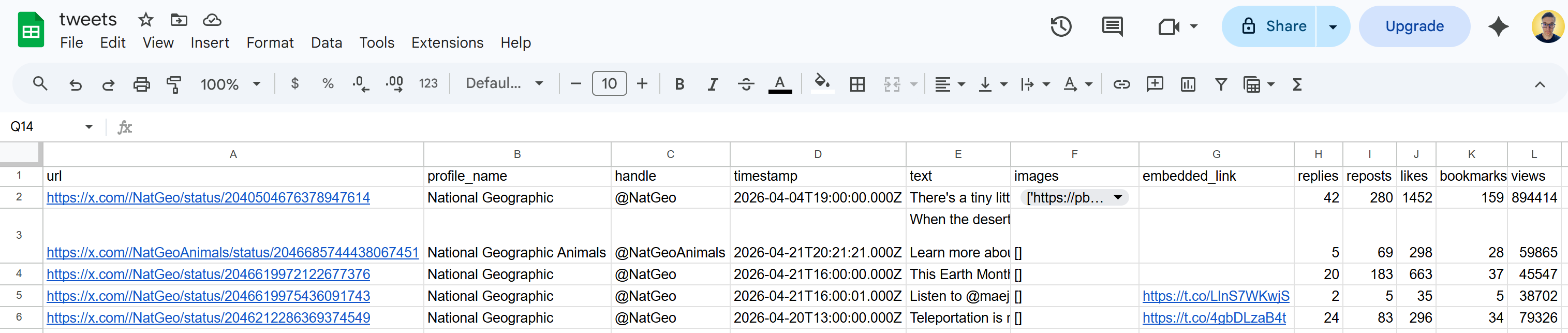 Et voilà! These Tweets correspond exactly to the content displayed on the target X page at the time of execution.
Next Steps
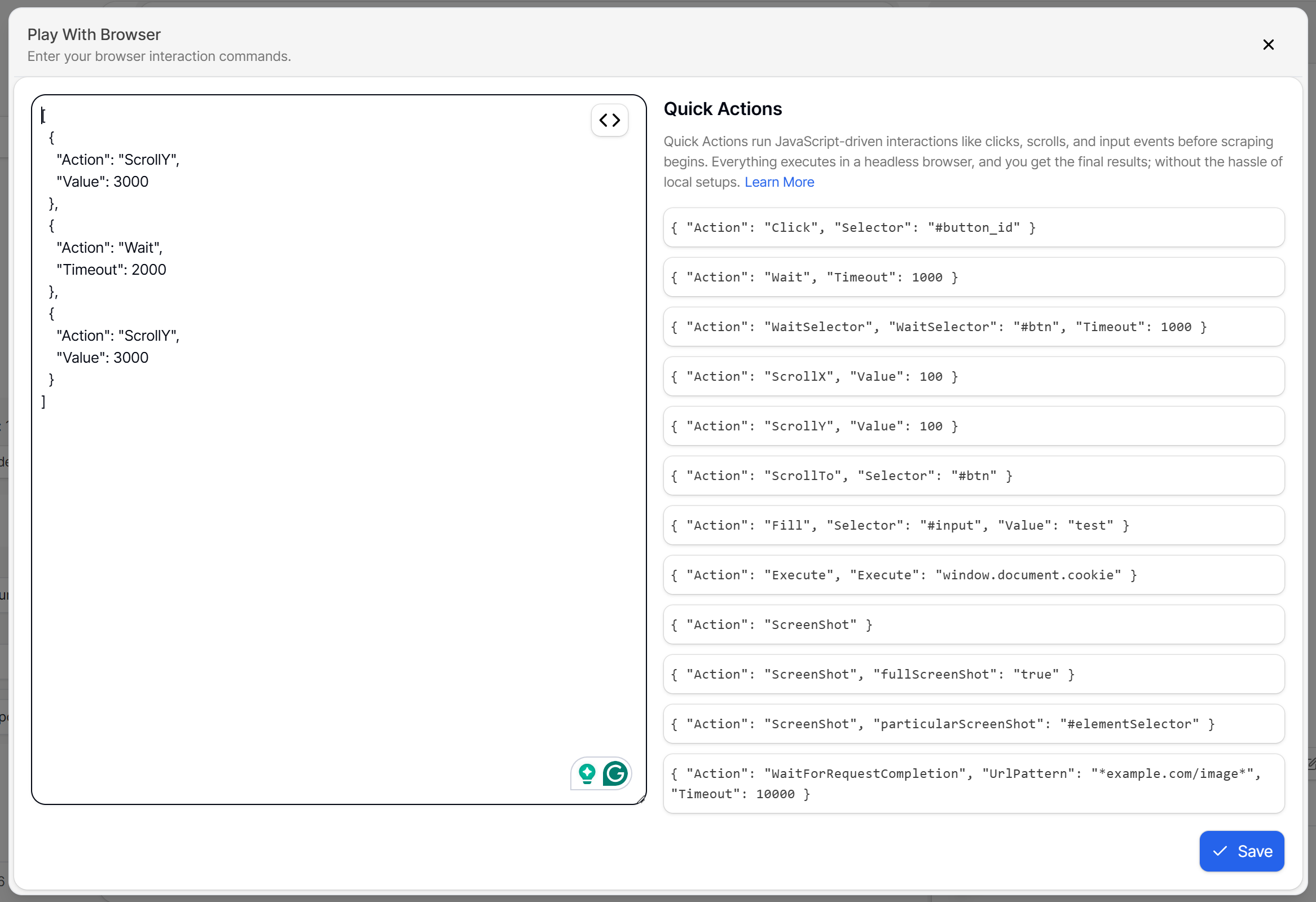
By default, a Twitter profile page only loads a limited number of Tweets (typically around 5). To scrape more, you need to implement scrolling logic (as Twitter/X relies on the infinite scrolling design pattern).
Automated scrolling is supported by the Scrape.do Web Scraping API through the “Play with browser” option. This lets you to define specific browser actions, such as multiple scrolls:
Scraping X Profile Information
Here, you will learn how to scrape the main information from an X profile. Since the target page is the same as before, we will skip the page retrieval and parsing steps.
Step #1: Get Familiar with the X Profile Section
Review the top section of a Twitter/X profile page:
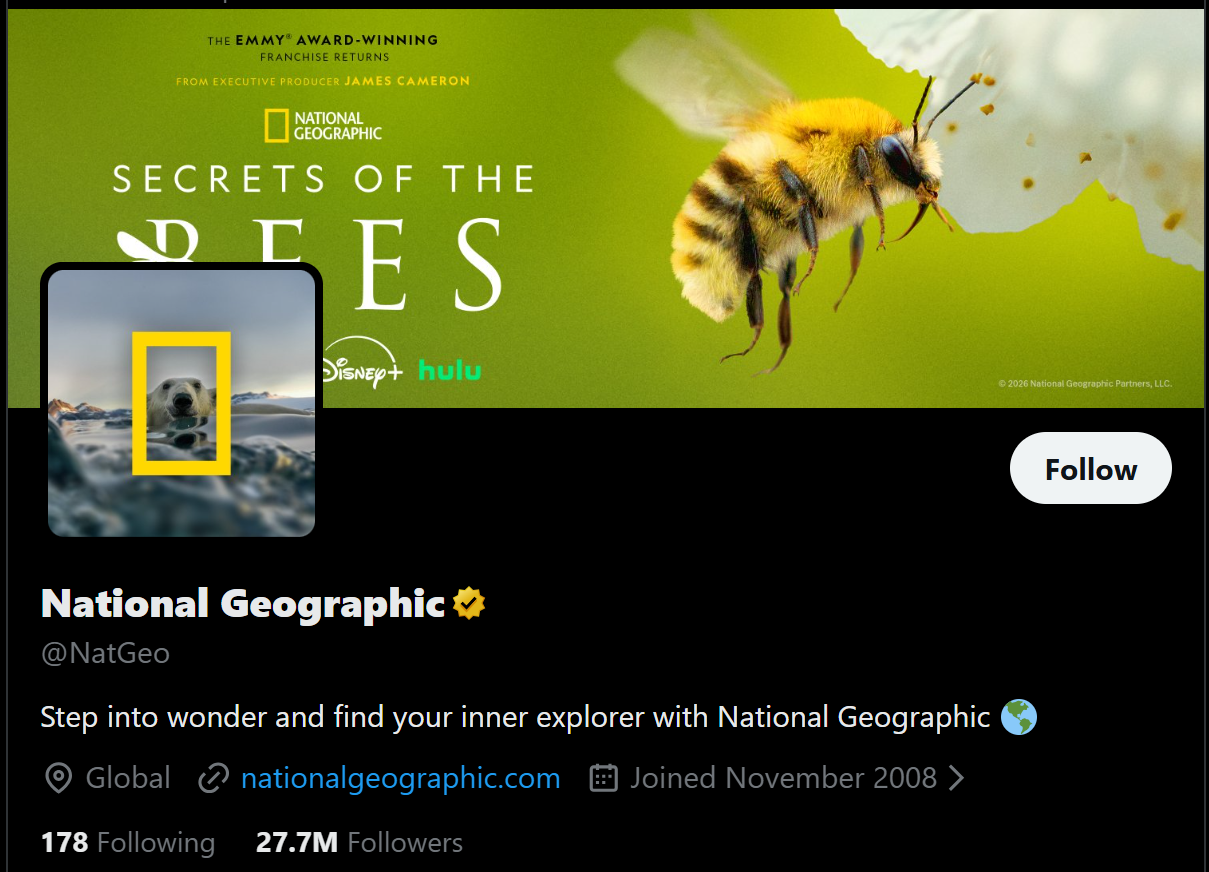
Note that it includes key profile information such as the header image, profile image, name, verified status, handle, description, location, website URL, and follower/following counts.
Inspect those HTML elements in DevTools and understand how they are structured. That will help you build an effective Twitter profile information scraping logic!
Step #2: Scrape the Profile Images
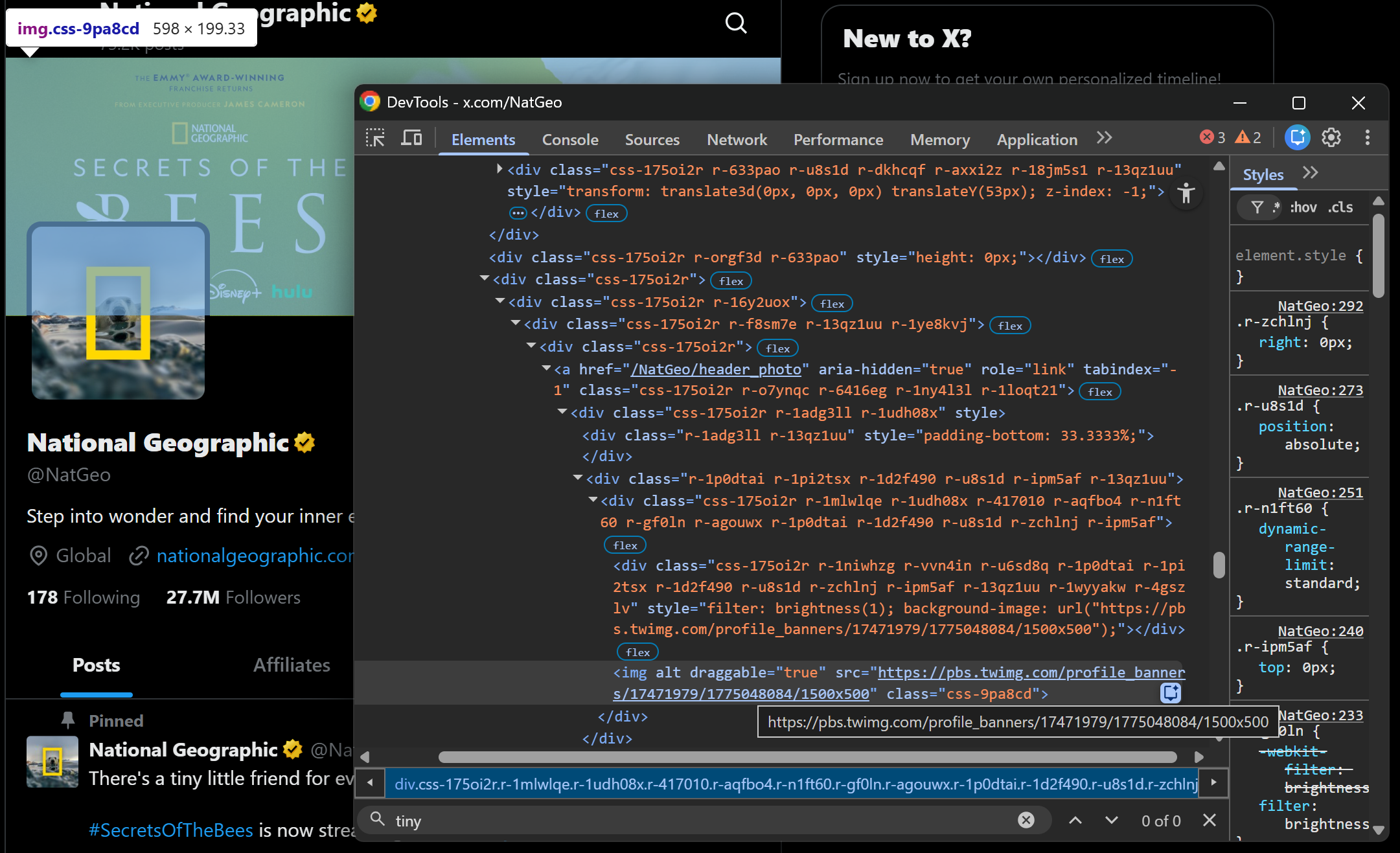
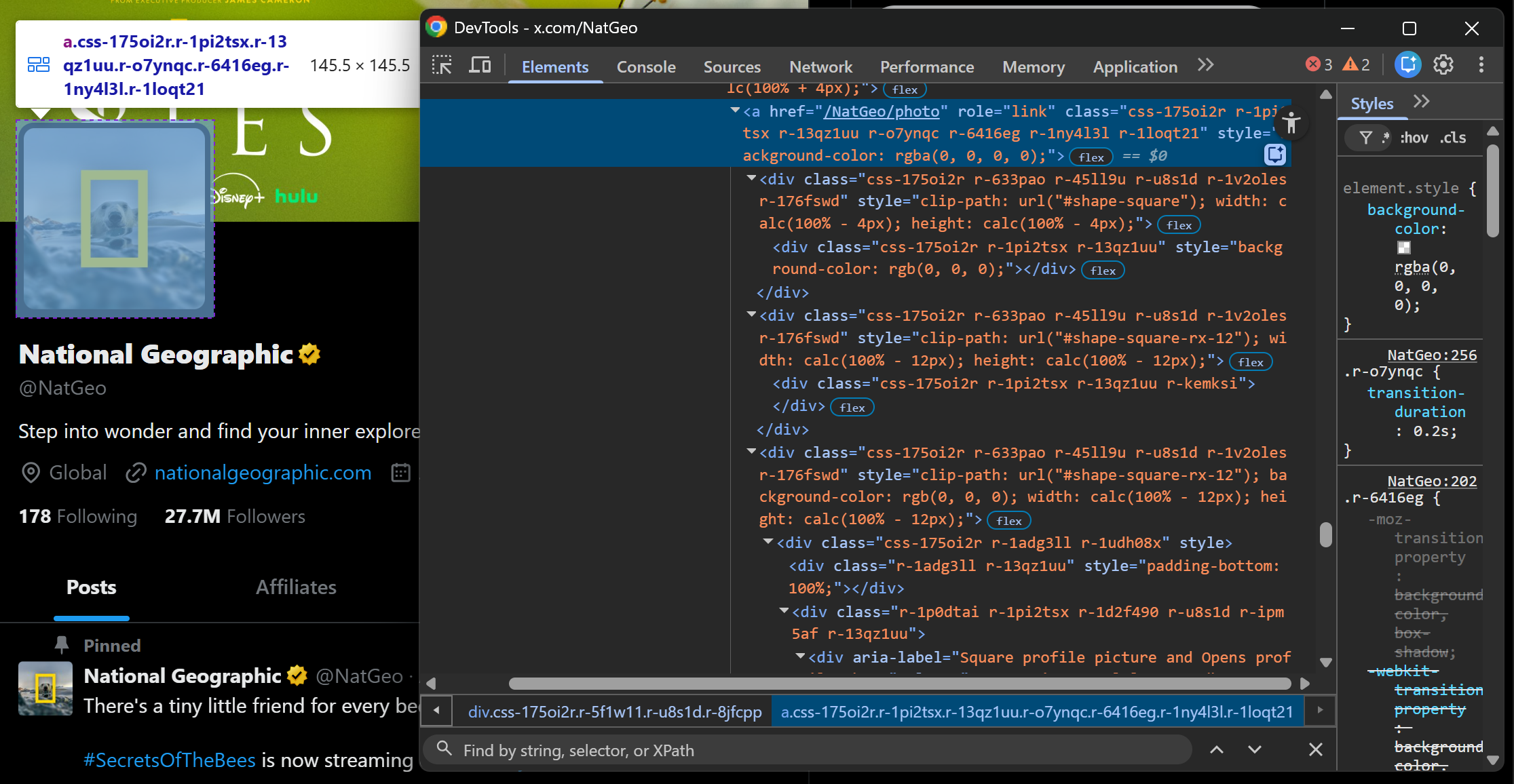
If you inspect the profile images (header and profile picture), you will notice there is no straightforward way to select them using data-* attributes or other stable HTML identifiers.
A good approach is to focus on extracting <a> elements whose href URLs follow predictable patterns such as:
/<profile_handle>/header_photo/<profile_handle>/photo
Harness that pattern to scrape the profile images like this:
header_image_element = soup.select_one('a[href*="/header_photo"] img')
if header_image_element and header_image_element.has_attr("src"):
  header_image_url = header_image_element["src"]
else:
  header_image_url = None

profile_image_element = soup.select_one('a[href*="/photo"] img')
if profile_image_element and profile_image_element.has_attr("src"):
  profile_image_url = profile_image_element["src"]
else:
  profile_image_url = None
The *= operator allows you to select elements whose attribute contains a specific substring. This makes it useful for identifying image nodes based on URL patterns. If the element exists and contains a src attribute, you can extract the corresponding image URL.
Step #3: Scrape the Profile Name and Verification Status
Focus on the profile name and verification elements:
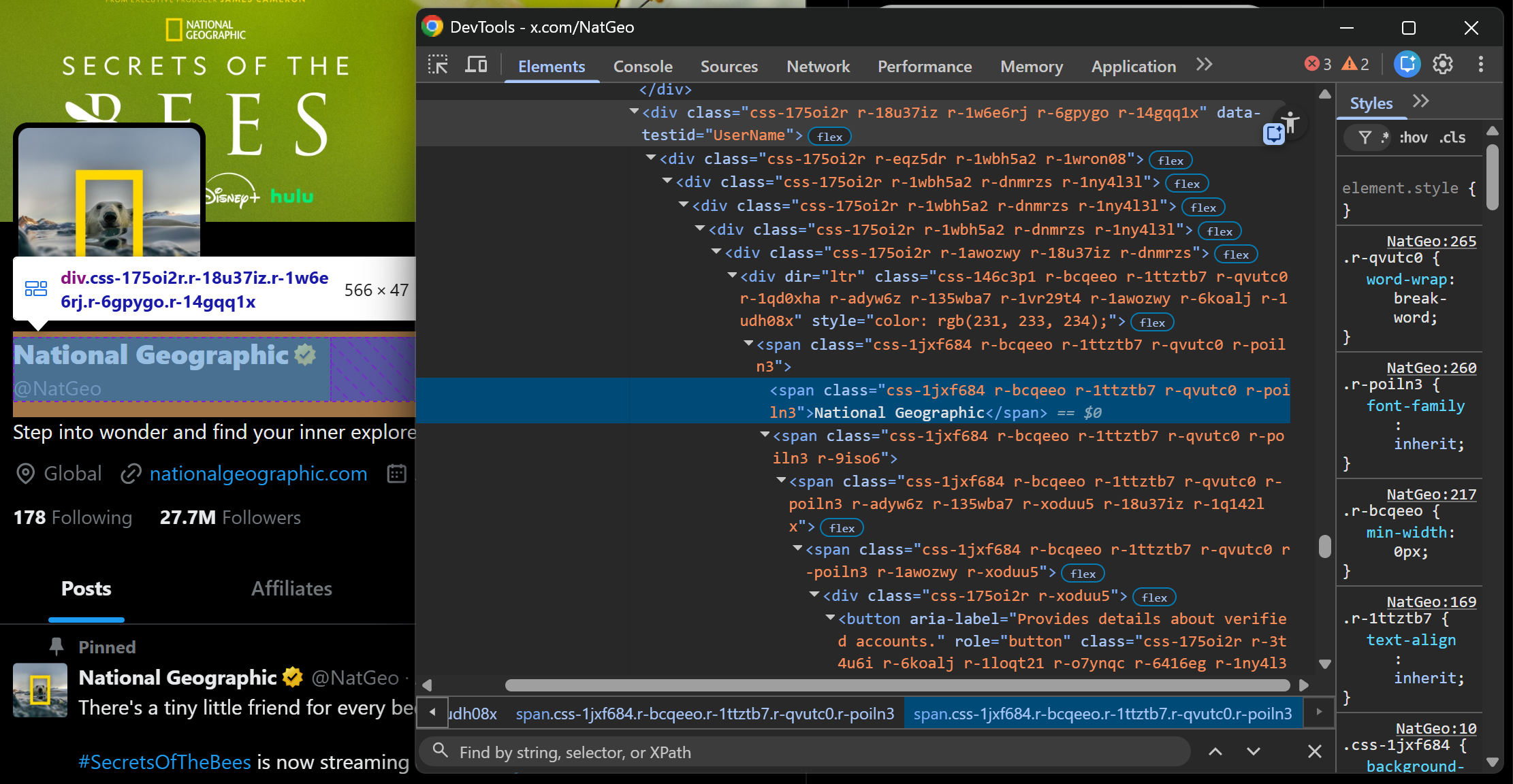
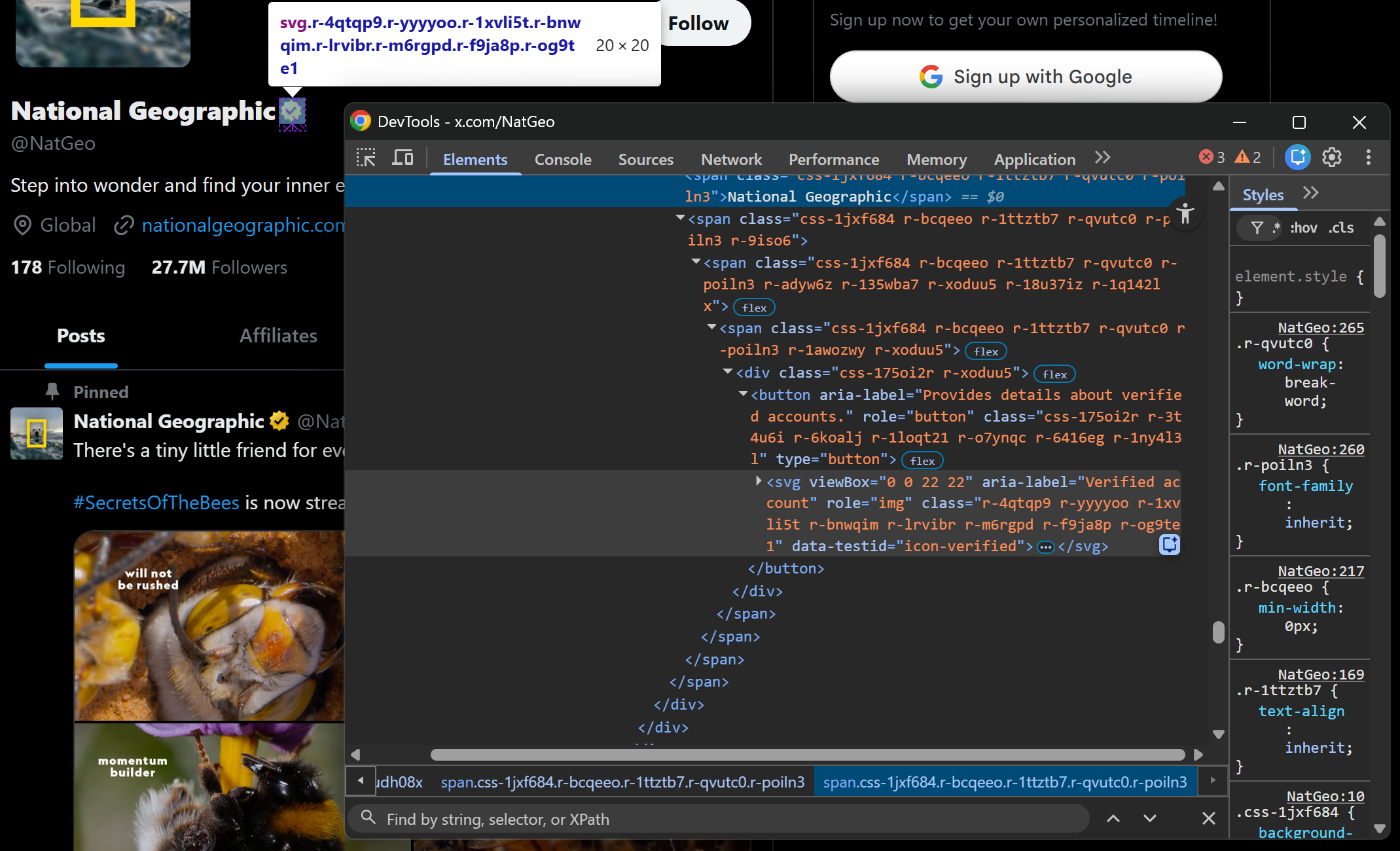
Both elements are contained inside a div[data-testid="UserName"] container. Scrape them both as follows:
profile_name_element = soup.select_one('div[data-testid="UserName"] div span')
profile_name = profile_name_element.get_text(strip=True) if profile_name_element else None

verified_element = soup.select_one('div[data-testid="UserName"] svg[data-testid="icon-verified"]')
verified = True if verified_element else False
The above snippet retrieves the profile name from the text span and determines verification status by checking whether the verified icon SVG exists.
Step #4: Scrape the Profile Description and Data Fields
The profile description is stored inside a div[data-testid="UserDescription"] element:
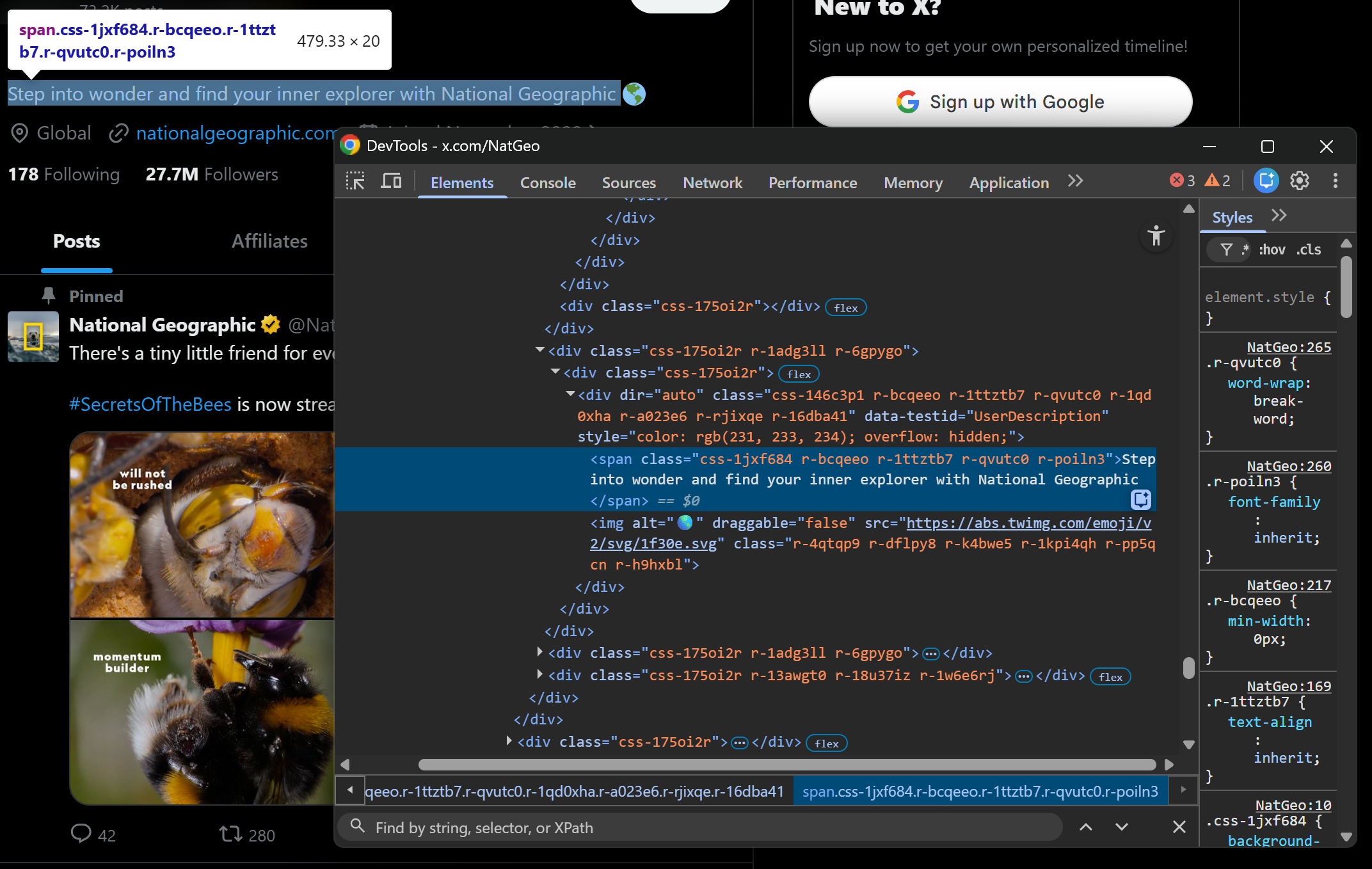
Extract it with:
description_element = soup.select_one('div[data-testid="UserDescription"]')
description = description_element.get_text(separator=" ", strip=True) if description_element else None
Note the use of separator=" " since the description may span multiple lines or contain nested elements.
Now, let’s look at other profile fields such as location, website URL, and join date:
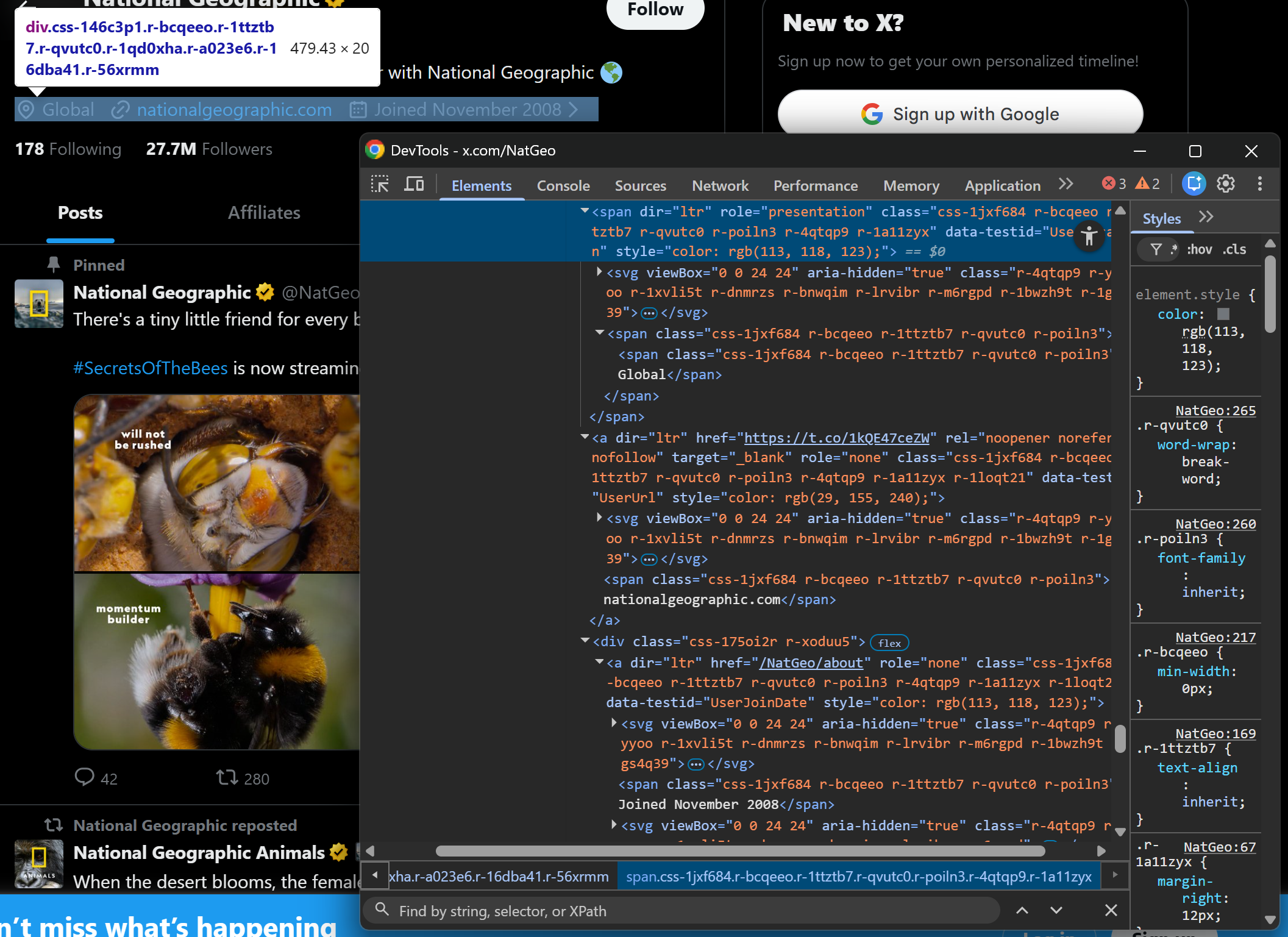
Each of these fields has a dedicated data-testid attribute, making them easy to extract:
location_element = soup.select_one('span[data-testid="UserLocation"]')
location = location_element.get_text(strip=True) if location_element else None

url_element = soup.select_one('a[data-testid="UserUrl"]')
url = url_element.get_text(strip=True) if url_element else None

joined_element = soup.select_one('a[data-testid="UserJoinDate"]')
joined = joined_element.get_text(strip=True) if joined_element else None
Step #5: Scrape the Following/Followers Counts
Finally, inspect the following and followers elements. Again, there is no direct dedicated selector. Still, we can apply the same logic as we did for the images. This time, target <a> elements whose URL structure is:
/<profile_handle>/following/<profile_handle>/followers
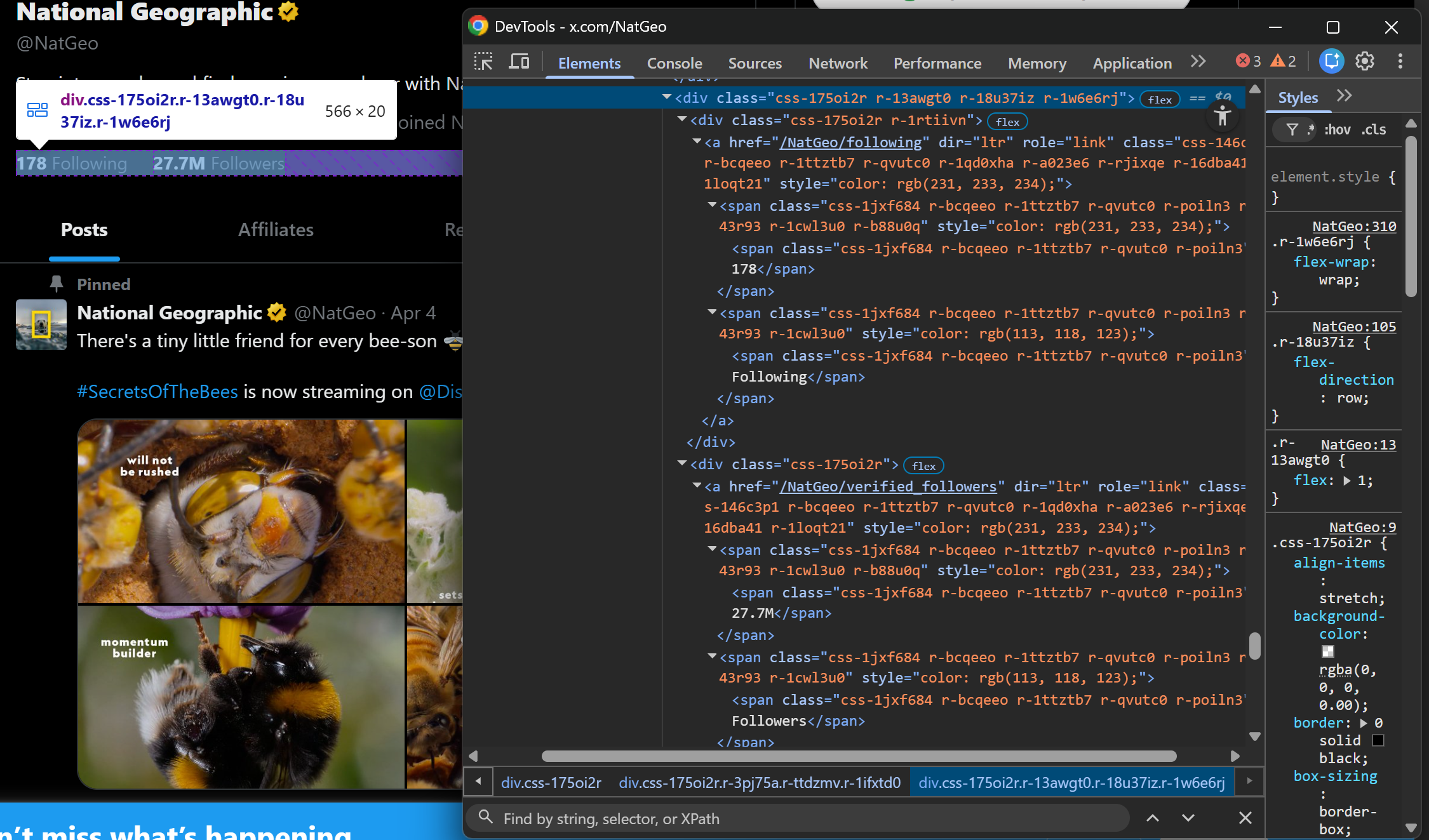
Next, extract both values using the same approach as before:
following_element = soup.select_one('a[href*="/following"] ')
if following_element:
  following_count = following_element.get_text(strip=True).replace("Following", "").strip()
else:
  following_count = None

followers_element = soup.select_one('a[href*="/verified_followers"]')
if followers_element:
  followers_count = followers_element.get_text(strip=True).replace("Followers", "").strip()
else:
  followers_count = None
Note the use of replace() to remove the "Following" and "Followers" labels so that only the numeric values remain in the final output.
Step #6: Collect the Scraped Data and Export It
Create a new object containing all the scraped profile data:
twitter_profile_info = {
   "header_image_url": header_image_url,
   "profile_image_url": profile_image_url,
   "profile_name": profile_name,
   "verified": verified,
   "description": description,
   "location": location,
   "url": url,
   "joined": joined,
   "following_count": following_count,
   "followers_count": followers_count
}
Since this is a single object (not a list), export it to a JSON file using Python’s built-in json module:
import json

with open("twitter_profile_info.json", "w", encoding="utf-8") as f:
    json.dump(twitter_profile_info, f, ensure_ascii=False, indent=4)
This will generate a twitter_profile_info.json file containing the structured scraped Twitter profile data.
Step #7: Put It All Together
Your Twitter scraper for profiles will look like this:
# pip install requests beautifulsoup4

import requests
from bs4 import BeautifulSoup
import json

# The target Twitter URL to scrape
target_url = "https://x.com/NatGeo"

# Replace with your actual Scrape.do API token
SCRAPE_DO_API_TOKEN = "<YOUR_SCRAPE_DO_API_TOKEN>"

# The required parameters to scrape Twitter
params = {
    "url": target_url,
    "token": SCRAPE_DO_API_TOKEN,
    "render": "true",
    "waitSelector": 'article[data-testid="tweet"]'
}

# Perform a request to the Scrape.do Web Scraping API
response = requests.get(
  "http://api.scrape.do/",
  params=params
)

# Raise an exception if the request was unsuccessful
response.raise_for_status()

# Access the HTML from the response
html = response.text

# Parse the HTML page with BeautifulSoup
soup = BeautifulSoup(html, "html.parser")

# Scrape the Twitter profile information
header_image_element = soup.select_one('a[href*="/header_photo"] img')
if header_image_element and header_image_element.has_attr("src"):
  header_image_url = header_image_element["src"]
else:
  header_image_url = None

profile_image_element = soup.select_one('a[href*="/photo"] img')
if profile_image_element and profile_image_element.has_attr("src"):
  profile_image_url = profile_image_element["src"]
else:
  profile_image_url = None

profile_name_element = soup.select_one('div[data-testid="UserName"] div span')
profile_name = profile_name_element.get_text(strip=True) if profile_name_element else None

verified_element = soup.select_one('div[data-testid="UserName"] svg[data-testid="icon-verified"]')
verified = True if verified_element else False

description_element = soup.select_one('div[data-testid="UserDescription"]')
description = description_element.get_text(separator=" ", strip=True) if description_element else None

location_element = soup.select_one('span[data-testid="UserLocation"]')
location = location_element.get_text(strip=True) if location_element else None

url_element = soup.select_one('a[data-testid="UserUrl"]')
url = url_element.get_text(strip=True) if url_element else None

joined_element = soup.select_one('a[data-testid="UserJoinDate"]')
joined = joined_element.get_text(strip=True) if joined_element else None

following_element = soup.select_one('a[href*="/following"] ')
if following_element:
  following_count = following_element.get_text(strip=True).replace("Following", "").strip()
else:
  following_count = None

followers_element = soup.select_one('a[href*="/verified_followers"]')
if followers_element:
  followers_count = followers_element.get_text(strip=True).replace("Followers", "").strip()
else:
  followers_count = None

# Populate a new object with the scraped data
twitter_profile_info = {
   "header_image_url": header_image_url,
   "profile_image_url": profile_image_url,
   "profile_name": profile_name,
   "verified": verified,
   "description": description,
   "location": location,
   "url": url,
   "joined": joined,
   "following_count": following_count,
   "followers_count": followers_count
}

# Export the scraped data to a JSON file
with open("twitter_profile_info.json", "w", encoding="utf-8") as f:
    json.dump(twitter_profile_info, f, ensure_ascii=False, indent=4)
Less than 100 lines of code are enough to build a Twitter scraping script that retrieves profile information.
Execute it, and it will produce a twitter_profile_info.json file storing:
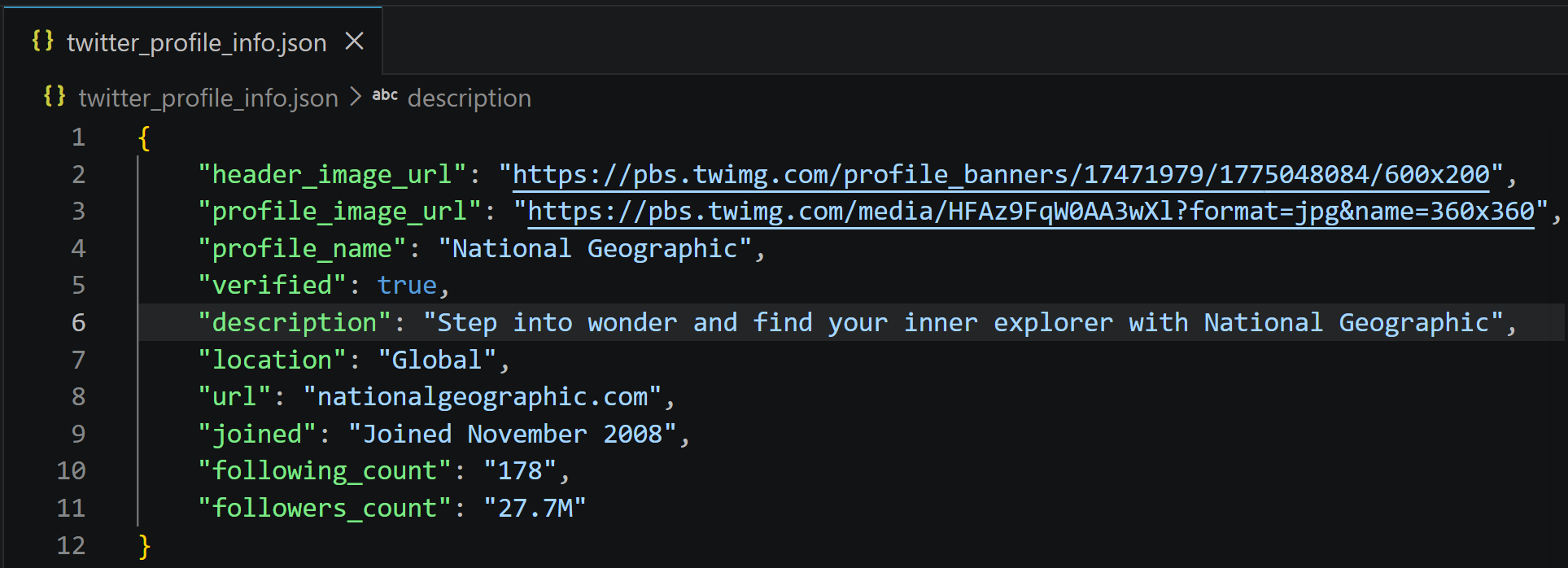 That information corresponds exactly to what you can find on the target National Geographic X profile, but now structured in a clean format and ready for downstream processing and analysis. Easy peasy!
Scraping Twitter Trending Topics
Each individual Tweet page shows a section on the right called “What’s happening”:
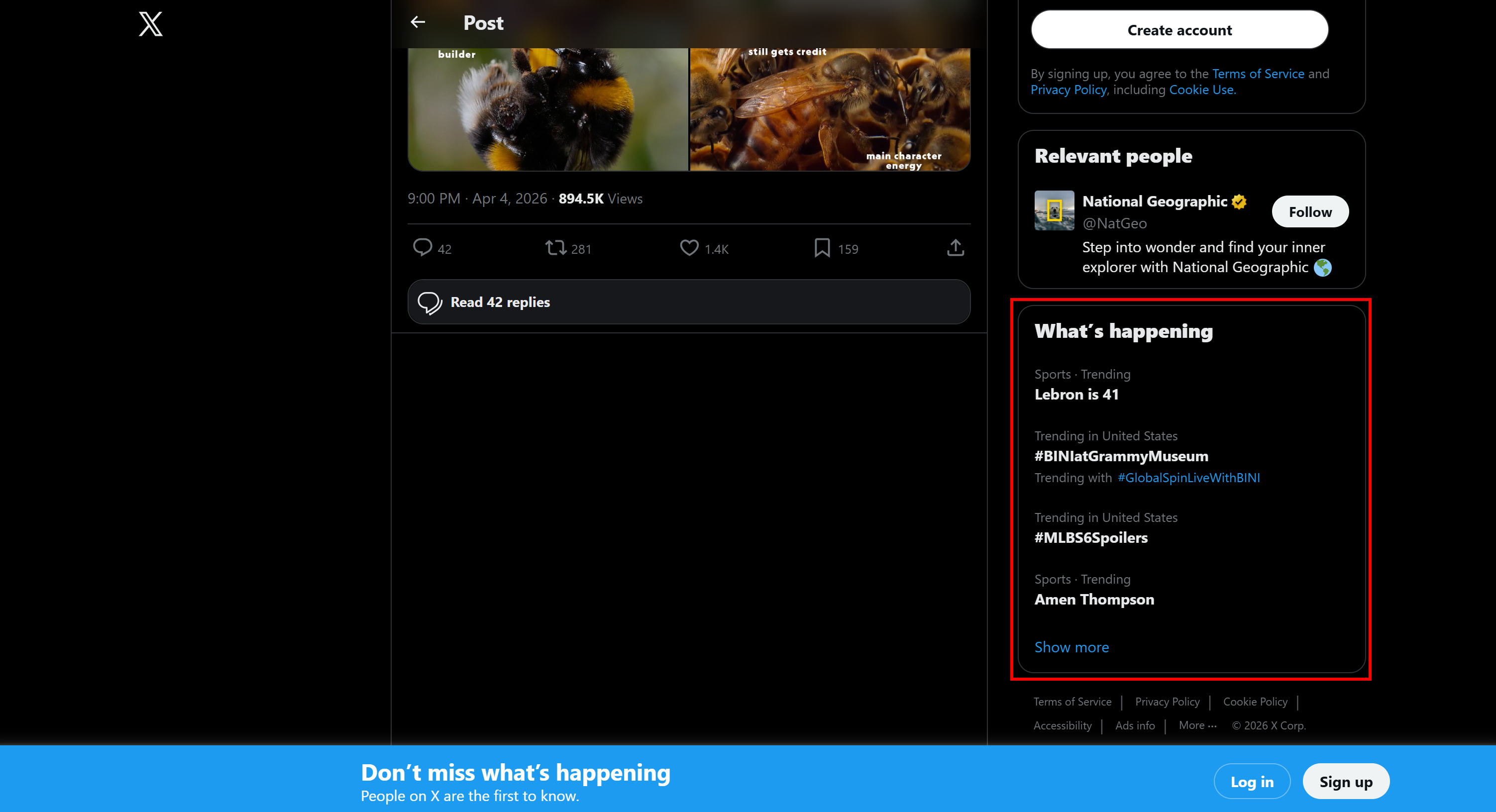 This contains the most trending topics on the platform at that moment. The section updates in real time as trends change. Learn how to scrape X trends!
Step #1: Retrieve the Trending Topics Page
This time, the target page is any Tweet page, for example:
target_url = "https://x.com/NatGeo/status/2040504676378947614"Just like with Tweets, the “What's happening” section is loaded dynamically. So, you need a new selector. Start by inspecting a trend element:
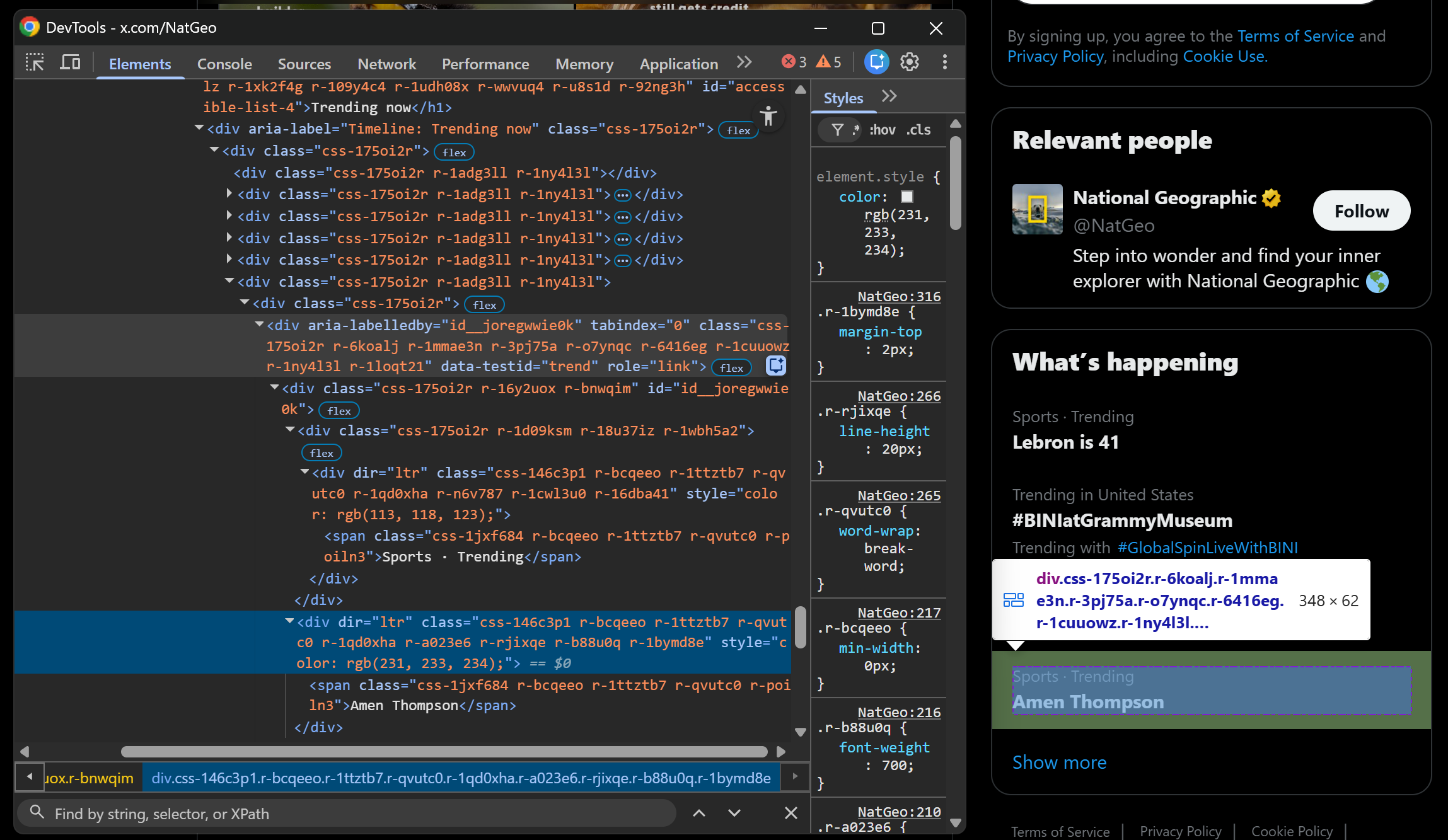
Just like for Tweets, select it with:
div[data-testid="trend"]So, update your Scrape.do Web Scraping API configuration like this:
params = {
    "url": target_url,
    "token": SCRAPE_DO_TOKEN,
    "render": "true",
    "waitSelector": 'div[data-testid="trend"]'
}
Then proceed with HTML retrieval and parsing as usual.
Step #2: Scrape Twitter Trends
The X trending topics contain multiple items, so you need a list to store them:
trending_topics = []Each trend card is a div[data-testid="trend"] element containing up to three <span> elements. Scrape the Twitter trends with:
# Select all trending topic elements
trending_topic_elements = soup.select('div[data-testid="trend"]')

for trending_topic_element in trending_topic_elements:
    spans = trending_topic_element.select("span")

    trending_in = spans[0].get_text(strip=True) if len(spans) > 0 else None
    trend = spans[1].get_text(strip=True) if len(spans) > 1 else None
    trending_with = spans[2].get_text(strip=True) if len(spans) > 2 else None

    # Populate with the scraped data and append to the list
    trending_topic = {
        "trending_in": trending_in,
        "trend": trend,
        "trending_with": trending_with,
    }
    trending_topics.append(trending_topic)
The idea is to collect the text from each <span>, only if it exists. Each trend is then structured into an object and appended to the trending_topics list.
Step #3: Export the Scraped Data
Export the scraped data to a CSV file:
import csv

if len(trending_topics) > 0:
    fieldnames = list(trending_topics[0].keys())

    with open("trending_topics.csv", "w", newline="", encoding="utf-8") as f:
        writer = csv.DictWriter(f, fieldnames=fieldnames)
        writer.writeheader()
        writer.writerows(trending_topics)
This produces a trending_topics.csv file containing the scraped Twitter trending topics.
Step #3: Put It All Together
Here is the full code of the final Python scraping Twitter script targeting trends:
import requests
from bs4 import BeautifulSoup
import csv

# The target Twitter URL to scrape
target_url = "https://x.com/NatGeo/status/2040504676378947614"

# Replace with your actual Scrape.do API token
SCRAPE_DO_API_TOKEN = "<YOUR_SCRAPE_DO_API_TOKEN>"

# The required parameters to scrape Twitter
params = {
    "url": target_url,
    "token": SCRAPE_DO_API_TOKEN,
    "render": "true",
    "waitSelector": 'div[data-testid="trend"]'
}

# Perform a request to the Scrape.do Web Scraping API
response = requests.get(
  "http://api.scrape.do/",
  params=params
)

# Raise an exception if the request was unsuccessful
response.raise_for_status()

# Access the HTML from the response
html = response.text

# Parse the HTML page with BeautifulSoup
soup = BeautifulSoup(html, "html.parser")

# Where to store the scraped data
trending_topics = []

# Select all trending topic elements
trending_topic_elements = soup.select('div[data-testid="trend"]')

# Scrape each trending topic
for trending_topic_element in trending_topic_elements:
    spans = trending_topic_element.select("span")

    trending_in = spans[0].get_text(strip=True) if len(spans) > 0 else None
    trend = spans[1].get_text(strip=True) if len(spans) > 1 else None
    trending_with = spans[2].get_text(strip=True) if len(spans) > 2 else None

    # Populate with the scraped data and append to the list
    trending_topic = {
        "trending_in": trending_in,
        "trend": trend,
        "trending_with": trending_with,
    }
    trending_topics.append(trending_topic)

# Export the scraped Twitter trending topics to a CSV file
if len(trending_topics) > 0:
    fieldnames = list(trending_topics[0].keys())

    with open("trending_topics.csv", "w", newline="", encoding="utf-8") as f:
        writer = csv.DictWriter(f, fieldnames=fieldnames)
        writer.writeheader()
        writer.writerows(trending_topics)
Run it, and it will produce a CSV file containing X trending information:
 This is it! You just saw how to scrape Twitter trends in Python.
Conclusion
In this article, you learned why relying on Twitter scraping can be a better approach than connecting directly to the X API. It gives you a cheaper option while providing more flexibility and control.
In particular, you saw the challenges of scraping Twitter and how to overcome them using an all-in-one Web Scraping API solution like the one provided by Scrape.do. Thanks to it, you were able to reliably scrape Tweets, X profile information, and trending topics with just a few lines of code.
Create a new account and get started with the Scrape.do Web Scraping API for free today!
Frequently Asked Questions
Does Twitter have anti-scraping systems in place?
Yes. X uses login walls, rate limiting, JavaScript rendering, IP-based blocking, and others. These challenges can be handled through an all-in-one web scraping solution like Scrape.do's Web Scraping API. This provides proxy rotation, browser rendering, and anti-bot bypass capabilities through a single API call.
Is there any difference between scraping X.com or scraping Twitter?
No. There is no functional difference. Twitter.com now redirects to x.com, and both serve the same underlying platform, UI structure, and data endpoints, so scraping approaches remain identical.
Is scraping Twitter legal?
Yes, as long as you only collect publicly available data and respect website policies. You should avoid private or restricted content and follow ethical scraping practices. Find out more in our dedicated guide.
How to avoid the X.com login wall when scraping?
No, you cannot programmatically bypass the X.com login wall. Instead, you should work with publicly accessible data and enrich missing information using official APIs or alternative data sources.
Web Scraping Expert