Category:Scraping Basics
How to Download Files & Images From a URL in Python

R&D Engineer


Downloading files from URLs in Python sounds basic until the URL returns a 403, the file hides behind JavaScript rendering, or you need to scrape the page first to find the download link.
Product images for a price tracker, PDFs from a research archive, video clips from a media host. Sooner or later every automation project needs to pull files from the web. A naive requests.get() works on cooperative servers, but real-world sites fight back with bot detection, hotlink protection, and dynamic content loading.
This article walks through five file types on five real websites using the three patterns that cover all of them: binary downloads, streaming, and anti-bot bypass.
Download Images From a Web Page
Images are the most common file you'll download. Product photos, logos, thumbnails, they all follow the same pattern: fetch the binary content, write it to disk.
[This product page on scrapingtest.comhttps://scrapingtest.com/ecommerce/product/7553957) is a good test target. It's an e-commerce listing for a Motorola phone with a product image, a site logo, and thumbnails.
![scrapingtest product page/uploads/blog/scrapingtest-product-page.png)
Inspect the Page Structure
Open DevTools first. Check what images exist on the page before writing any code.
![product page with images in devtools/uploads/blog/product-page-devtools-img.png)
Three <img> tags on this page. The site logo sits at /phone-guy-logo.svg. The product image lives at /ecommerce/images/7553957.jpg, but it's wrapped inside a Next.js image optimizer URL (/_next/image?url=...). You'll need to extract the real path from that.
Download a Single Image
If you already know the direct URL, downloading an image is three lines of code:
import requests

image_url = "https://scrapingtest.com/ecommerce/images/7553957.jpg"
response = requests.get(image_url)

if response.status_code == 200:
    with open("product-image.jpg", "wb") as file:
        file.write(response.content)
    print(f"Image saved: product-image.jpg ({len(response.content):,} bytes)")
else:
print(f"Failed to download: {response.status_code}")Image saved: product-image.jpg (7,810 bytes)response.content returns raw bytes, not text. Images, PDFs, and videos are binary data, so always write them in "wb" (write binary) mode. Check the status code before writing, too. A 403 or 404 still creates a file, but it'll contain an error page instead of your image.
Extract and Download All Images
When you don't know the image URLs upfront, parse the page first with BeautifulSoup and extract every <img> tag:
import requests
from bs4 import BeautifulSoup
from urllib.parse import urljoin, urlparse, parse_qs, unquote

page_url = "https://scrapingtest.com/ecommerce/product/7553957"
response = requests.get(page_url)
soup = BeautifulSoup(response.text, "html.parser")

images = soup.find_all("img")
print(f"Found {len(images)} images on the page\n")

for img in images:
    src = img.get("src", "")
    alt = img.get("alt", "no alt text")

    # Next.js wraps real paths in /_next/image?url=...
    if "/_next/image" in src:
        parsed = urlparse(src)
        real_path = parse_qs(parsed.query).get("url", [src])[0]
        real_path = unquote(real_path)
        full_url = urljoin(page_url, real_path)
    else:
        full_url = urljoin(page_url, src)

    filename = full_url.split("/")[-1]
    img_response = requests.get(full_url)

    if img_response.status_code == 200:
        with open(filename, "wb") as file:
            file.write(img_response.content)
        print(f"Saved: {filename} ({len(img_response.content):,} bytes) - {alt}")
    else:
print(f"Failed: {filename} - {img_response.status_code}")Found 3 images on the page
Saved: phone-guy-logo.svg (1,570,715 bytes) - Phone Guy Logo
Saved: 7553957.jpg (7,810 bytes) - moto g - 2025 128GB (Unlocked) - Forest Gray
Saved: 7553957.jpg (7,810 bytes) - Mainurljoin turns relative paths like /phone-guy-logo.svg into absolute URLs. The Next.js optimizer URLs need extra handling because the real image path is URL-encoded inside the ?url= parameter. We decode it before downloading.
Images are binary files. So are PDFs, but they can run into hundreds of megabytes, and loading all of that into memory before writing is a problem.
Download a PDF File
Same binary pattern as images, but for larger files you need to stream the response and write it in chunks.
Stream a PDF Download
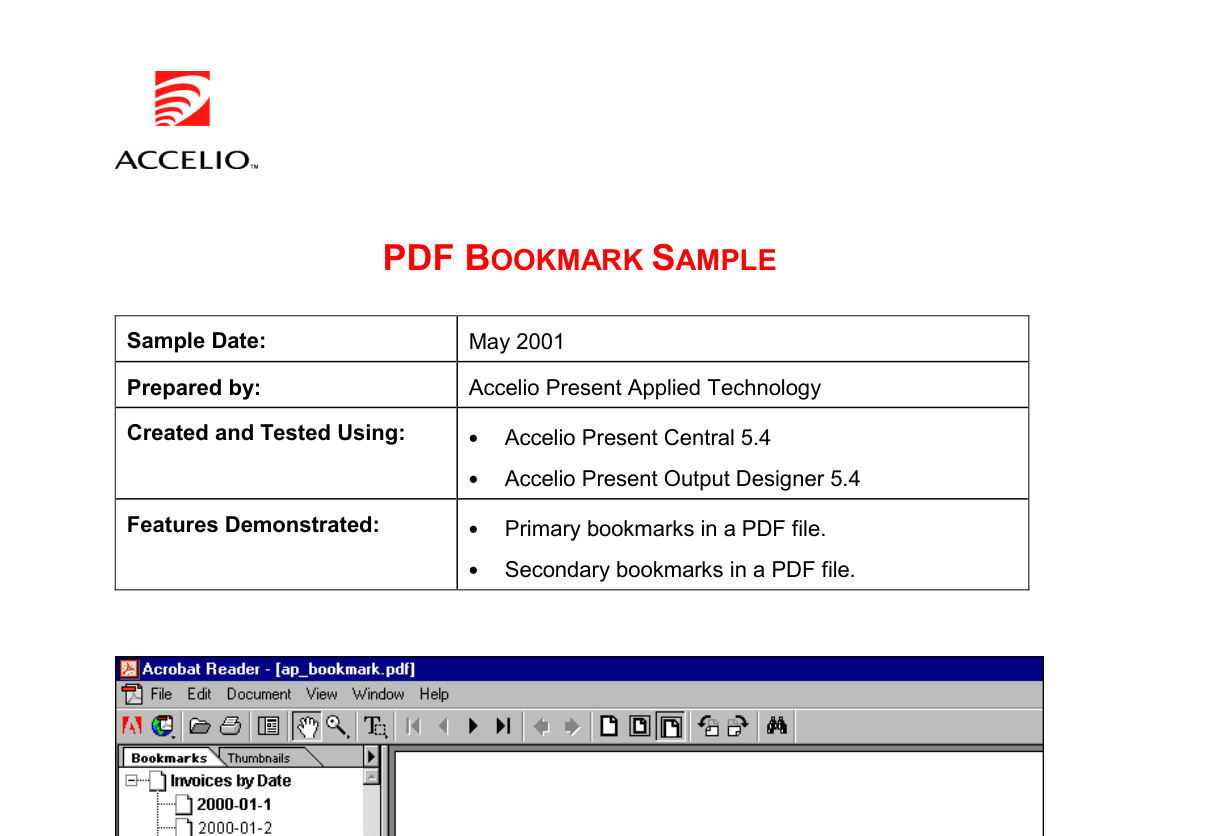
Adobe's sample PDF is a 4-page test document that's been sitting on their servers for over 21 years. Good enough.
import requests

pdf_url = "https://www.adobe.com/support/products/enterprise/knowledgecenter/media/c4611_sample_explain.pdf"
response = requests.get(pdf_url, stream=True)

if response.status_code == 200:
    content_type = response.headers.get("Content-Type", "")
    print(f"Content-Type: {content_type}")

    with open("sample.pdf", "wb") as file:
        total = 0
        for chunk in response.iter_content(chunk_size=8192):
            file.write(chunk)
            total += len(chunk)

    print(f"PDF saved: sample.pdf ({total:,} bytes)")
else:
print(f"Failed to download: {response.status_code}")Content-Type: application/pdf
PDF saved: sample.pdf (88,226 bytes)stream=True tells requests not to load the entire response body into memory. Instead, iter_content(chunk_size=8192) reads 8KB at a time and writes each chunk to disk as it arrives.
For an 88KB PDF, this doesn't matter much. For a 500MB research paper, it's the difference between your script working and your process getting killed.
Verify the Download
The Content-Type header confirms the server is returning a PDF and not an HTML error page. If you get text/html instead of application/pdf, the server is probably redirecting you to a login page or returning a bot-detection challenge.
Streaming works for any large binary file. Video is where it matters most, and where you'll hit your first real-world blocker.
Download Video Files
Videos are the largest files you'll deal with. Even a 5-second clip runs 3MB, and a full recording can hit gigabytes. Streaming isn't optional here.
Stream a Video From a Direct URL
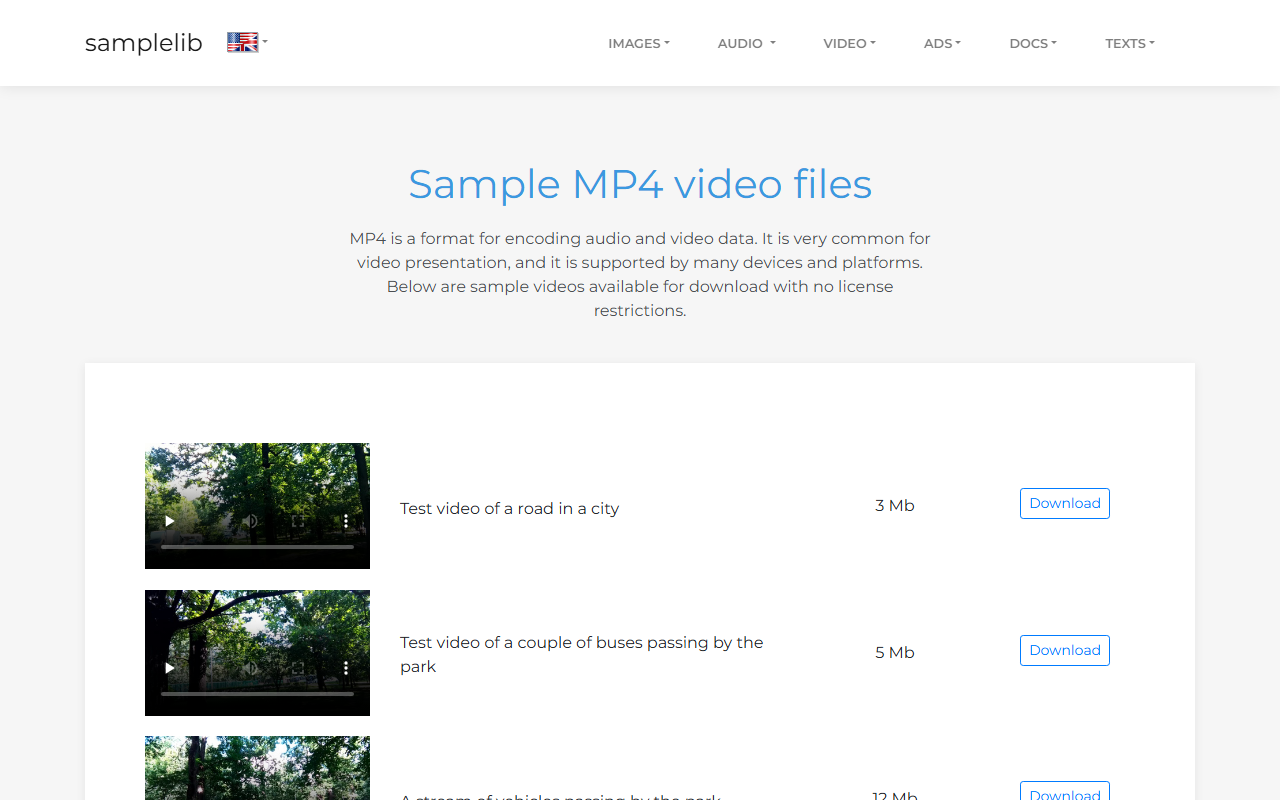
A sample MP4 from samplelib.com, 5 seconds, about 2.8MB:
import requests

video_url = "https://download.samplelib.com/mp4/sample-5s.mp4"
response = requests.get(video_url, stream=True)

if response.status_code == 200:
    total_size = int(response.headers.get("Content-Length", 0))
    downloaded = 0

    with open("sample-5s.mp4", "wb") as file:
        for chunk in response.iter_content(chunk_size=8192):
            file.write(chunk)
            downloaded += len(chunk)
            if total_size:
                percent = (downloaded / total_size) * 100
                print(f"\rDownloading: {percent:.1f}%", end="")

    print(f"\nVideo saved: sample-5s.mp4 ({downloaded:,} bytes)")
else:
print(f"Failed to download: {response.status_code}")Downloading: 100.0%
Video saved: sample-5s.mp4 (2,848,208 bytes)Content-Length gives the total file size upfront, so you can calculate a percentage. Same streaming pattern as the PDF section, just with a progress readout on top.
When the Server Blocks You
Not every server hands you files willingly. Try file-examples.com:
import requests

response = requests.get("https://file-examples.com/index.php/sample-video-files/")
print(f"Status: {response.status_code}")Status: 403403 Forbidden. The server detected a script, not a browser. A few reasons this happens:
- The default
User-Agentheader in requests identifies itself aspython-requests/x.x.x, which is an obvious bot signature - Some servers check TLS fingerprints, IP reputation, or request patterns
- Hotlink protection blocks direct file downloads from unknown referrers
The quick fix is adding a browser-like User-Agent header:
headers = {"User-Agent": "Mozilla/5.0 (Windows NT 10.0; Win64; x64) AppleWebKit/537.36"}
response = requests.get(url, headers=headers)
This works on some sites. On others, you're up against IP bans, CAPTCHA walls, and TLS fingerprinting. That's where a web scraping API comes in.
Scrape.do routes requests through rotating residential proxies and handles browser fingerprinting automatically. Instead of managing headers, cookies, and proxy rotation yourself, one API call:
import requests
import urllib.parse

TOKEN = "<your-token>"
target = "https://file-examples.com/index.php/sample-video-files/"
encoded_url = urllib.parse.quote_plus(target)
api_url = f"https://api.scrape.do/?token={TOKEN}&url={encoded_url}&super=true"

response = requests.get(api_url)
print(f"Status: {response.status_code}")
The super=true parameter activates premium proxy rotation for sites with aggressive bot detection. The page that returned 403 Forbidden now returns clean HTML, ready for parsing.
Binary files (images, PDFs, videos) use response.content and write in "wb" mode. HTML is text. Different approach.
Save a Page as HTML
HTML is text, not binary. That changes how you write to disk: response.text instead of response.content, "w" mode instead of "wb". Same product page from web scraping earlier, different output.
Download Raw HTML
import requests

page_url = "https://scrapingtest.com/ecommerce/product/7553957"
response = requests.get(page_url)

if response.status_code == 200:
    with open("product-page.html", "w", encoding="utf-8") as file:
        file.write(response.text)
    print(f"HTML saved: product-page.html ({len(response.text):,} characters)")
else:
print(f"Failed to download: {response.status_code}")HTML saved: product-page.html (34,064 characters)What changed from the binary downloads:
response.textinstead ofresponse.content. Python decodes the bytes into a string using the response's charset."w"mode instead of"wb". Text writing, not binary.encoding="utf-8"so special characters (accents, emojis, non-Latin scripts) survive the write.
Open the saved file in a browser and it renders the full product page, styles and all.
When HTML Needs JavaScript Rendering
The scrapingtest.com page works because its content is server-rendered. Many modern sites load content dynamically with JavaScript. Your downloaded HTML would be an empty shell with a <script> tag and no actual data.
For those pages, you need a headless browser to execute JavaScript first. Scrape.do handles this with the render=true parameter:
api_url = f"https://api.scrape.do/?token={TOKEN}&url={encoded_url}&render=true"This renders the page in a real browser before returning the HTML. For a deeper walkthrough, check the guide on scraping JavaScript-rendered pages with Python.
Raw HTML works for archiving or re-processing. But if what you actually need is clean, readable content for an LLM pipeline or documentation archive, Markdown is the better output format.
Convert a Web Page to Markdown
The idea is to strip out HTML tags while keeping the actual content structure. Headings, lists, code blocks, links all survive.
Install markdownify
markdownify handles the conversion. Lightweight and produces cleaner output than html2text, especially for pages with code blocks and tables.
pip install requests beautifulsoup4 markdownifyFetch and Convert
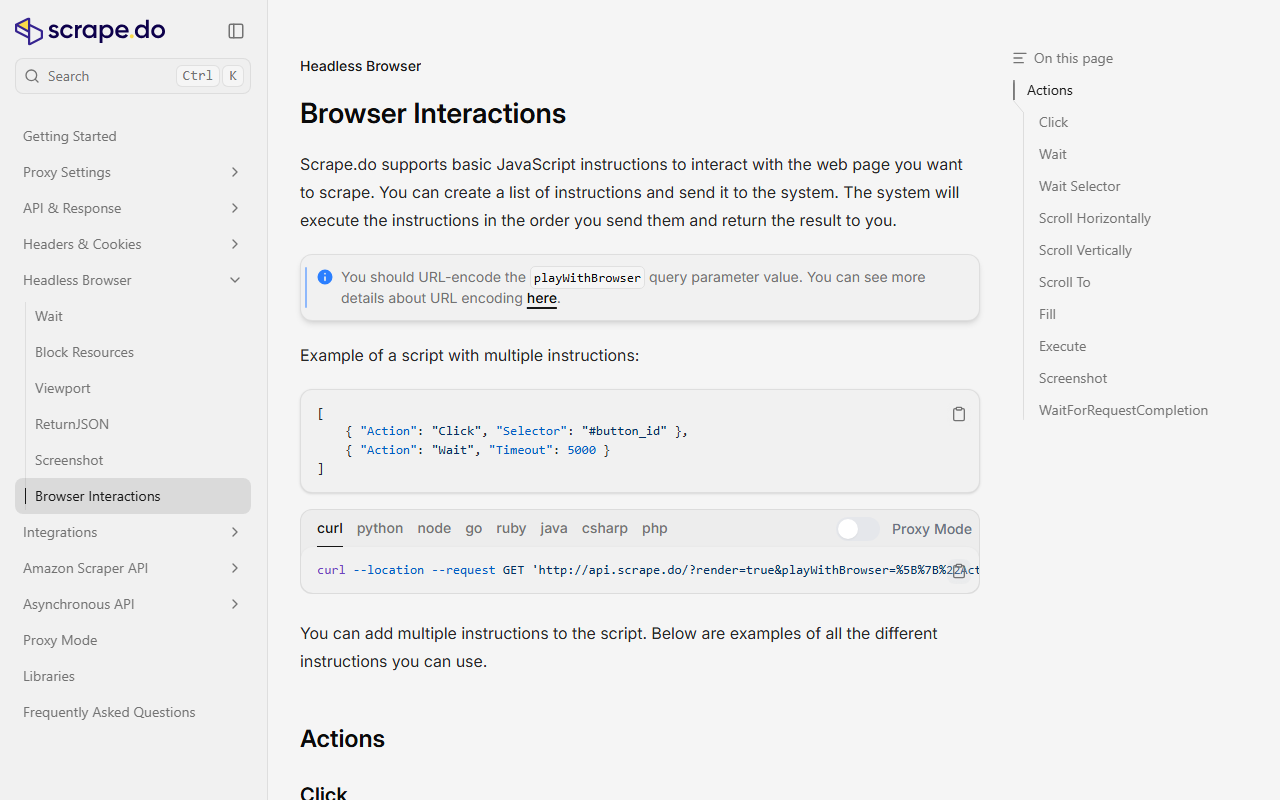
Scrape.do's browser interactions documentation makes a good test page. Structured content with headings, code blocks, and navigation elements to filter out:
import re
import requests
from bs4 import BeautifulSoup
from markdownify import markdownify

page_url = "https://scrape.do/documentation/headless-browser/browser-interactions/"
response = requests.get(page_url)
soup = BeautifulSoup(response.text, "html.parser")

# Extract only the main content, skip navigation/footer/sidebar
main_content = soup.find("main") or soup.find("article") or soup.find("div", class_="content")
html = str(main_content) if main_content else response.text

markdown_text = markdownify(html, heading_style="ATX", strip=["img", "script", "style"])

# Clean up excessive blank lines
markdown_text = re.sub(r"\n{3,}", "\n\n", markdown_text).strip()

with open("browser-interactions.md", "w", encoding="utf-8") as file:
    file.write(markdown_text)

print(f"Markdown saved: browser-interactions.md ({len(markdown_text):,} characters)")Markdown saved: browser-interactions.md (8,169 characters)The script isolates the main content area with BeautifulSoup before converting. Without this step, you'd get navigation menus, footer links, and sidebar widgets in the output. The strip parameter removes images, scripts, and styles that don't belong in a Markdown document.
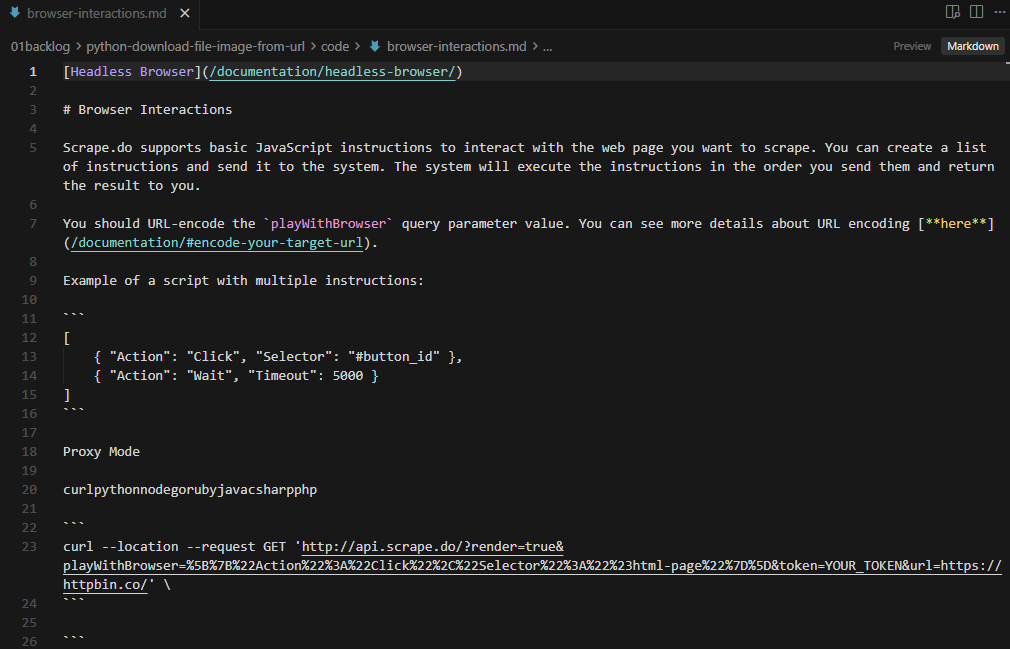
heading_style="ATX" produces # Heading syntax instead of underline-style headings. The regex cleanup collapses triple-or-more blank lines into double line breaks so the output isn't full of gaps.
Every example so far targeted cooperative servers. Most real targets won't be this friendly.
Handle Protected Downloads With Scrape.do
Production servers actively block automated downloads. The usual suspects:
Common Blockers
- 403 Forbidden: the server detects your script's User-Agent or IP and rejects the request
- CAPTCHA challenges: Cloudflare or similar WAFs serve a verification page instead of the file
- Geo-restrictions: content locked to specific countries or regions
- Rate limiting: too many requests from the same IP triggers 429 Too Many Requests
Route Any Download Through Scrape.do
Your download logic stays the same. You just route it through Scrape.do's API to handle the protection:
import requests
import urllib.parse

SCRAPE_DO_TOKEN = "<your-token>"
target_url = "https://scrapingtest.com/ecommerce/images/7553957.jpg"

encoded_url = urllib.parse.quote_plus(target_url)
api_url = f"https://api.scrape.do/?token={SCRAPE_DO_TOKEN}&url={encoded_url}"

response = requests.get(api_url)

if response.status_code == 200:
    with open("product-image-via-scrape-do.jpg", "wb") as file:
        file.write(response.content)
    print(f"Image saved: product-image-via-scrape-do.jpg ({len(response.content):,} bytes)")
else:
    print(f"Failed: {response.status_code}")
Same pattern for any file type. Swap the target_url for a PDF, video, or HTML page. The API returns the raw content, and you write it to disk the same way.
Key parameters:
super=true: premium proxy rotation for sites with aggressive bot detection (bypass Cloudflare and similar WAFs)render=true: renders JavaScript before returning contentgeoCode=us: routes the request through a specific country's IP
Before scraping any site, it's worth checking if the website allows scraping by reviewing its robots.txt and terms of service.
Conclusion
Three patterns handle everything. Use response.content with "wb" mode for binary files like images, PDFs, and videos. Use response.text with "w" mode for HTML and Markdown. Add stream=True with iter_content when the file is large enough to matter.
When the server fights back with 403s, CAPTCHAs, or geo-restrictions, route through Scrape.do and keep your download logic clean.
R&D Engineer