# n8n - Scrape.do Integration
> Source: https://scrape.do/documentation/integrations/n8n/
Step-by-step guide to integrate Scrape.do with n8n for automated web scraping workflows
Scrape.do integrates seamlessly with n8n to automate web scraping workflows. Use HTTP requests to scrape websites, parse the response with AI or Python code, and export data to Google Sheets or any of n8n's countless integrations and use cases.
## 1. Create a New Workflow and Add Trigger
Let's start by setting up the basic n8n workflow.
- From your n8n dashboard, click **Create workflow** to create a new workflow.
- First thing you'll need to add is a trigger and there are a few options to choose from:
- **Manual Trigger** - For testing and on-demand execution
- **Schedule Trigger** - For automated daily/hourly scraping
- **Webhook** - To trigger scraping from external sources
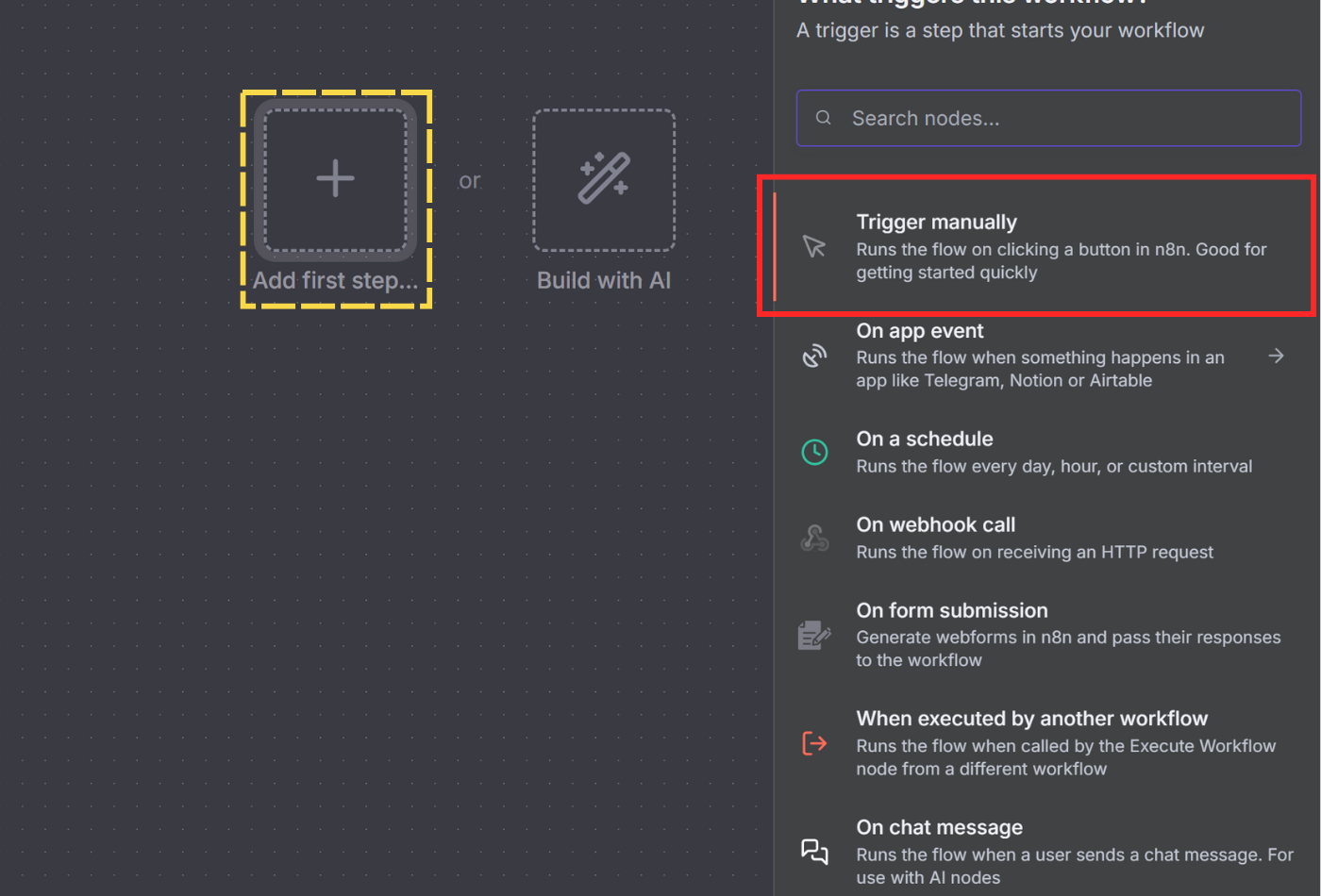
For this tutorial, we'll use **Manual Trigger** for testing, which you can later replace with a Schedule Trigger for automation.
## 2. Send a Request to Scrape.do
Now we'll configure the HTTP Request node to send scraping requests to Scrape.do.
- Click the **+** button to add a new node and search for **HTTP**. Select **HTTP Request** from the list.
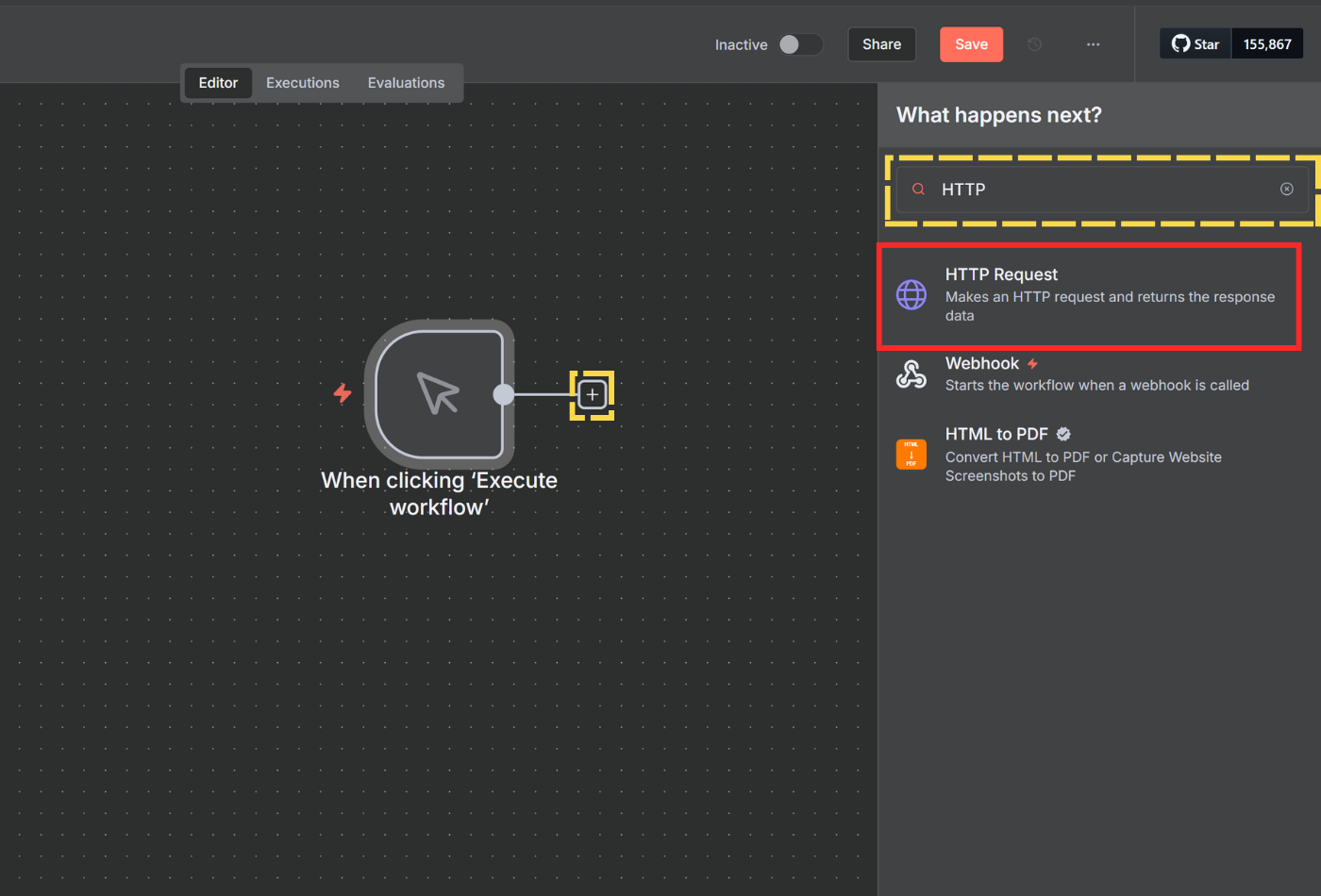
- In the node settings, either click **Import cURL** and paste a working request from your playground, or configure the following:
- **Method** - Select **GET**
- **URL** - Enter `http://api.scrape.do`
- **Send Query Parameters** - Toggle this ON
- Click **Add Parameter** and add these query parameters one by one:
- **url** - The URL of the web page you want to scrape (e.g., `https://us.amazon.com/dp/B0BLRJ4R8F`)
- **token** - Your Scrape.do API token from your [dashboard](https://dashboard.scrape.do)
- **super** - Set to `true` to use residential and mobile proxies for better success rates, or `false` for datacenter proxies
- **geoCode** - Country code for proxy location (e.g., `us`, `uk`, `de`). View available locations [here](/documentation/proxies/geo-code)
- **render** - Set to `false` by default. Change to `true` for JavaScript-heavy websites that need browser rendering
- **output** - Set to `raw` for manual parsing with code, or `markdown` for AI-based extraction (reduces token usage)
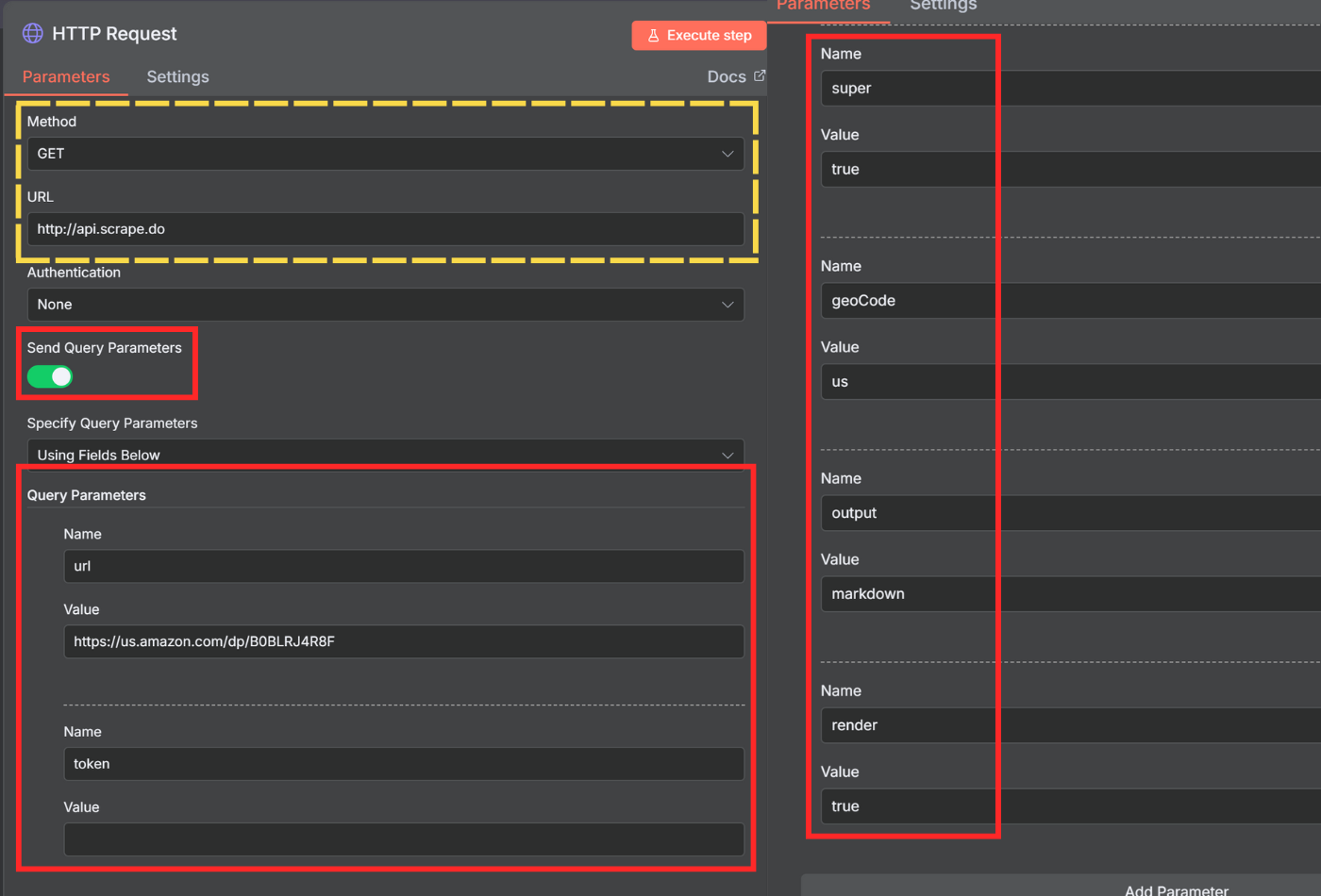
- Click **Test step** to verify you're getting a successful response.
> If you're unable to get a response, visit the [playground](https://dashboard.scrape.do/playground) and experiment with parameters like **Super**, **Render JavaScript**, and **Block Resources** until you get a successful response.
## 3. Extract Data from Response
Once you have the raw HTML or markdown response, you need to parse it into structured data. You have two options for extracting data from your Scrape.do response.
### Option A: Use AI to Extract Data
Best for scraping different websites with varying structures. AI can extract data into a consistent format regardless of the source website's layout.
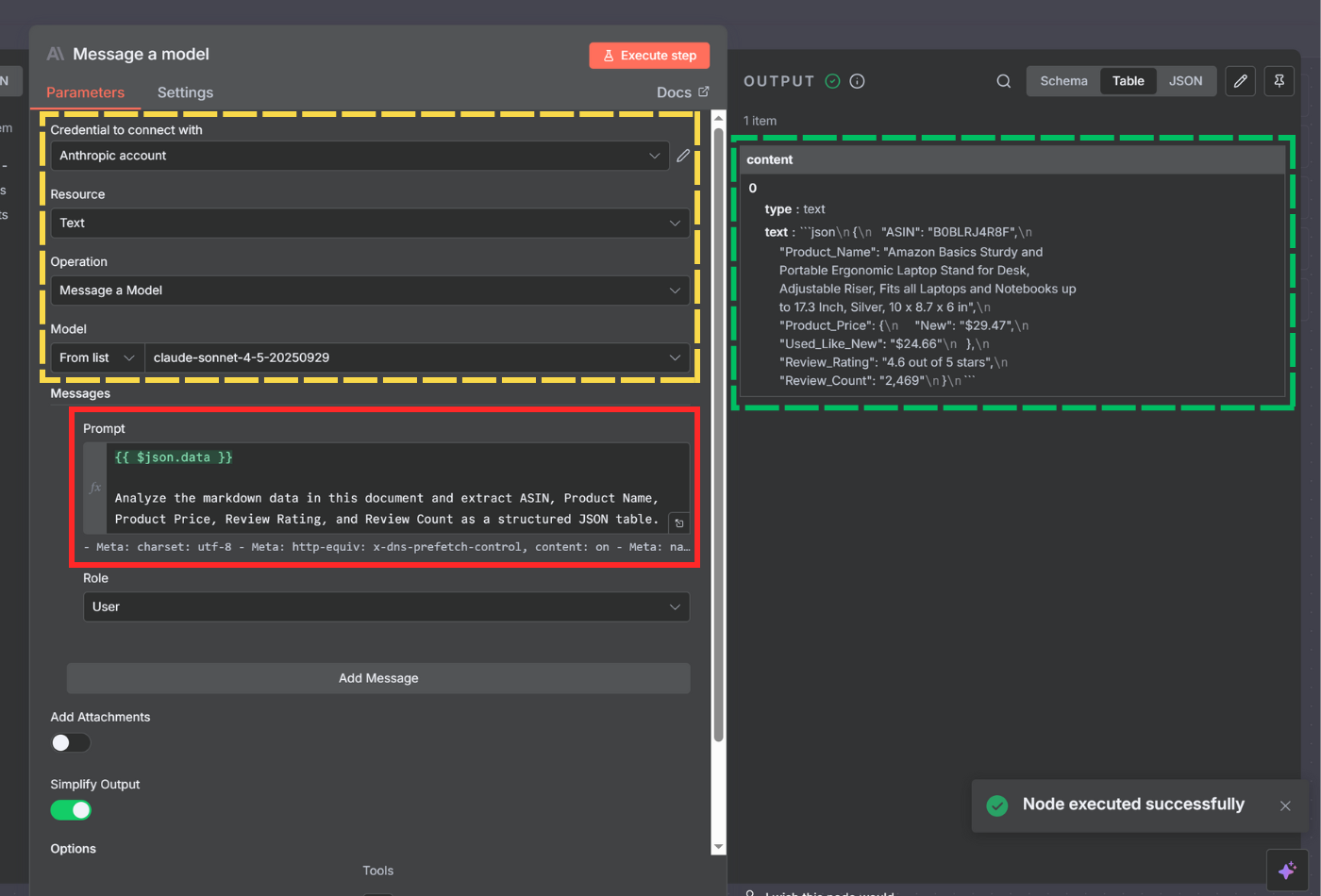
- Click the **+** button after the HTTP Request node and search for **Anthropic** or **OpenAI**.
- Select **Message a model** (for Anthropic Claude) or the equivalent AI chat node.
- Connect your Anthropic/OpenAI API credentials if you haven't already.
- Configure the AI node:
- **Model** - Select a model like `claude-sonnet-4-5-20250929` or `gpt-4`
- **Message** - Add a user message with this structure:
```
{{ $json.data }}
Analyze the markdown data in this document and extract ASIN, Product Name, Product Price, Review Rating, and Review Count as a structured JSON table.
```
The `{{ $json.data }}` will insert the scraped content from the previous node. If not, you can drag and drop the `{{ $json.data }}` from the **INPUT** section on the left to your prompt input field.
#### Parse AI Response to JSON
The AI will return structured data in text format. We need to extract the JSON:
- Add an **AI Transform** node or **Code** node after the AI node.
- If using **AI Transform**:
- **Instructions** - Enter "Extract JSON fields as proper output"
- The node will generate code like:
```javascript
const items = $input.all();
const extractedData = items.map((item) => {
const text = item?.json?.content[0]?.text;
const jsonStart = text.indexOf("{");
const jsonEnd = text.lastIndexOf("}") + 1;
const jsonString = text.substring(jsonStart, jsonEnd);
const jsonData = JSON.parse(jsonString);
return { json: jsonData };
});
return extractedData;
```
- Test the node to verify the JSON is properly extracted.
### Option B: Use Python Code for Extraction
If you're scraping a single website with a consistent layout, Python code is faster and doesn't consume AI credits. This is also useful when the response is too large for AI models.
- Click the **+** button after the HTTP Request node and search for **Code**.
- Select **Code** node and configure:
- **Language** - Select **Python**
- In the code editor, paste your extraction logic:
**Example code (extract product details from Amazon):**
```python
import re
from datetime import datetime
# Get HTML from previous node
html = str(items[0]['json'].get('data', ''))
# Extract product name
name_match = re.search(r']*>(.*?)', html, re.DOTALL)
name = re.sub(r'\s+', ' ', name_match.group(1)).strip() if name_match else "Name not found"
# Extract ASIN
asin_patterns = [r'"asin":"([A-Z0-9]{10})"', r'data-asin="([A-Z0-9]{10})"']
asin = "ASIN not found"
for pattern in asin_patterns:
m = re.search(pattern, html)
if m:
asin = m.group(1)
break
# Extract price
price_match = re.search(r'\$([0-9.,]+)', html)
if price_match:
price = f"${price_match.group(1)}"
else:
whole = re.search(r'([0-9,]+)', html)
fraction = re.search(r'([0-9]+)', html)
price = f"${whole.group(1)}.{fraction.group(1)}" if whole and fraction else "Price not found"
# Extract image
image_match = re.search(r'id="landingImage"[^>]*data-a-dynamic-image="[^"]*"(https://[^&]+?)"', html)
if not image_match:
image_match = re.search(r']*id="landingImage"[^>]*src="([^"]+)"', html)
image = image_match.group(1) if image_match else "No image"
# Extract rating
rating_match = re.search(r'(\d+\.?\d*)\s*out of', html)
rating = rating_match.group(1) if rating_match else "No rating"
# Return output
return [{'json': {'asin': asin, 'name': name, 'price': price, 'image': image, 'rating': rating, 'scrapedAt': datetime.now().isoformat()}}]
```
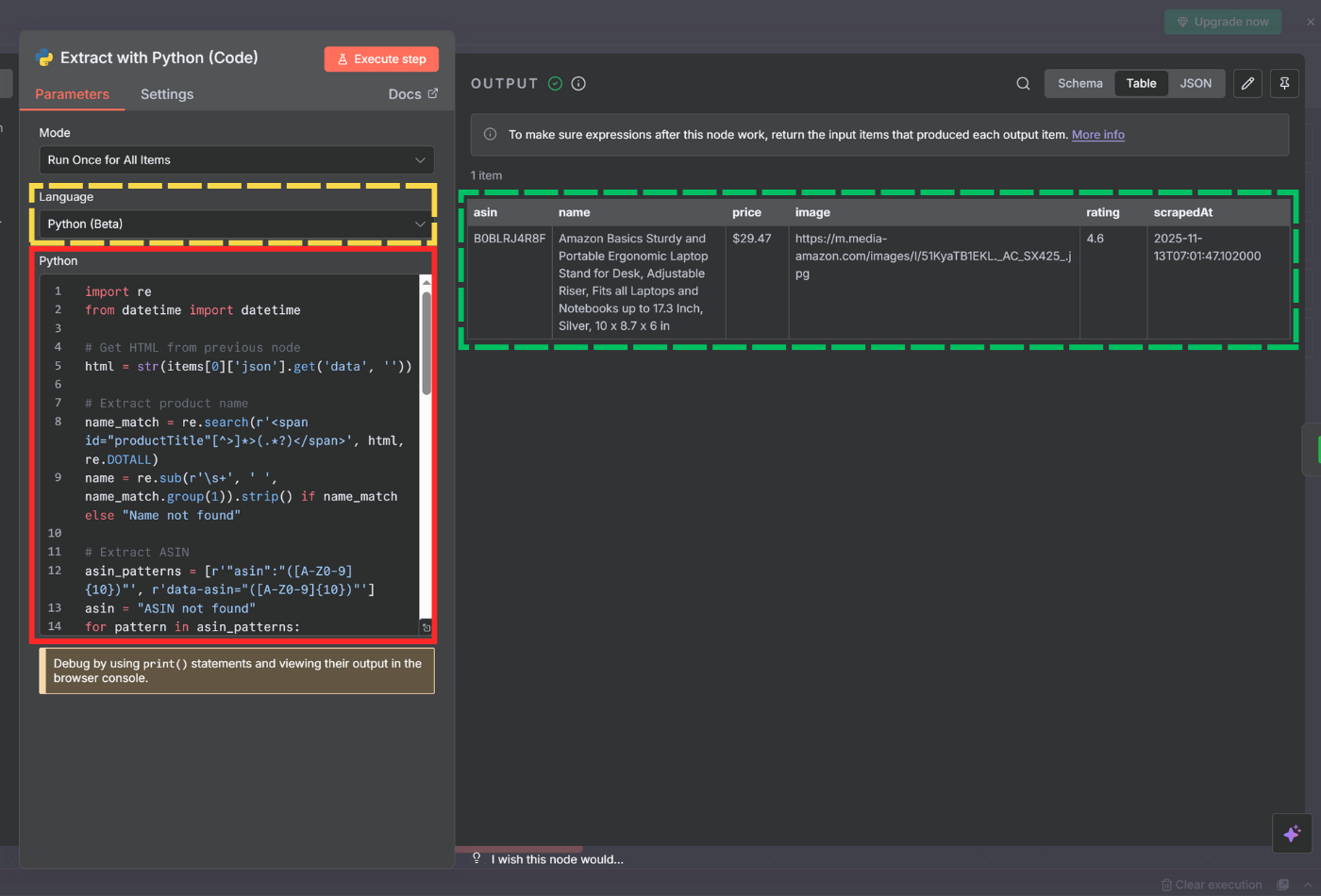
- Click **Test step** to verify the extraction works correctly.
## 4. Export Data to Google Sheets
Now that we have structured data, let's store it in Google Sheets for easy access and analysis.
- Go to Google Drive and create a new spreadsheet.
- Name the spreadsheet and add column headers matching your extracted fields: **ASIN**, **Product Name**, **Product Price**, **Product Image**, **Product Rating**.
- Back in n8n, click the **+** button to add a new node and search for **Google Sheets**.
- Select **Google Sheets** from the list.
- Configure the node:
- **Credential to connect with** - Click to add your Google account and authorize n8n
- **Resource** - Select **Sheet**
- **Operation** - Select **Append**
- **Document** - Choose **By URL** and paste your Google Sheets URL
- **Sheet** - Select the sheet name (e.g., `Sheet1`)
- **Columns** - Choose **Map Each Column Manually**
- Map the fields from your previous node to the spreadsheet columns:
- **ASIN** - `={{ $json.asin }}`
- **Product Name** - `={{ $json.name }}`
- **Product Price** - `={{ $json.price }}`
- **Product Image** - `={{ $json.image }}`
- **Product Rating** - `={{ $json.rating }}`
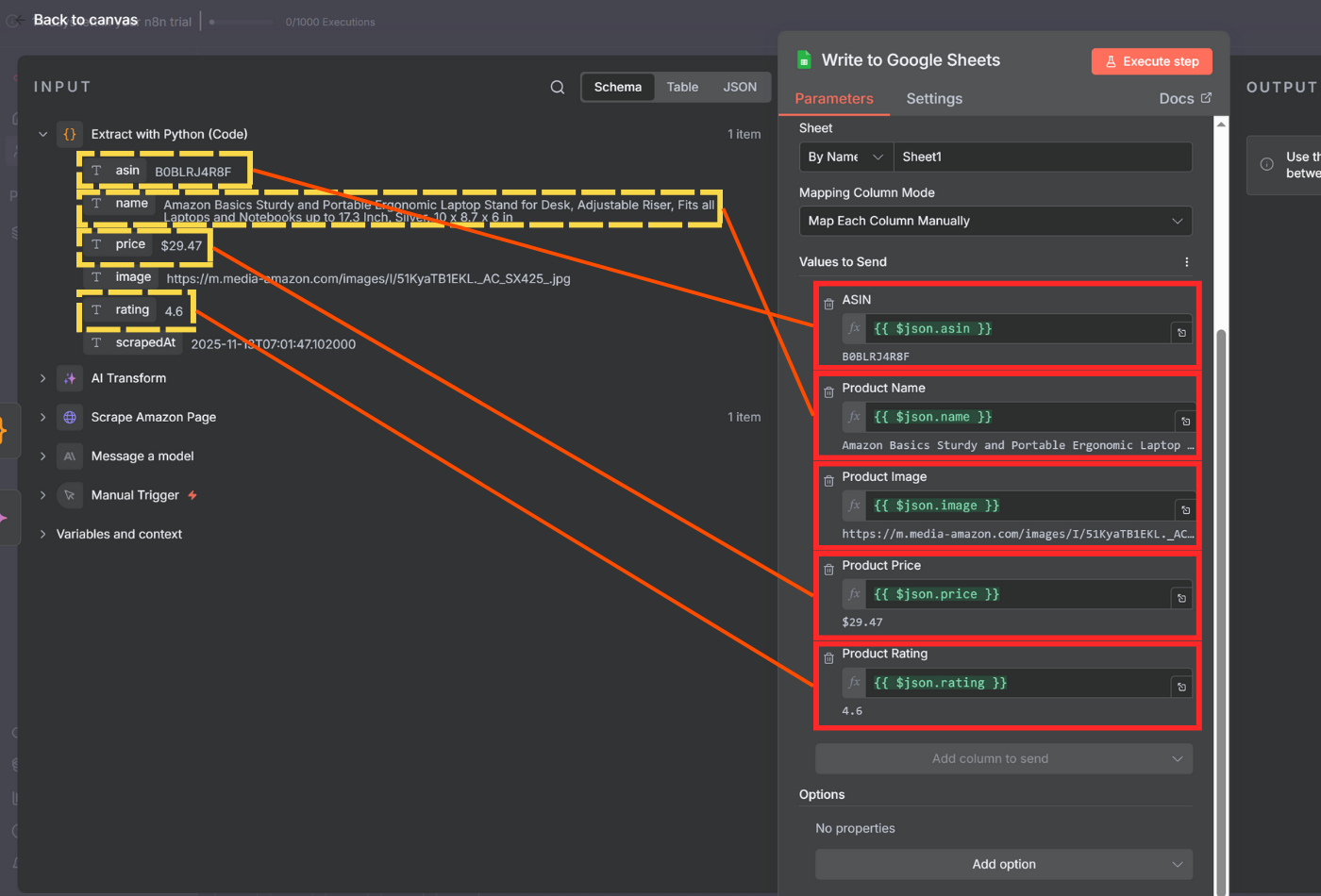
- Click **Test step** to verify data is written to your spreadsheet.
## 5. Test and Activate
Before activating your workflow, make sure everything works end-to-end.
- Click **Test workflow** at the bottom of the canvas to execute all nodes in sequence.
- Verify that:
- The HTTP Request successfully fetches the page through Scrape.do
- The extraction (AI or Python) correctly parses the data
- The Google Sheets node appends a new row with all fields populated
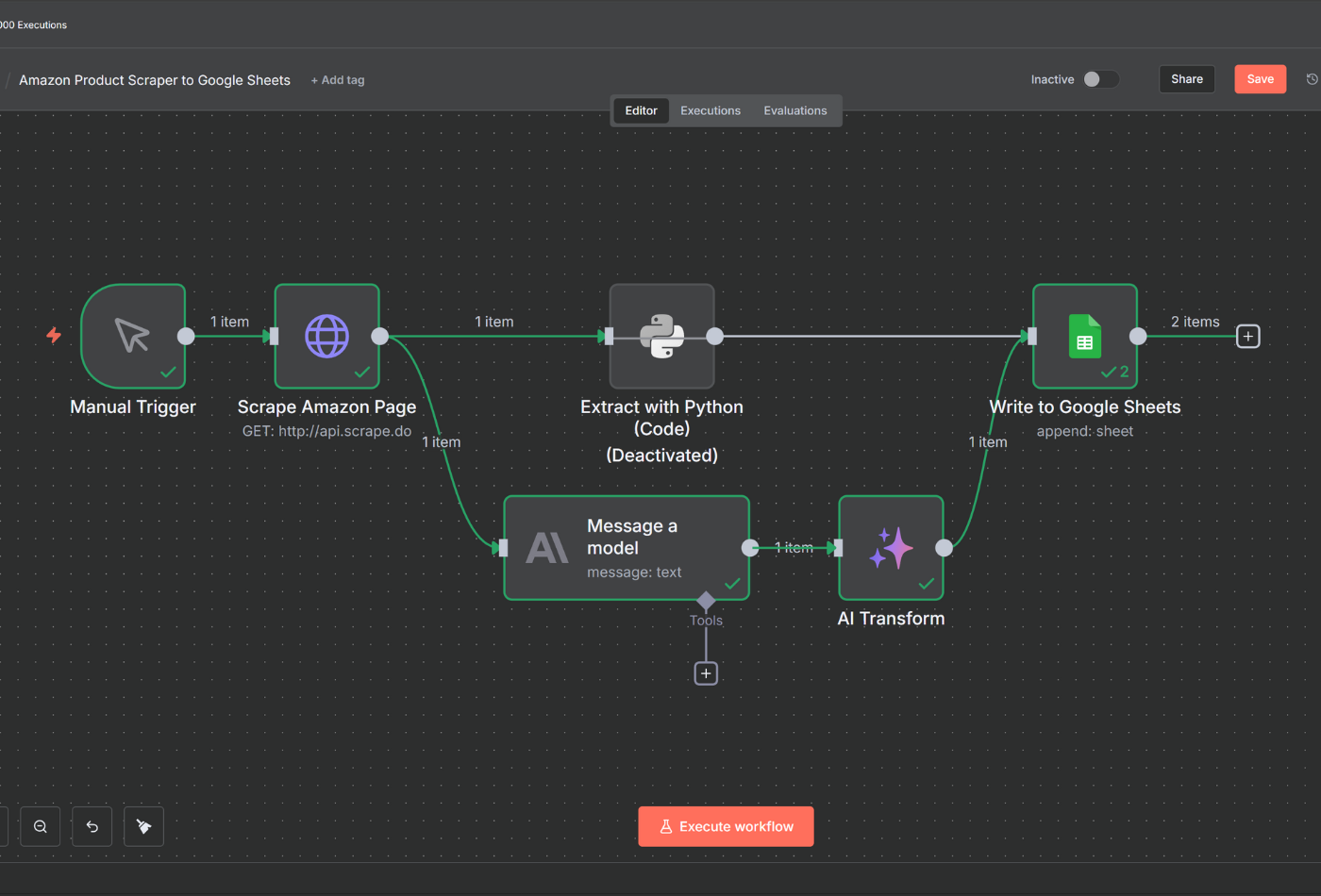
**Download this n8n workflow** to import it directly into your n8n instance.
- If all steps pass, you can:
- Replace the **Manual Trigger** with a **Schedule Trigger** to run automatically (daily, hourly, etc.)
- Click **Active** in the top right to enable the workflow
- Use a **Webhook** trigger to scrape URLs dynamically from other apps