# How to Download Files & Images From a URL in Python
> Source: https://scrape.do/blog/python-download-file-image-from-url/
Published: 2026-03-06 · Updated: 2026-03-06 · Authors: Raif Tekin · Categories: Scraping Basics
**Downloading files from URLs in Python sounds basic until the URL returns a 403, the file hides behind JavaScript rendering, or you need to scrape the page first to find the download link.**
Product images for a price tracker, PDFs from a research archive, video clips from a media host. Sooner or later every automation project needs to pull files from the web. A naive `requests.get()` works on cooperative servers, but real-world sites fight back with bot detection, hotlink protection, and dynamic content loading.
This article walks through five file types on five real websites using the three patterns that cover all of them: binary downloads, streaming, and anti-bot bypass.
## Download Images From a Web Page
Images are the most common file you'll download. Product photos, logos, thumbnails, they all follow the same pattern: fetch the binary content, write it to disk.
[This product page on scrapingtest.comhttps://scrapingtest.com/ecommerce/product/7553957) is a good test target. It's an e-commerce listing for a Motorola phone with a product image, a site logo, and thumbnails.
![scrapingtest product page/uploads/blog/scrapingtest-product-page.png)
### Inspect the Page Structure
Open DevTools first. Check what images exist on the page before writing any code.
![product page with images in devtools/uploads/blog/product-page-devtools-img.png)
Three `![]() ` tags on this page. The site logo sits at `/phone-guy-logo.svg`. The product image lives at `/ecommerce/images/7553957.jpg`, but it's wrapped inside a Next.js image optimizer URL (`/_next/image?url=...`). You'll need to extract the real path from that.
### Download a Single Image
If you already know the direct URL, downloading an image is three lines of code:
```python
import requests
image_url = "https://scrapingtest.com/ecommerce/images/7553957.jpg"
response = requests.get(image_url)
if response.status_code == 200:
with open("product-image.jpg", "wb") as file:
file.write(response.content)
print(f"Image saved: product-image.jpg ({len(response.content):,} bytes)")
else:
print(f"Failed to download: {response.status_code}")
```
```
Image saved: product-image.jpg (7,810 bytes)
```
`response.content` returns raw bytes, not text. Images, PDFs, and videos are binary data, so always write them in `"wb"` (write binary) mode. Check the status code before writing, too. A 403 or 404 still creates a file, but it'll contain an error page instead of your image.
### Extract and Download All Images
When you don't know the image URLs upfront, parse the page first with BeautifulSoup and extract every `
` tags on this page. The site logo sits at `/phone-guy-logo.svg`. The product image lives at `/ecommerce/images/7553957.jpg`, but it's wrapped inside a Next.js image optimizer URL (`/_next/image?url=...`). You'll need to extract the real path from that.
### Download a Single Image
If you already know the direct URL, downloading an image is three lines of code:
```python
import requests
image_url = "https://scrapingtest.com/ecommerce/images/7553957.jpg"
response = requests.get(image_url)
if response.status_code == 200:
with open("product-image.jpg", "wb") as file:
file.write(response.content)
print(f"Image saved: product-image.jpg ({len(response.content):,} bytes)")
else:
print(f"Failed to download: {response.status_code}")
```
```
Image saved: product-image.jpg (7,810 bytes)
```
`response.content` returns raw bytes, not text. Images, PDFs, and videos are binary data, so always write them in `"wb"` (write binary) mode. Check the status code before writing, too. A 403 or 404 still creates a file, but it'll contain an error page instead of your image.
### Extract and Download All Images
When you don't know the image URLs upfront, parse the page first with BeautifulSoup and extract every `![]() ` tag:
```python
import requests
from bs4 import BeautifulSoup
from urllib.parse import urljoin, urlparse, parse_qs, unquote
page_url = "https://scrapingtest.com/ecommerce/product/7553957"
response = requests.get(page_url)
soup = BeautifulSoup(response.text, "html.parser")
images = soup.find_all("img")
print(f"Found {len(images)} images on the page\n")
for img in images:
src = img.get("src", "")
alt = img.get("alt", "no alt text")
# Next.js wraps real paths in /_next/image?url=...
if "/_next/image" in src:
parsed = urlparse(src)
real_path = parse_qs(parsed.query).get("url", [src])[0]
real_path = unquote(real_path)
full_url = urljoin(page_url, real_path)
else:
full_url = urljoin(page_url, src)
filename = full_url.split("/")[-1]
img_response = requests.get(full_url)
if img_response.status_code == 200:
with open(filename, "wb") as file:
file.write(img_response.content)
print(f"Saved: {filename} ({len(img_response.content):,} bytes) - {alt}")
else:
print(f"Failed: {filename} - {img_response.status_code}")
```
```
Found 3 images on the page
Saved: phone-guy-logo.svg (1,570,715 bytes) - Phone Guy Logo
Saved: 7553957.jpg (7,810 bytes) - moto g - 2025 128GB (Unlocked) - Forest Gray
Saved: 7553957.jpg (7,810 bytes) - Main
```
`urljoin` turns relative paths like `/phone-guy-logo.svg` into absolute URLs. The Next.js optimizer URLs need extra handling because the real image path is URL-encoded inside the `?url=` parameter. We decode it before downloading.
Images are binary files. So are PDFs, but they can run into hundreds of megabytes, and loading all of that into memory before writing is a problem.
## Download a PDF File
Same binary pattern as images, but for larger files you need to **stream** the response and write it in chunks.
### Stream a PDF Download
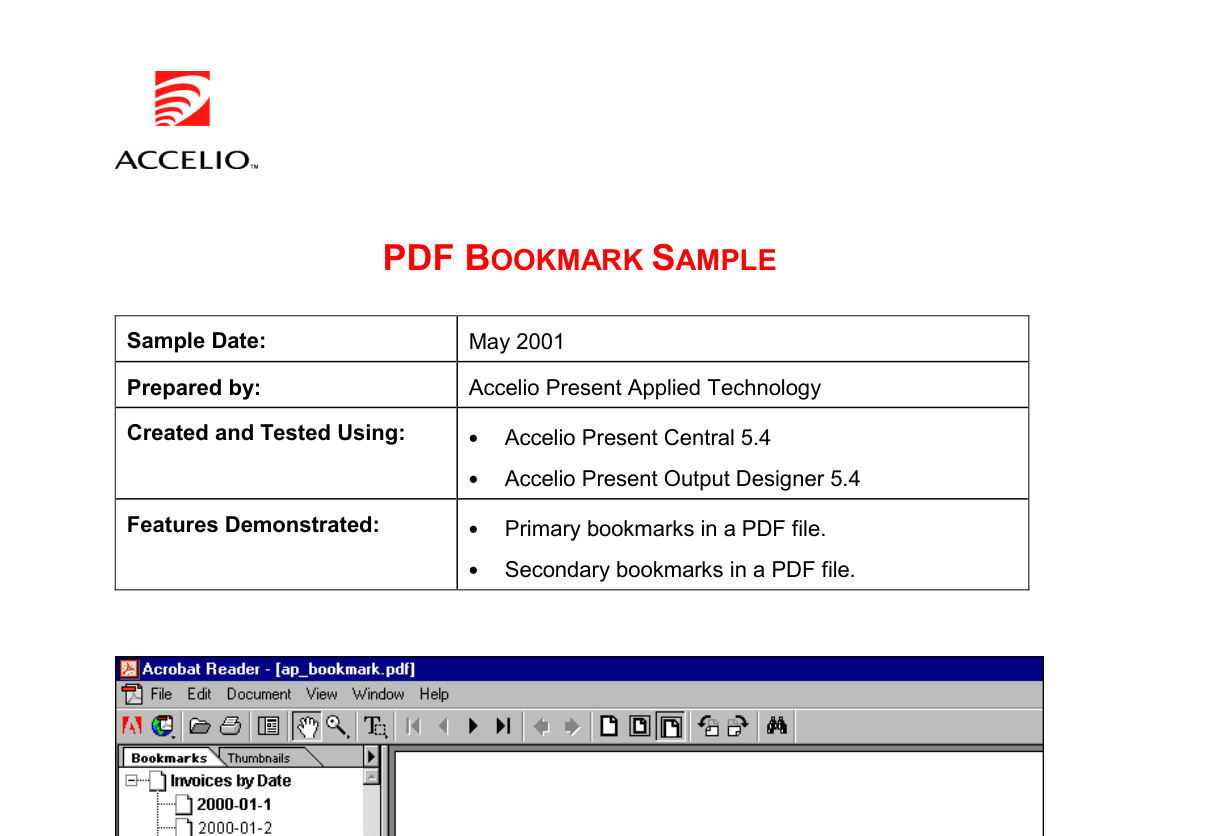
[Adobe's sample PDF](https://www.adobe.com/support/products/enterprise/knowledgecenter/media/c4611_sample_explain.pdf) is a 4-page test document that's been sitting on their servers for over 21 years. Good enough.
```python
import requests
pdf_url = "https://www.adobe.com/support/products/enterprise/knowledgecenter/media/c4611_sample_explain.pdf"
response = requests.get(pdf_url, stream=True)
if response.status_code == 200:
content_type = response.headers.get("Content-Type", "")
print(f"Content-Type: {content_type}")
with open("sample.pdf", "wb") as file:
total = 0
for chunk in response.iter_content(chunk_size=8192):
file.write(chunk)
total += len(chunk)
print(f"PDF saved: sample.pdf ({total:,} bytes)")
else:
print(f"Failed to download: {response.status_code}")
```
```
Content-Type: application/pdf
PDF saved: sample.pdf (88,226 bytes)
```
**`stream=True`** tells requests not to load the entire response body into memory. Instead, `iter_content(chunk_size=8192)` reads 8KB at a time and writes each chunk to disk as it arrives.
For an 88KB PDF, this doesn't matter much. For a 500MB research paper, it's the difference between your script working and your process getting killed.
### Verify the Download
The `Content-Type` header confirms the server is returning a PDF and not an HTML error page. If you get `text/html` instead of `application/pdf`, the server is probably redirecting you to a login page or returning a bot-detection challenge.
Streaming works for any large binary file. Video is where it matters most, and where you'll hit your first real-world blocker.
## Download Video Files
Videos are the largest files you'll deal with. Even a 5-second clip runs 3MB, and a full recording can hit gigabytes. Streaming isn't optional here.
### Stream a Video From a Direct URL
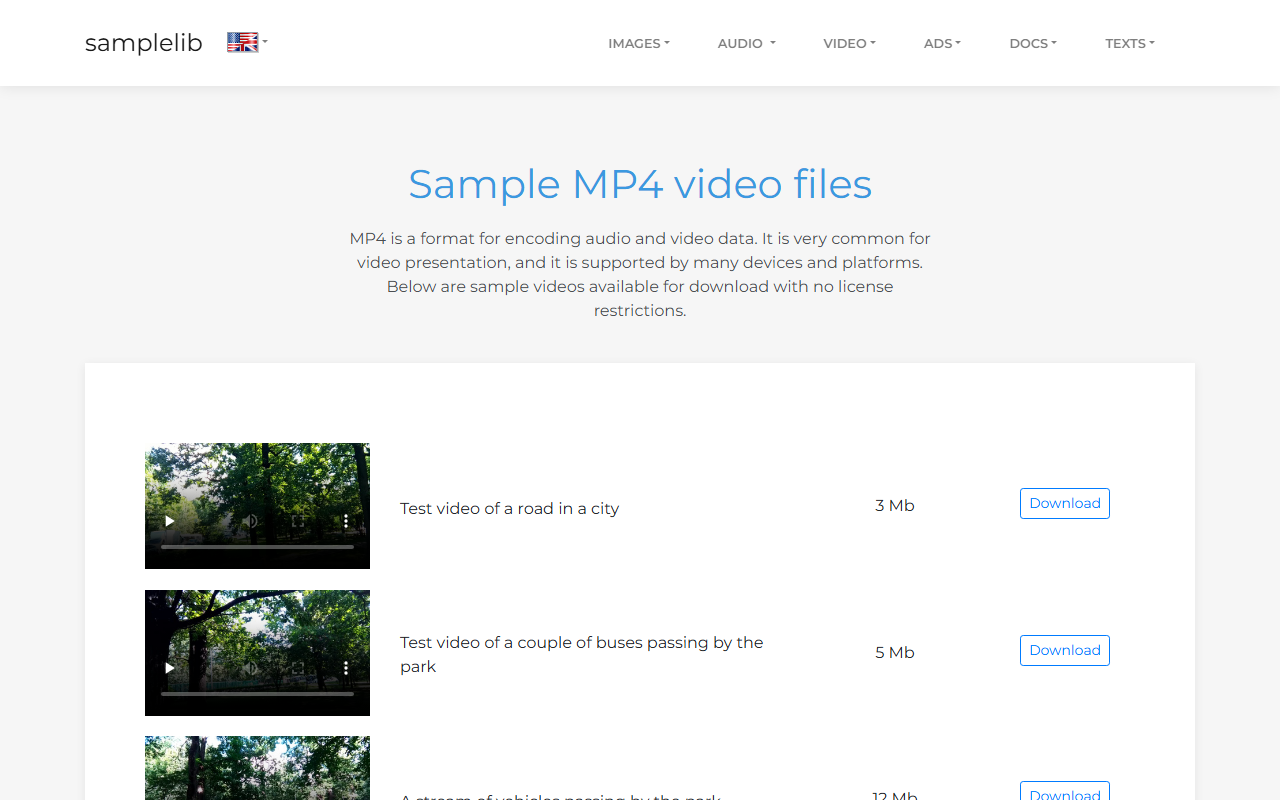
A [sample MP4 from samplelib.com](https://samplelib.com/sample-mp4.html), 5 seconds, about 2.8MB:
```python
import requests
video_url = "https://download.samplelib.com/mp4/sample-5s.mp4"
response = requests.get(video_url, stream=True)
if response.status_code == 200:
total_size = int(response.headers.get("Content-Length", 0))
downloaded = 0
with open("sample-5s.mp4", "wb") as file:
for chunk in response.iter_content(chunk_size=8192):
file.write(chunk)
downloaded += len(chunk)
if total_size:
percent = (downloaded / total_size) * 100
print(f"\rDownloading: {percent:.1f}%", end="")
print(f"\nVideo saved: sample-5s.mp4 ({downloaded:,} bytes)")
else:
print(f"Failed to download: {response.status_code}")
```
```
Downloading: 100.0%
Video saved: sample-5s.mp4 (2,848,208 bytes)
```
`Content-Length` gives the total file size upfront, so you can calculate a percentage. Same streaming pattern as the PDF section, just with a progress readout on top.
### When the Server Blocks You
Not every server hands you files willingly. Try `file-examples.com`:
```python
import requests
response = requests.get("https://file-examples.com/index.php/sample-video-files/")
print(f"Status: {response.status_code}")
```
```
Status: 403
```
**403 Forbidden.** The server detected a script, not a browser. A few reasons this happens:
* The default `User-Agent` header in **requests** identifies itself as `python-requests/x.x.x`, which is an obvious bot signature
* Some servers check TLS fingerprints, IP reputation, or request patterns
* Hotlink protection blocks direct file downloads from unknown referrers
The quick fix is adding a browser-like `User-Agent` header:
```python
headers = {"User-Agent": "Mozilla/5.0 (Windows NT 10.0; Win64; x64) AppleWebKit/537.36"}
response = requests.get(url, headers=headers)
```
This works on some sites. On others, you're up against IP bans, CAPTCHA walls, and TLS fingerprinting. That's where a [web scraping API](https://scrape.do/blog/best-web-scraping-api/) comes in.
**Scrape.do** routes requests through [rotating residential proxies](https://scrape.do/blog/cheap-rotating-proxies/) and handles browser fingerprinting automatically. Instead of managing headers, cookies, and proxy rotation yourself, one API call:
```python
import requests
import urllib.parse
TOKEN = ""
target = "https://file-examples.com/index.php/sample-video-files/"
encoded_url = urllib.parse.quote_plus(target)
api_url = f"https://api.scrape.do/?token={TOKEN}&url={encoded_url}&super=true"
response = requests.get(api_url)
print(f"Status: {response.status_code}")
```
The `super=true` parameter activates premium proxy rotation for sites with aggressive bot detection. The page that returned [403 Forbidden](https://scrape.do/blog/python-requests-403-forbidden/) now returns clean HTML, ready for parsing.
Binary files (images, PDFs, videos) use `response.content` and write in `"wb"` mode. HTML is text. Different approach.
## Save a Page as HTML
HTML is text, not binary. That changes how you write to disk: `response.text` instead of `response.content`, `"w"` mode instead of `"wb"`. Same product page from [web scraping](https://scrape.do/blog/web-scraping/) earlier, different output.
### Download Raw HTML
```python
import requests
page_url = "https://scrapingtest.com/ecommerce/product/7553957"
response = requests.get(page_url)
if response.status_code == 200:
with open("product-page.html", "w", encoding="utf-8") as file:
file.write(response.text)
print(f"HTML saved: product-page.html ({len(response.text):,} characters)")
else:
print(f"Failed to download: {response.status_code}")
```
```
HTML saved: product-page.html (34,064 characters)
```
What changed from the binary downloads:
* **`response.text`** instead of `response.content`. Python decodes the bytes into a string using the response's charset.
* **`"w"` mode** instead of `"wb"`. Text writing, not binary.
* **`encoding="utf-8"`** so special characters (accents, emojis, non-Latin scripts) survive the write.
Open the saved file in a browser and it renders the full product page, styles and all.
### When HTML Needs JavaScript Rendering
The scrapingtest.com page works because its content is server-rendered. Many modern sites load content dynamically with JavaScript. Your downloaded HTML would be an empty shell with a `
` tag:
```python
import requests
from bs4 import BeautifulSoup
from urllib.parse import urljoin, urlparse, parse_qs, unquote
page_url = "https://scrapingtest.com/ecommerce/product/7553957"
response = requests.get(page_url)
soup = BeautifulSoup(response.text, "html.parser")
images = soup.find_all("img")
print(f"Found {len(images)} images on the page\n")
for img in images:
src = img.get("src", "")
alt = img.get("alt", "no alt text")
# Next.js wraps real paths in /_next/image?url=...
if "/_next/image" in src:
parsed = urlparse(src)
real_path = parse_qs(parsed.query).get("url", [src])[0]
real_path = unquote(real_path)
full_url = urljoin(page_url, real_path)
else:
full_url = urljoin(page_url, src)
filename = full_url.split("/")[-1]
img_response = requests.get(full_url)
if img_response.status_code == 200:
with open(filename, "wb") as file:
file.write(img_response.content)
print(f"Saved: {filename} ({len(img_response.content):,} bytes) - {alt}")
else:
print(f"Failed: {filename} - {img_response.status_code}")
```
```
Found 3 images on the page
Saved: phone-guy-logo.svg (1,570,715 bytes) - Phone Guy Logo
Saved: 7553957.jpg (7,810 bytes) - moto g - 2025 128GB (Unlocked) - Forest Gray
Saved: 7553957.jpg (7,810 bytes) - Main
```
`urljoin` turns relative paths like `/phone-guy-logo.svg` into absolute URLs. The Next.js optimizer URLs need extra handling because the real image path is URL-encoded inside the `?url=` parameter. We decode it before downloading.
Images are binary files. So are PDFs, but they can run into hundreds of megabytes, and loading all of that into memory before writing is a problem.
## Download a PDF File
Same binary pattern as images, but for larger files you need to **stream** the response and write it in chunks.
### Stream a PDF Download
[Adobe's sample PDF](https://www.adobe.com/support/products/enterprise/knowledgecenter/media/c4611_sample_explain.pdf) is a 4-page test document that's been sitting on their servers for over 21 years. Good enough.

```python
import requests
pdf_url = "https://www.adobe.com/support/products/enterprise/knowledgecenter/media/c4611_sample_explain.pdf"
response = requests.get(pdf_url, stream=True)
if response.status_code == 200:
content_type = response.headers.get("Content-Type", "")
print(f"Content-Type: {content_type}")
with open("sample.pdf", "wb") as file:
total = 0
for chunk in response.iter_content(chunk_size=8192):
file.write(chunk)
total += len(chunk)
print(f"PDF saved: sample.pdf ({total:,} bytes)")
else:
print(f"Failed to download: {response.status_code}")
```
```
Content-Type: application/pdf
PDF saved: sample.pdf (88,226 bytes)
```
**`stream=True`** tells requests not to load the entire response body into memory. Instead, `iter_content(chunk_size=8192)` reads 8KB at a time and writes each chunk to disk as it arrives.
For an 88KB PDF, this doesn't matter much. For a 500MB research paper, it's the difference between your script working and your process getting killed.
### Verify the Download
The `Content-Type` header confirms the server is returning a PDF and not an HTML error page. If you get `text/html` instead of `application/pdf`, the server is probably redirecting you to a login page or returning a bot-detection challenge.
Streaming works for any large binary file. Video is where it matters most, and where you'll hit your first real-world blocker.
## Download Video Files
Videos are the largest files you'll deal with. Even a 5-second clip runs 3MB, and a full recording can hit gigabytes. Streaming isn't optional here.
### Stream a Video From a Direct URL
A [sample MP4 from samplelib.com](https://samplelib.com/sample-mp4.html), 5 seconds, about 2.8MB:

```python
import requests
video_url = "https://download.samplelib.com/mp4/sample-5s.mp4"
response = requests.get(video_url, stream=True)
if response.status_code == 200:
total_size = int(response.headers.get("Content-Length", 0))
downloaded = 0
with open("sample-5s.mp4", "wb") as file:
for chunk in response.iter_content(chunk_size=8192):
file.write(chunk)
downloaded += len(chunk)
if total_size:
percent = (downloaded / total_size) * 100
print(f"\rDownloading: {percent:.1f}%", end="")
print(f"\nVideo saved: sample-5s.mp4 ({downloaded:,} bytes)")
else:
print(f"Failed to download: {response.status_code}")
```
```
Downloading: 100.0%
Video saved: sample-5s.mp4 (2,848,208 bytes)
```
`Content-Length` gives the total file size upfront, so you can calculate a percentage. Same streaming pattern as the PDF section, just with a progress readout on top.
### When the Server Blocks You
Not every server hands you files willingly. Try `file-examples.com`:
```python
import requests
response = requests.get("https://file-examples.com/index.php/sample-video-files/")
print(f"Status: {response.status_code}")
```
```
Status: 403
```
**403 Forbidden.** The server detected a script, not a browser. A few reasons this happens:
* The default `User-Agent` header in **requests** identifies itself as `python-requests/x.x.x`, which is an obvious bot signature
* Some servers check TLS fingerprints, IP reputation, or request patterns
* Hotlink protection blocks direct file downloads from unknown referrers
The quick fix is adding a browser-like `User-Agent` header:
```python
headers = {"User-Agent": "Mozilla/5.0 (Windows NT 10.0; Win64; x64) AppleWebKit/537.36"}
response = requests.get(url, headers=headers)
```
This works on some sites. On others, you're up against IP bans, CAPTCHA walls, and TLS fingerprinting. That's where a [web scraping API](https://scrape.do/blog/best-web-scraping-api/) comes in.
**Scrape.do** routes requests through [rotating residential proxies](https://scrape.do/blog/cheap-rotating-proxies/) and handles browser fingerprinting automatically. Instead of managing headers, cookies, and proxy rotation yourself, one API call:
```python
import requests
import urllib.parse
TOKEN = ""
target = "https://file-examples.com/index.php/sample-video-files/"
encoded_url = urllib.parse.quote_plus(target)
api_url = f"https://api.scrape.do/?token={TOKEN}&url={encoded_url}&super=true"
response = requests.get(api_url)
print(f"Status: {response.status_code}")
```
The `super=true` parameter activates premium proxy rotation for sites with aggressive bot detection. The page that returned [403 Forbidden](https://scrape.do/blog/python-requests-403-forbidden/) now returns clean HTML, ready for parsing.
Binary files (images, PDFs, videos) use `response.content` and write in `"wb"` mode. HTML is text. Different approach.
## Save a Page as HTML
HTML is text, not binary. That changes how you write to disk: `response.text` instead of `response.content`, `"w"` mode instead of `"wb"`. Same product page from [web scraping](https://scrape.do/blog/web-scraping/) earlier, different output.
### Download Raw HTML
```python
import requests
page_url = "https://scrapingtest.com/ecommerce/product/7553957"
response = requests.get(page_url)
if response.status_code == 200:
with open("product-page.html", "w", encoding="utf-8") as file:
file.write(response.text)
print(f"HTML saved: product-page.html ({len(response.text):,} characters)")
else:
print(f"Failed to download: {response.status_code}")
```
```
HTML saved: product-page.html (34,064 characters)
```
What changed from the binary downloads:
* **`response.text`** instead of `response.content`. Python decodes the bytes into a string using the response's charset.
* **`"w"` mode** instead of `"wb"`. Text writing, not binary.
* **`encoding="utf-8"`** so special characters (accents, emojis, non-Latin scripts) survive the write.
Open the saved file in a browser and it renders the full product page, styles and all.
### When HTML Needs JavaScript Rendering
The scrapingtest.com page works because its content is server-rendered. Many modern sites load content dynamically with JavaScript. Your downloaded HTML would be an empty shell with a `