# Ultimate Guide to G2 Scraping - Reviews, Company Data, Categories
> Source: https://scrape.do/blog/g2-scraping/
Published: 2025-01-20 · Updated: 2025-01-20 · Authors: Raif Tekin · Categories: Scraping Use Cases
Scraping G2 data—whether it’s reviews, company details, or industry-specific categories—can unlock critical insights for your business. But as G2 transitions to advanced anti-bot measures like Datadome, this task becomes increasingly complex.
In this guide, you’ll learn how to overcome these challenges using tools like Python’s `requests`, `BeautifulSoup`, and the Scrape.do API. Whether you’re after detailed reviews or an overview of key categories, we’ll walk you through everything you need to extract the data you want, ethically and efficiently.
Let’s dive in and explore how to bypass G2’s defenses and scrape valuable data.
[Find fully-functioning code files on this repository ⚙](https://github.com/scrape-do/scrapedo-scrapers/tree/main/g2-scraper)
## Bypassing G2's WAF
G2 has made scraping its website significantly more challenging by transitioning from **Cloudflare** to **Datadome** for its Web Application Firewall (WAF). This switch reflects G2's commitment to safeguarding its valuable data, but it also poses new hurdles for scrapers.
### What Does Datadome Mean for Scrapers?
1. **Sophisticated Detection Algorithms**
Unlike traditional WAFs, Datadome uses AI to detect scraping attempts by analyzing fine-grained details such as SSL/TLS fingerprints, request headers, and behavioral patterns. This makes standard techniques like simple proxy rotation or user-agent spoofing largely ineffective.
2. **Dynamic Bot Mitigation**
Datadome adapts in real-time, introducing advanced challenges like complex CAPTCHAs, session tracking, and response delays to thwart bots. Scrapers must keep pace with these evolving countermeasures.
3. **Higher Costs of Manual Workarounds**
Bypassing Datadome manually requires sophisticated setups, including high-quality proxy pools, advanced header management, and CAPTCHA-solving capabilities. This increases the time, cost, and effort needed for effective scraping.
### How to Overcome Datadome with Ease
To navigate these defenses without sacrificing efficiency, a reliable Web Scraping API like **Scrape.do** is essential. Here's why:
* **Dynamic TLS Fingerprinting**: Scrape.do dynamically adjusts TLS fingerprints to match real user behavior, bypassing low-level fingerprinting defenses.
* **CAPTCHA Handling**: Automated CAPTCHA-solving ensures uninterrupted scraping, even against frequent challenges.
* **Adaptive Proxy Rotation**: With access to 150M+ proxies, Scrape.do seamlessly switches IPs, making detection nearly impossible.
In this guide, we'll use **Scrape.do** to bypass Datadome and scrape valuable data from G2 effortlessly. Let's dive in!
## Scraping Company Information from G2
### Step 1: Setting Up the Scrape.do API Call
To bypass G2's Datadome WAF, we use Scrape.do for routing requests through a reliable proxy and bypassing anti-bot mechanisms.
```python
import requests
from bs4 import BeautifulSoup
import urllib.parse
# Scrape.do token and target URL
token = "your_scrape_do_token" # Replace with your Scrape.do token
url = urllib.parse.quote_plus("https://www.g2.com/products/monday-com")
# API call
api_url = f"https://api.scrape.do/?token={token}&url={url}&geoCode=us"
response = requests.get(api_url)
html_content = ""
```
* **What this does:**
* Encodes the target URL (`monday-com` product page).
* Constructs an API URL with Scrape.do, including a `geoCode` for localized scraping.
* Sends the GET request via Scrape.do.
* **Error Handling:** If the request fails, we will print the status code for troubleshooting.
```python
# Check if the request is successful and store the contents
if response.status_code == 200:
html_content = response.text
print("Page fetched successfully!")
else:
print(f"Failed to fetch page. Status: {response.status_code}")
```
### Step 2: Parsing Product Information
Once we retrieve the HTML content, we will parse it using BeautifulSoup to extract key company details.
Before starting the extraction process we need to locate the information that is necessary inside the company page we just downloaded. We can either use the `html_content` that we downloaded in previous step or we can go into the company page through our browser and use developer tools to inspect the elements.
You can use `F12` to access the developer tools on Google Chrome and press `ctrl + shift + c` to inspect the element you want. We will select and inspect the company name element as a first step.
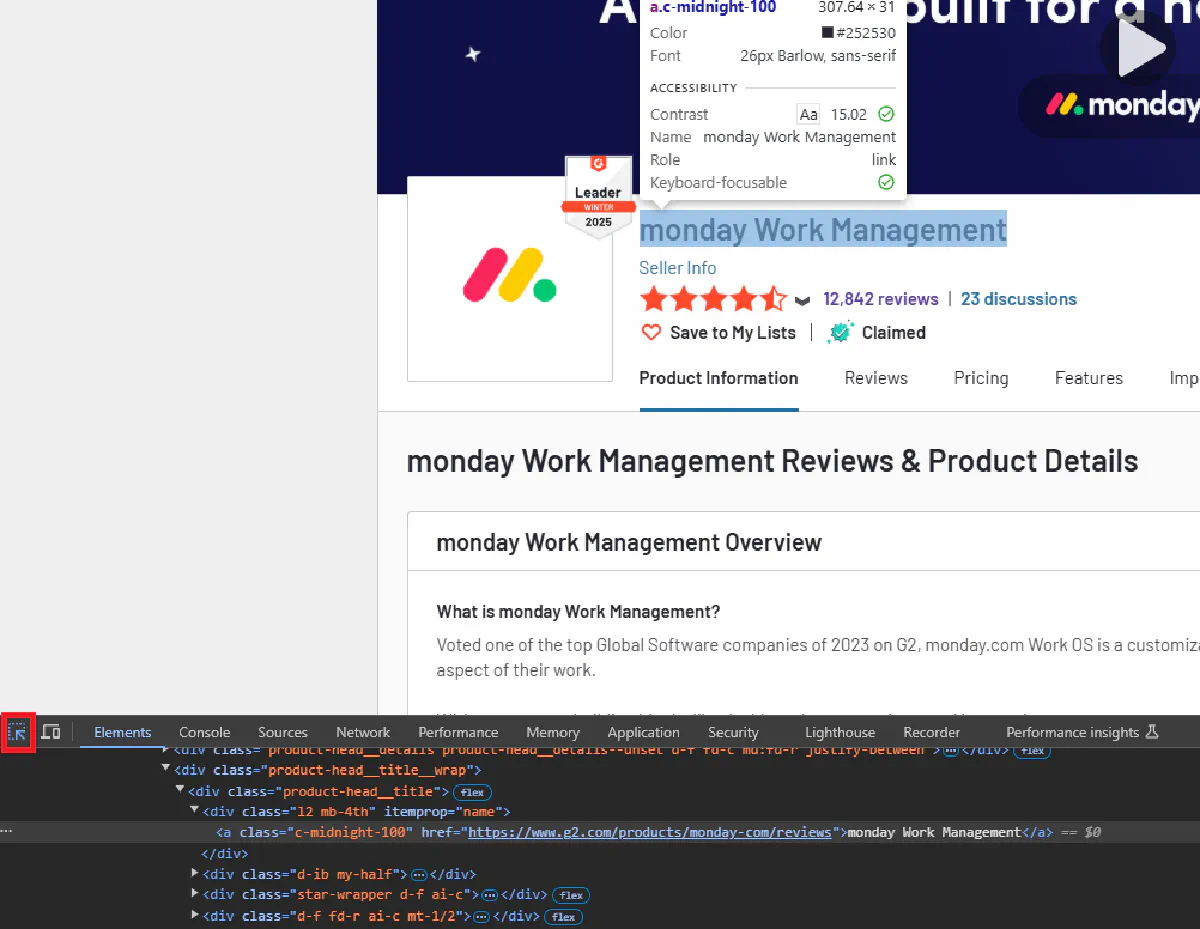
We should be looking for a html element that encapsulates the information that we are trying to access. For this example the `div` object with `product-head__title` class contains all of the necessary parts for the company name but it also encapsulates other information which we want to omit. We will use the second `div` that is inside this object and access it using `itemprop` attribute to single out exactly what we need.
We can achieve this using this code piece:
```python
product_name = soup.find('div', class_='product-head__title').select_one('div[itemprop="name"]').text.strip()
```
Now that we know how to pinpoint the data we are after, we will use the same steps for other information as well. G2 is using generic class names and avoid giving meaningful `id`s to html elements to make this step harder but we will be exploring how to bypass these obstacles as we continue with this tutorial.
#### Extracting Basic Information
Let's apply what we learned in previous steps to cover other data that we are trying to access. Also to be able to handle the cases where the data is not available, we will assign default values for each option. We will achieve this using `try-except` blocks as follows:
```python
if html_content:
# Parse the data
soup = BeautifulSoup(html_content, 'html.parser')
product_name = soup.find('div', class_='product-head__title').select_one('div[itemprop="name"]').text.strip()
try:
product_website = soup.find('input', id='secure_url')['value']
except TypeError:
product_website = "Not available"
try:
product_logo = soup.find('img', class_='js-product-img')['src']
except TypeError:
product_logo = "Not available"
try:
review_count = soup.find('h3', class_='mb-half').text.strip()
except TypeError:
review_count = "0"
try:
review_rating = soup.find('span', class_='fw-semibold').text.strip()
except TypeError:
review_rating = "Not available"
```
* **What each field does:**
* `product_name`: Extracts the product name using the `itemprop="name"` attribute.
* `product_website`: Retrieves the official website URL.
* `product_logo`: Extracts the logo image URL.
* `review_count`: Captures the total number of reviews.
* `review_rating`: Extracts the overall rating (e.g., 4.5/5).
#### **Extracting Pricing Information**
Pricing data is found in multiple cards, each containing details like plan name, unit (e.g., USD), and price. Also we need to take edge cases into account where price is not readily available and money unit is not present due to price not being available. This section will handle all possible cases by ensuring that we get all available data and allow our program to avoid crashing even the data is absent.
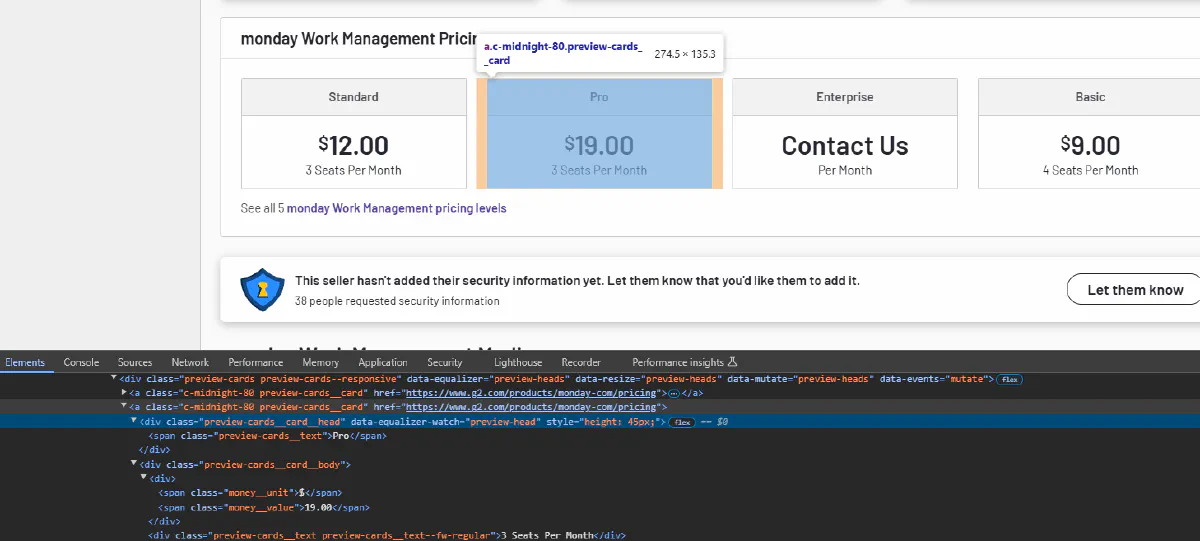
After inspecting the structure of this section we can handle each plan with following loop:
```python
# Extract pricing for each option
pricing_info = []
for tag in soup.find_all('a', class_='preview-cards__card'):
head = tag.find('div', class_='preview-cards__card__head').text.strip()
money_unit = tag.find('span', class_='money__unit')
money_value = tag.find('span', class_='money__value').text.strip()
if money_unit:
money_unit_text = money_unit.text.strip()
pricing_info.append(f"{head} - {money_unit_text}{money_value}")
else:
pricing_info.append(f"{head} - {money_value}")
```
* **Logic:**
* Extracts the pricing plan name (`head`).
* Retrieves the currency unit (`money_unit`) and price value (`money_value`).
* Combines the information into a single readable format.
#### **Extracting Pros and Cons**
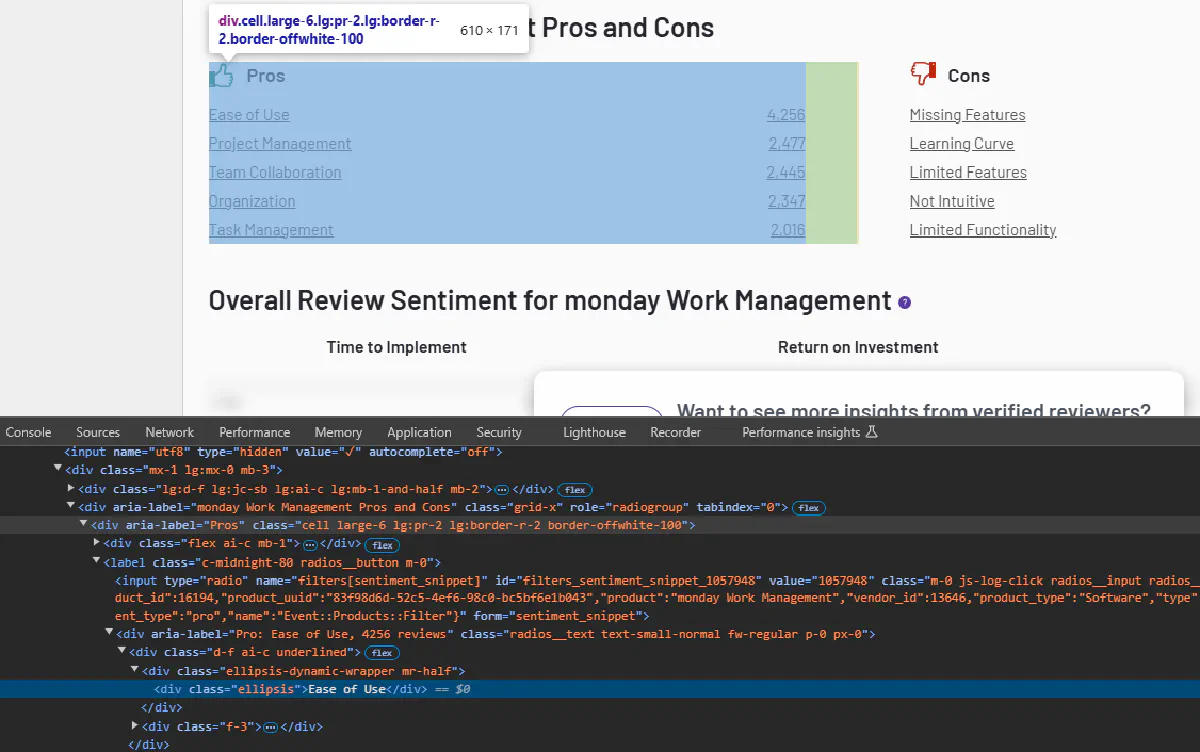
As we can see in this image all of the Pros and Cons items share `ellipsis` as a class. We will turn this information into a list by accessing each section separately and looping through items with `ellipsis` class.
```python
pros = [tag.text.strip() for tag in soup.select_one('div[aria-label="Pros"]').find_all('div', class_='ellipsis')]
cons = [tag.text.strip() for tag in soup.select_one('div[aria-label="Cons"]').find_all('div', class_='ellipsis')]
```
* **Logic:**
* `Pros`: Loop through and store user-provided pros listed under the "Pros" section.
* `Cons`: Loop through and store user-provided cons listed under the "Cons" section.
### **Step 3: Displaying the Results**
Once all data is extracted, we will print the results for validation. Optionally we can output these results into a file but since we are only working with a single page, we will be outputting our results into our console. Don't worry we will also cover how to output this data into csv files efficiently in next sections where we will have bigger datasets!
```python
# Output the results
print(f"Product Name: {product_name}")
print(f"Website: {product_website}")
print(f"Logo URL: {product_logo}")
print(f"Review Count: {review_count}")
print(f"Rating: {review_rating}")
print(f"Pricing: {pricing_info}")
print(f"Pros: {pros}")
print(f"Cons: {cons}")
```
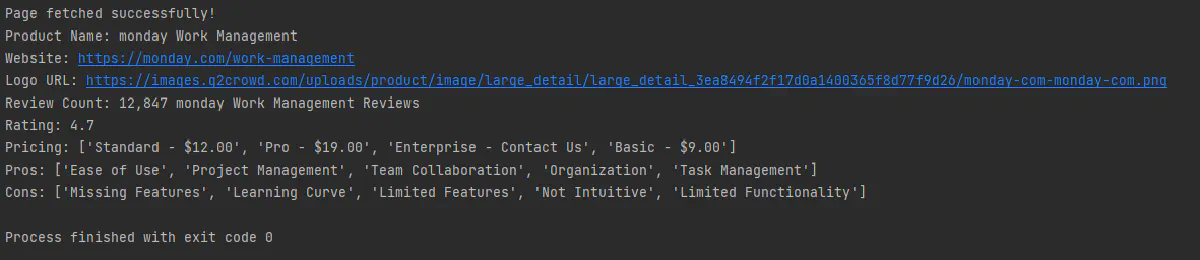
### Final Output Example
## Scraping G2 Reviews
### Step 1: Setting Up the Base Variables
Let's start with defining the base URL, Scrape.do token, and the output file for storing the reviews.
```python
import requests
from bs4 import BeautifulSoup
import urllib.parse
import csv
base_url = "https://www.g2.com/products/breeze-llc-breeze/reviews"
token = "your_scrape_do_token" # Replace with your token
page = 1
# Define CSV output file and header
output_file = "reviews.csv"
csv_headers = ["Reviewer", "Title", "Industry", "Review Title", "Rating", "Content"]
```
* **Purpose:**
* `base_url`: The product's G2 reviews page.
* `token`: Your Scrape.do token for bypassing WAFs.
* `page`: Current review page that we are currently on.
* `output_file`: Specifies the file where scraped data will be saved in CSV format.
* `csv_headers`: Defines the headers for the CSV file.
### Step 2: Fetching a Review Page
We will create a function to fetch a specific page of reviews for re-usability.
```python
# Function to fetch review page
def fetch_review_page(page_number):
url = urllib.parse.quote_plus(f"{base_url}?page={page_number}")
api_url = f"https://api.scrape.do/?token={token}&url={url}&geoCode=us"
response = requests.get(api_url)
return response.text if response.status_code == 200 else None
```
* **Logic:**
* `urllib.parse.quote_plus`: Ensures the URL is encoded for safe transmission.
* Constructs an API call with Scrape.do, passing the page number and `geoCode` for localization.
* Checks the response status and returns the HTML content if successful.
### Step 3: Processing a Review
Also let's create another function to process a single review so we can use it while we are looping through each review. We will use the developer tools once again and inspect the html stucture so we can decide how we can refer to each information that we are trying to collect.
We will also need to take additional steps to cover for the edge cases where the html structure differentiate depending on some factors. For example; when the author of the review doesn't want to specify their name their placeholder name is stored inside a `div` object instead of a `span` object. You will be able to see all of the necessary adaptations that we need to make for these cases in the following code but before doing so we need to make a special mention.
For the review ratings, G2 is not showing any numeric value but representing the rating in terms of stars. This representation only allow ratings to have certain values as follows.
`(0, 0.5, 1, ..., 4.5, 5)`
We will need to convert this visual representation into numeric values so it is in a more actionable format and it is possible to store them in a text file. Let's start with inspecting these stars:
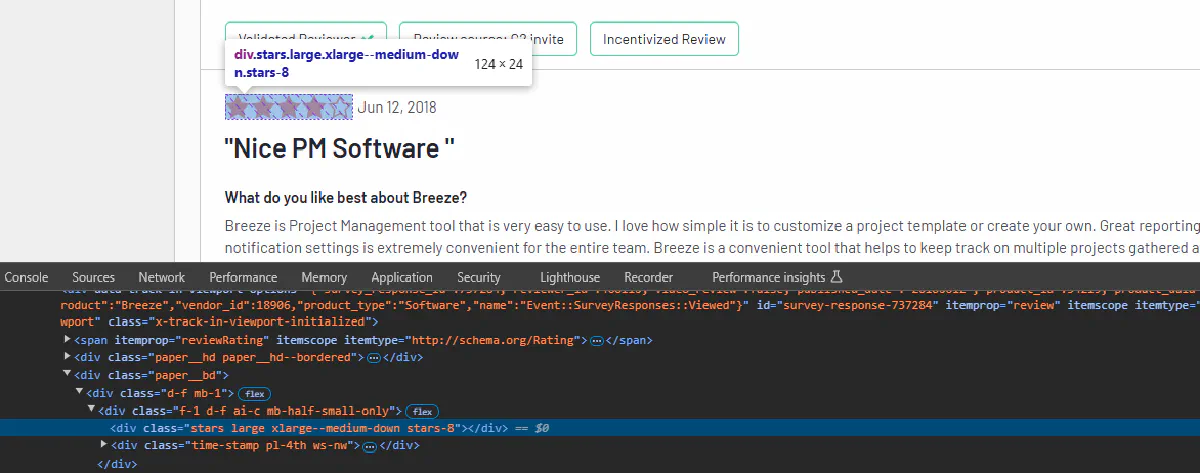
We can access these stars using `stars` class but more importantly we have a numerical represantation of the review rating in another class, namely `stars-8`. Which means 4 full stars or half of the number we have in this class. Let's select this object with `stars` class inside our review:
```python
star = r.find('div', class_='stars')
```
Now we will find the last class that this object has which will allow us to calculate a numerical rating. We can find the last class as follows:
```python
star["class"][len(star)-1]
```
This will give us `stars-8` class and only thing we need to do is split this text by the `-` character and divide the numeric value with `2`.
```python
rating = float(float(star["class"][len(star)-1].split("-")[1]) / 2)
```
This should give us the rating of the review as a `float`. Now let's craft our complete function to process a single review and return the information we gather:
```python
# Function to process and return review details
def process_review(r):
try:
reviewer_name = r.select_one('span[itemprop="author"]').text.strip()
except Exception:
reviewer_name = r.select_one('div[itemprop="author"]').text.strip().split("Information")[0]
title = r.find('div', class_='c-midnight-80').find_all('div', class_='mt-4th')[0].text.strip()
try:
industry = r.find('div', class_='c-midnight-80').find_all('div', class_='mt-4th')[1].text.strip()
except:
industry = "-"
review_title = r.select_one('div[itemprop="name"]').text.strip()
star = r.find('div', class_='stars')
rating = float(float(star["class"][len(star)-1].split("-")[1]) / 2)
content = r.select_one('div[itemprop="reviewBody"]').text.strip()
return {
"Reviewer": reviewer_name,
"Title": title,
"Industry": industry,
"Review Title": review_title,
"Rating": rating,
"Content": content
}
```
* **What It Extracts:**
* `reviewer_name`: The name of the reviewer.
* `title`: The reviewer's title (e.g., Marketing Manager).
* `industry`: The industry of the reviewer.
* `review_title`: The title of the review.
* `rating`: Converts star ratings to a numeric value (e.g., 4.5).
* `content`: The body of the review.
* **Fallback Handling:**
* Handles missing fields with default values or alternate methods.
### Step 4: Writing Data to CSV
We have all of the functions we need and it is time to navigate the review section page by page. We will output each review into a `csv` file as we are iterating through each page. We will break this loop when we don't have any review left to process. `page` variable will be incremented with each loop until we cover all available review pages.
```python
# Open CSV file and write data
with open(output_file, mode="w", newline="", encoding="utf-8") as csv_file:
writer = csv.DictWriter(csv_file, fieldnames=csv_headers)
writer.writeheader() # Write CSV headers
while True:
html_content = fetch_review_page(page)
if not html_content:
break
soup = BeautifulSoup(html_content, 'html.parser')
reviews = soup.find('div', class_="nested-ajax-loading").find_all('div', class_='paper')
if not reviews:
break
for review in reviews:
review_data = process_review(review)
writer.writerow(review_data) # Write review data to CSV
page += 1
print(f"Reviews exported to {output_file}")
```
* **Steps:**
* Opens the CSV file for writing.
* Calls `fetch_review_page` to retrieve HTML for the current page.
* Parses reviews using BeautifulSoup.
* For each review, calls `process_review` to extract details.
* Writes the processed review data to the CSV file.
### Final Output
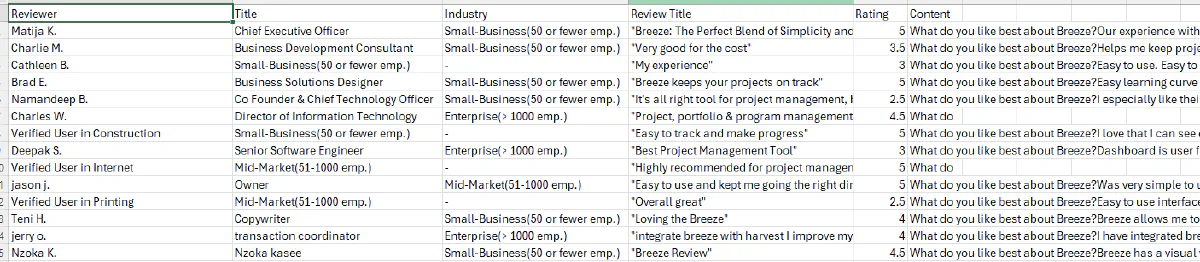
After running the script, the reviews should be saved in `reviews.csv`:
## Scraping G2 Categories
### Step 1: Setting Up Variables and Dependencies
Once again, let's define the necessary base variables and the output file.
```python
import requests
from bs4 import BeautifulSoup
import urllib.parse
import csv
token = "your_scrape_do_token" # Replace with your Scrape.do token
page = 1
# Define CSV output file and header
output_file = "categories.csv"
csv_headers = ["Company", "Logo", "Review Link", "Description", "Industries", "Pros", "Cons"]
```
* **Purpose:**
* `token`: Your Scrape.do token for bypassing G2’s WAF.
* `page`: Tracks the current page of category items being scraped.
* `output_file`: The file where the scraped data will be saved.
* `csv_headers`: Defines the headers for the CSV file.
### Step 2: Fetching a Category Page
We will also create a function to fetch a specific page of given category again.
```python
# Function to fetch category page
def fetch_category_page(page_number):
category_url = urllib.parse.quote_plus(f"https://www.g2.com/categories/project-management?page={page_number}")
api_url = f"https://api.scrape.do/?token={token}&url={category_url}&geoCode=us"
response = requests.get(api_url)
return response.text if response.status_code == 200 else None
```
* **Logic:**
* Constructs the API URL with Scrape.do to fetch a specific page.
* Encodes the category URL using `urllib.parse.quote_plus`.
* Sends the GET request and returns the page content if successful.
### Step 3: Processing Category Items
Now it is time to inspect and locate the information that we are interested. Once we figure out how to refer to each data we will create a function to process each category item so we can use it while we are looping through category pages.
You will find all necessary attributes we have to use to access this data in the following script but once again we will take a detailed look into one of the more difficult informations to access.
For the category items, product descriptions are not fully shown when the page loads and users need to expand the area using the `Show More` button. Even though we can simulate this behaviour by clicking these buttons programatically it would be more convenient to find a way around this necessity.
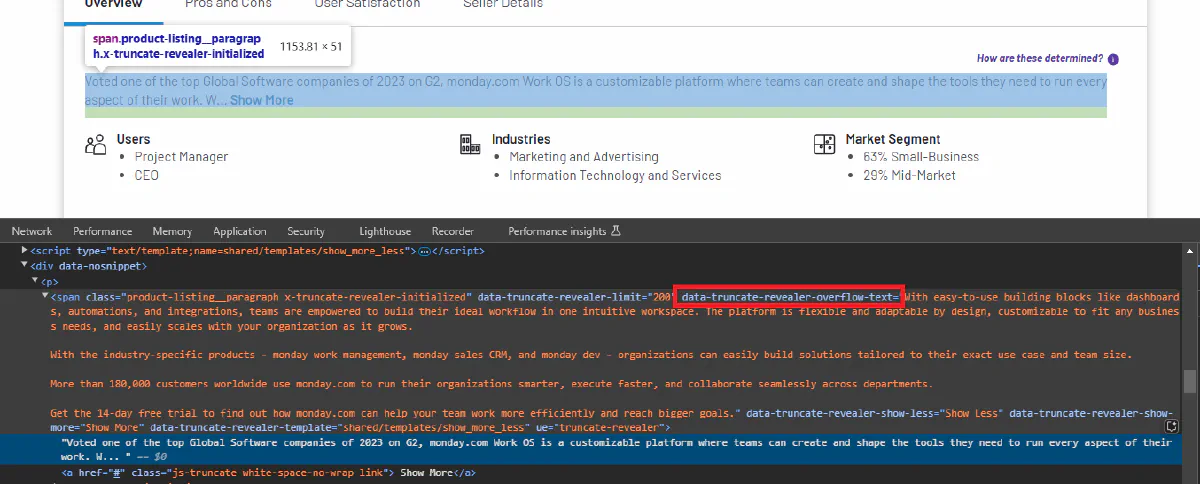
As we can see, the text that will be shown after `Show More` button is pressed stored in the `data-truncate-revealer-overflow-text` attribute. If we append the object's text with this attribute we can get complete description section without the need of pressing the button! We can do this as follows:
```python
description = i.find('span', class_='product-listing__paragraph').text.strip() + \
i.find('span', class_='product-listing__paragraph')['data-truncate-revealer-overflow-text']
```
Since there is no guarantee of every category item containing all of the information we are after, we will use `try-except` blocks once again to assign default values when any of the data is not provided by the company. Let's take a look into our final function to process a single category item:
```python
# Function to process and return category item details
def process_category_item(i):
company_name = i.find('div', class_='product-card__product-name').text.strip()
try:
company_logo = i.select_one('img[itemprop="image"]')['data-deferred-image-src']
except AttributeError:
company_logo = "Not available"
except KeyError:
company_logo = "Not available"
review_link = i.find('a', class_='js-log-click')['href']
try:
description = i.find('span', class_='product-listing__paragraph').text.strip() + \
i.find('span', class_='product-listing__paragraph')['data-truncate-revealer-overflow-text']
except AttributeError:
description = "Not available"
industries = [tag.text.strip() for tag in i.find_all('div', class_='cell')[1].find_all('li')]
try:
pros = [tag.text.strip() for tag in i.select_one('div[aria-label="Pros"]').find_all('div', class_='ellipsis')]
except AttributeError:
pros = []
try:
cons = [tag.text.strip() for tag in i.select_one('div[aria-label="Cons"]').find_all('div', class_='ellipsis')]
except AttributeError:
cons = []
return {
"Company": company_name,
"Logo": company_logo,
"Review Link": review_link,
"Description": description,
"Industries": ", ".join(industries),
"Pros": "; ".join(pros),
"Cons": "; ".join(cons)
}
```
* **What It Extracts:**
* `company_name`: The name of the company.
* `company_logo`: The URL of the company’s logo image.
* `review_link`: The link to the company’s review page on G2.
* `description`: A short description of the company/product.
* `industries`: Industries served by the company.
* `pros` and `cons`: Lists of user-submitted pros and cons.
* **Error Handling:**
* Handles missing fields (e.g., logos, descriptions) gracefully by assigning default values like `"Not available"`.
### Step 4: Writing Data to CSV
We have our necessary functions ready and it is time to loop through each category page. We will output each company/product into a `csv` file as we are iterating through each page. We will continue this loop until we don't have any category items left to process.
```python
# Open CSV file and write data
with open(output_file, mode="w", newline="", encoding="utf-8") as csv_file:
writer = csv.DictWriter(csv_file, fieldnames=csv_headers)
writer.writeheader() # Write CSV headers
while True:
html_content = fetch_category_page(page)
if not html_content:
break
soup = BeautifulSoup(html_content, 'html.parser')
category_items = soup.find_all('div', class_='segmented-shadow-card')
if not category_items:
break
for item in category_items:
category_data = process_category_item(item)
writer.writerow(category_data) # Write category data to CSV
page += 1
print(f"Categories exported to {output_file}")
```
* **Steps:**
* Opens the CSV file and writes the headers.
* Calls `fetch_category_page` to retrieve the HTML for the current page.
* Parses the category items on the page using BeautifulSoup.
* Calls `process_category_item` to extract details for each item.
* Writes the extracted data to the CSV file.
* Increments the page number and continues until no more items are found.
### Final Output
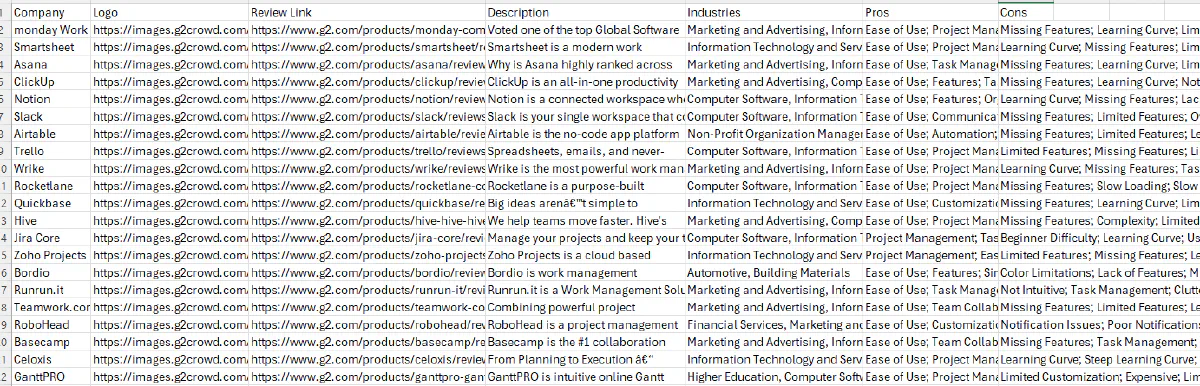
After running the script, we should have our categories saved in `categories.csv`:
## Conclusion
G2 scraping might seem daunting, but with the right tools and strategies, it becomes a manageable—and even rewarding—task.
From bypassing Datadome’s WAF to extracting company data, reviews, and categories, this guide equips you with actionable steps to gather critical insights.
Take your scraping to the next level with Scrape.do.
*Why?*
* **99\.98% success rate** ensures reliable results.
* Effortlessly bypass advanced anti-bot defenses like Datadome.
* **Automated proxy rotation** and CAPTCHA handling mean you can focus on the data, not the technical hurdles.
[Get started for free with 1,000 credits today!](https://dashboard.scrape.do/sign-up)